How to Auto-Generate Certificates from Microsoft Forms

Auto-Generate Certificates from Microsoft Forms
You just wrapped a training session. Forty-five people submitted your Microsoft Forms survey. Now you open Word, type each name by hand, export forty-five PDFs, and email them one by one.
That is the Microsoft Forms certificate problem. It is invisible until scale hits, and then it takes over your afternoon.
Microsoft Forms is one of the most widely used survey and quiz tools inside Microsoft 365, trusted by HR teams, educators, compliance managers, and event organizers worldwide. It collects responses brilliantly. But Microsoft Forms certificates do not exist as a native feature. Microsoft's own community moderators confirm this directly, with over 40 users flagging the exact same problem.
Wauld closes that gap. Connect Microsoft Forms to Wauld and every new submission automatically triggers a personalized, branded, verifiable certificate delivered straight to the recipient's inbox. No manual work. No coding required.
Why Microsoft Forms Cannot Generate Certificates
Microsoft Forms is built to collect data. When someone submits your form, they get a confirmation screen. You get a new row in an Excel spreadsheet stored in OneDrive or SharePoint.
There is no native way to turn that response into a branded completion certificate or verifiable digital credential. As a Microsoft moderator confirmed in this Q&A thread, no built-in feature exists for this.
Two things worth knowing before choosing a method:
- Microsoft Forms has no direct Zapier integration. The Zapier community confirms this. The workaround is to save form responses to the live Excel workbook first, then use Excel as the trigger.
- The Power Automate HTTP connector is premium. The Microsoft Forms connector in Power Automate is standard and included in most Microsoft 365 plans. But the HTTP action needed to reach Wauld's webhook is a premium connector requiring a paid license.
The Excel bridge is the practical path for most teams. No premium license. Works on any Microsoft 365 plan.
Microsoft Forms Certificate Use Cases
Course, Training, and Compliance Certificates
A learner completes your course, submits a Microsoft Form, and receives a personalized training certificate automatically within 60 seconds. This works for compliance programs, HR onboarding, workforce training, and any self-paced learning flow where Microsoft Forms handles the final step.
Microsoft Forms Quiz Certificates
Microsoft Forms supports scored quizzes with automatic grading. When connected to Wauld, different certificate templates can route based on the score:
- Pass threshold met: A course completion certificate is issued and emailed automatically
- Top scorer: A distinction-level certificate routes from a separate template
- Below threshold: A retake email is sent instead of a certificate
Webinar, Event, and Membership Certificates
Post-event surveys on Microsoft Forms trigger personalized attendance certificates the moment someone submits. This pairs naturally with Microsoft Teams webinar certificates. Associations using Microsoft Forms for member onboarding can trigger a membership certificate automatically from every submission, with higher education credentials supported for universities and colleges too.
Why Wauld: What You Get Beyond a PDF
Most Microsoft Forms certificate workarounds stop at a static PDF. Wauld turns every certificate into a live, hosted digital credential.
Recipients get:
| Feature | What It Means |
|---|---|
| QR Verification Code | Employers scan it to confirm authenticity instantly |
| Hosted Verification Page | A permanent public link that never expires |
| Credential Wallet | All Wauld certificates in one shareable place |
| LinkedIn Sharing | One click to add to their profile |
| PDF and PNG Download | Ready for resumes, portfolios, and print |
Issuers get from the Wauld dashboard: real-time engagement analytics, verification scan tracking, one-click credential management, 900+ certificate templates, and digital badges for micro-credentials alongside certificates.
Read LMS Certificates vs Digital Credentialing Platforms to see how this compares to native LMS tools.
How to Set Up Microsoft Forms Certificate Automation with Wauld
Three methods. Pick the one that fits your setup.
Method 1: Microsoft Forms to Excel to Wauld (Recommended)
Best for: Ongoing programs where certificates should go out automatically after each submission. No premium license needed.
When you go to View Responses in Microsoft Forms and select Open in Excel, Forms creates a live-linked workbook in OneDrive. Every new submission adds a new row automatically. Wauld monitors that workbook and issues a certificate the moment a row appears.
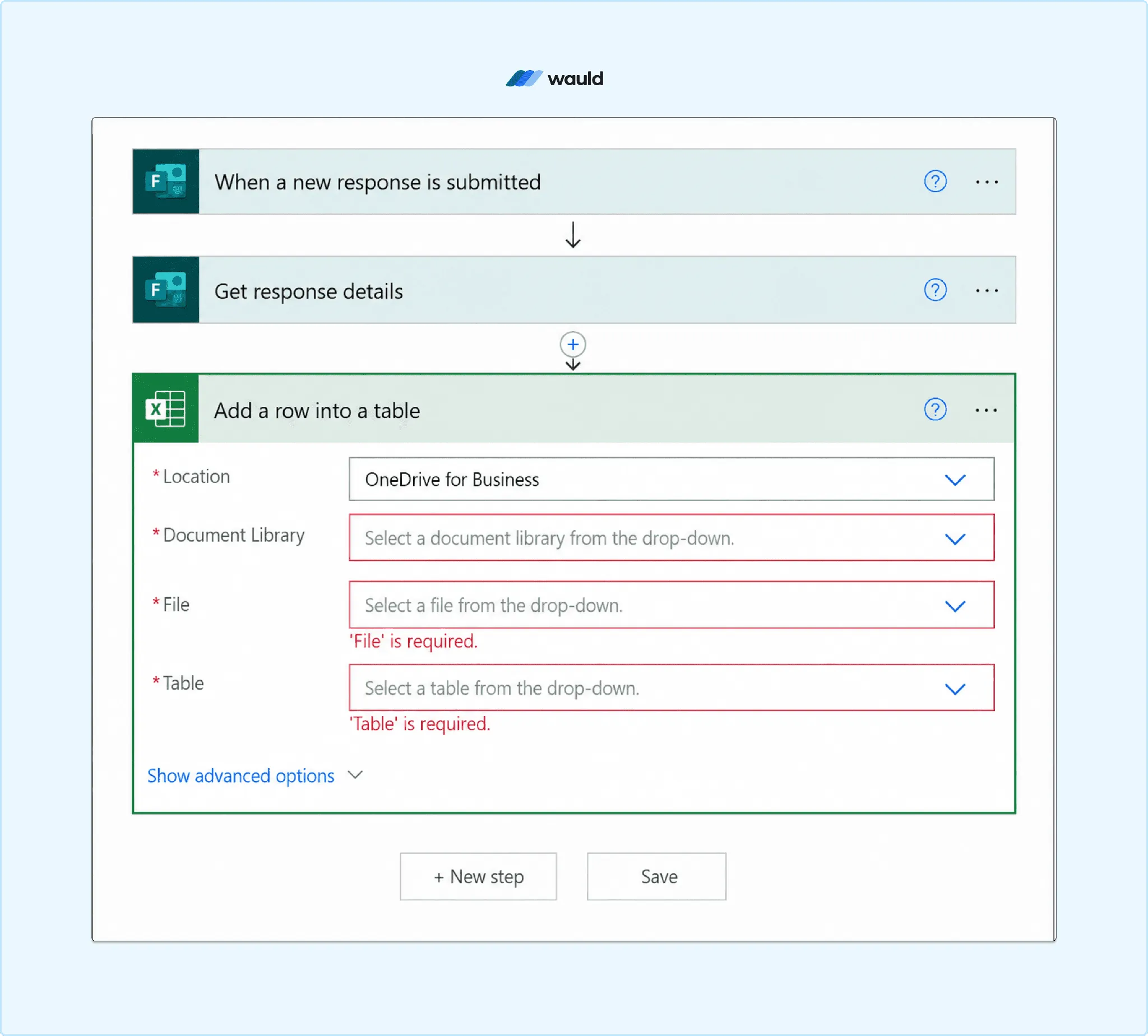
Power Automate workflow configured to capture Microsoft Forms responses and add them to an Excel table for certificate automation.
Steps:
- Add required fields to your Microsoft Form: Full Name, Email Address, Course Name, Completion Date. Submit one test response to populate the Excel workbook with column headers.
- In Microsoft Forms, go to View Responses and select Open in Excel. Use this live workbook, not a downloaded copy.
- Log into your Wauld account, create a certificate from 900+ templates, and add merge tags:
| Excel Column | Wauld Merge Tag |
|---|---|
| Full Name | {{recipient_name}} |
| Email Address | {{recipient_email}} |
| Course Name | {{course_name}} |
| Completion Date | {{completion_date}} |
- In Wauld, set up the automation using the Microsoft Excel connection. Select the OneDrive workbook, map columns to certificate fields, test with your own email, and activate.
Every new form submission triggers a personalized certificate automatically. See also how to automate certificate issuance with Zapier and Wauld for additional automation options.
Critical: Do not rename the Excel file, worksheet tab, or column headers after activating. Column changes break field mapping and stop certificate delivery.
Method 2: Excel Export and Bulk CSV Upload
Best for: Cohort programs, compliance batches, or any workflow where someone needs to review the list before certificates go out. Also the best path for historical responses that never received a certificate.
- In Microsoft Forms, go to View Responses and select Open in Excel
- Clean the data: remove duplicates, fix name formatting, confirm every row has a valid email
- Save as CSV and upload to Wauld's bulk certificate generator
- Map columns, preview a sample, and send the batch
No integration setup. No extra licensing. Works on any Microsoft 365 plan.
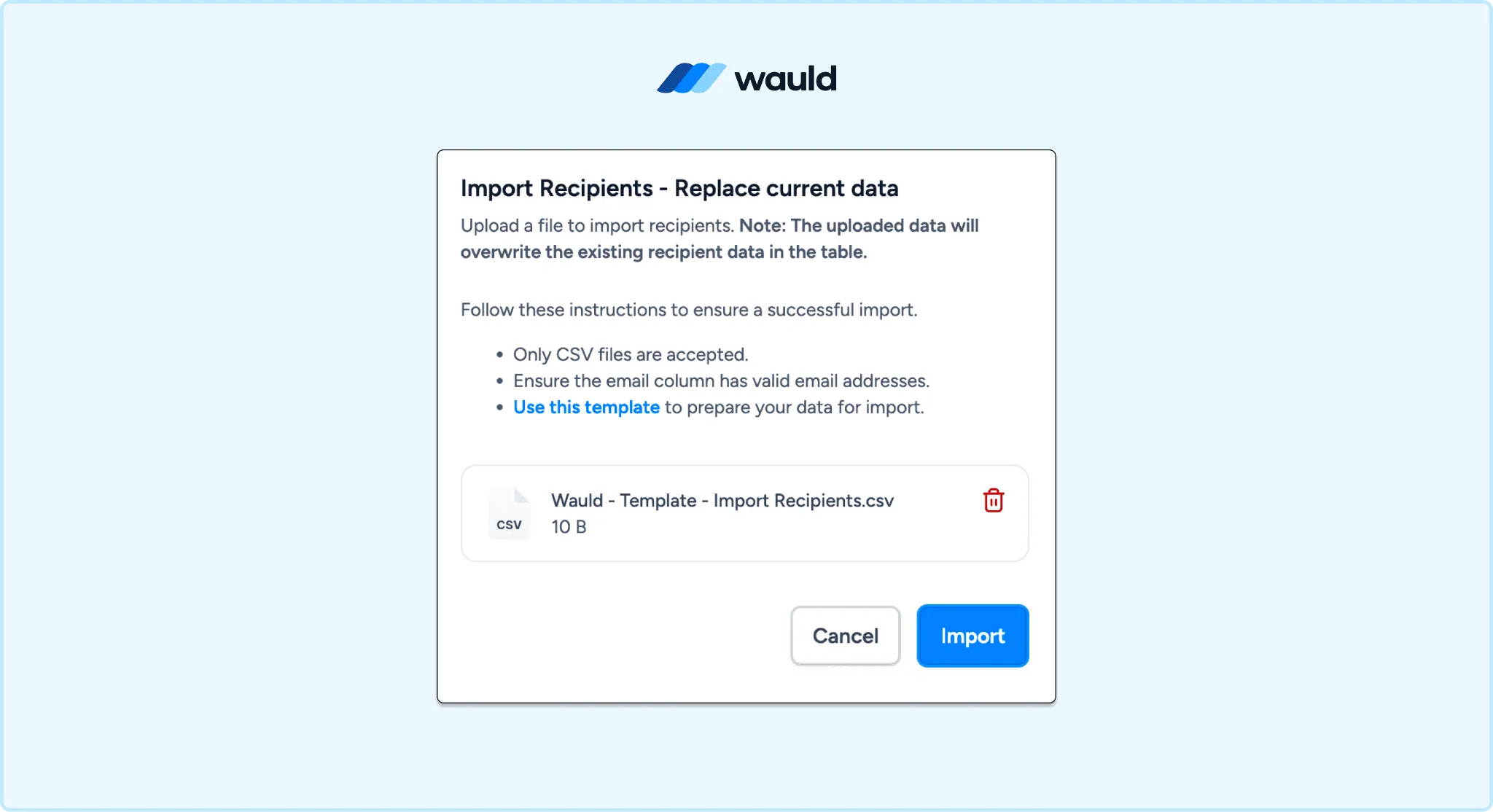
Upload CSV file and issue bulk certificates in minutes
Method 3: Power Automate and Wauld Webhooks
Best for: Enterprise environments where every tool must stay inside Microsoft 365.
Power Automate has a native Microsoft Forms trigger. Wauld supports webhooks, so you can connect both without any third-party platform.
- In Wauld, go to Integrations, create a webhook endpoint, and copy the URL
- In Power Automate, create an Automated Cloud Flow with "When a new response is submitted" as the trigger
- Add "Get response details" (Microsoft Forms), then an HTTP action POSTing to your Wauld webhook URL
- Test with a live submission and confirm the certificate delivers correctly
License note: The Microsoft Forms trigger is a standard connector included in most Microsoft 365 plans. The HTTP action is a premium connector requiring a Power Automate Premium license at $15 per user per month. If that cost is not justified, Method 1 achieves the same result for free.
Method Comparison and Cost
| Excel to Wauld | Bulk CSV Upload | Power Automate + Webhooks | |
|---|---|---|---|
| Best for | Ongoing real-time programs | Cohort review before sending | Microsoft-only enterprise |
| Automation | Fully automatic | Manual per batch | Fully automatic |
| Delivery speed | Near real-time | When you send | Near real-time |
| Review before sending | No | Yes | No |
| Historical data | No | Yes | No |
| Extra tool cost | None | None | $15/user/mo (Power Automate Premium) |
| Wauld cost | Free up to 300 certs | Free up to 300 certs | Free up to 300 certs |
| Premium license needed | No | No | Yes (HTTP connector) |
Power Automate vs Wauld
| Power Automate + Word | Wauld | |
|---|---|---|
| Premium license required | Yes | No |
| Setup complexity | High | Low |
| Certificate verification | None | QR code and public link |
| LinkedIn sharing | No | Yes |
| Engagement analytics | No | Yes |
| Digital badges | No | Yes |
| Free plan | No | Up to 300 certificates |
Getting Started
Microsoft Forms is already collecting your data. Wauld turns every submission into a verifiable digital credential your participants can share, verify, and add to their LinkedIn profile.
Start with the Excel to Wauld method for real-time automation at no extra cost. Use CSV upload when you need to review before sending. Use Power Automate webhooks only if your organization requires a Microsoft-only stack with Premium licenses already in place.
Wauld connects with Google Forms, Typeform, Jotform, Tally Forms, and Fillout for the same automated workflow.