How to Automate Certificate Issuance With Zapier and Wauld

Automate Certificate Issuance With Zapier
A course just wrapped up, and forty learners finished it. Now someone has to copy names, export files, and email each person. That someone is usually you, and the afternoon disappears fast.
There is a far better way to handle this whole job. Connect Wauld to Zapier, and credentials go out on their own. They send the moment a learner submits a form. No spreadsheets, no batch exports, and no manual follow-up.
This guide shows the full setup from start to finish. You will link both tools and build the workflow safely. We also cover triggers, actions, testing, and common fixes.
How Wauld and Zapier Work Together
Zapier links your apps through automated workflows called Zaps. Each Zap has a trigger that starts it and an action. The action is what happens next, and no code is required. It is a true no-code platform built for busy teams.
Wauld runs in both directions inside a Zap. You can browse the full Wauld app listing on Zapier. That page shows every available trigger and action.
When Wauld Is the Trigger
Here the workflow starts inside Wauld itself. A credential gets issued, and that fires an action elsewhere. You might send a Gmail note or log a Google Sheet. You could also ping Slack or update a HubSpot contact.
When Wauld Is the Action
Here another app starts the workflow first. Someone submits a Google Form or adds a spreadsheet row. A contact may also hit a milestone in your CRM. Zapier catches that and tells Wauld to issue the credential.
Zapier Certificate Automation: What You Can Build
Here is a quick look at the workflows you can set up.
Automate Certificate Delivery: Wauld as the Trigger
| Wauld Trigger | Action App | What Happens |
|---|---|---|
| New Credential Issued | Gmail | Sends a personalized email to the recipient |
| New Credential Issued | Google Sheets | Logs credential data to a reporting sheet |
| New Credential Issued | Slack | Notifies your internal team |
| New Credential Issued | HubSpot | Creates or updates a contact record |
Issue Credentials Automatically: Wauld as the Action
| Trigger App | Wauld Action | What Happens |
|---|---|---|
| Google Forms | Issue Credential | Issues an award after a form submission |
| Google Sheets | Issue Credential | Issues a credential when a new row is added |
| Typeform | Issue Credential | Issues a credential after an assessment |
| HubSpot | Issue Credential | Issues a credential at a contact milestone |
| Webhooks by Zapier | Issue Credential | Issues credentials from a custom system |
Before You Start
You need a Zapier account and a Wauld account to begin. You also need one workspace, engagement, and document inside Wauld. New here? The Wauld Help Center walks you through document setup.
Using Wauld as the trigger? Issue one award from that document first. Zapier then pulls a real past record as your test sample.
Using Wauld as the action? Add your custom attributes to the document. The fields shown in Zapier come straight from that setup.
How to Generate Your Zapier Access Token
The link between the two tools runs on an access token. Log in to Wauld and open Integrations from the left menu. Select Zapier from the gallery, then click Generate Token. Copy it, treat it like a password, and keep it private.
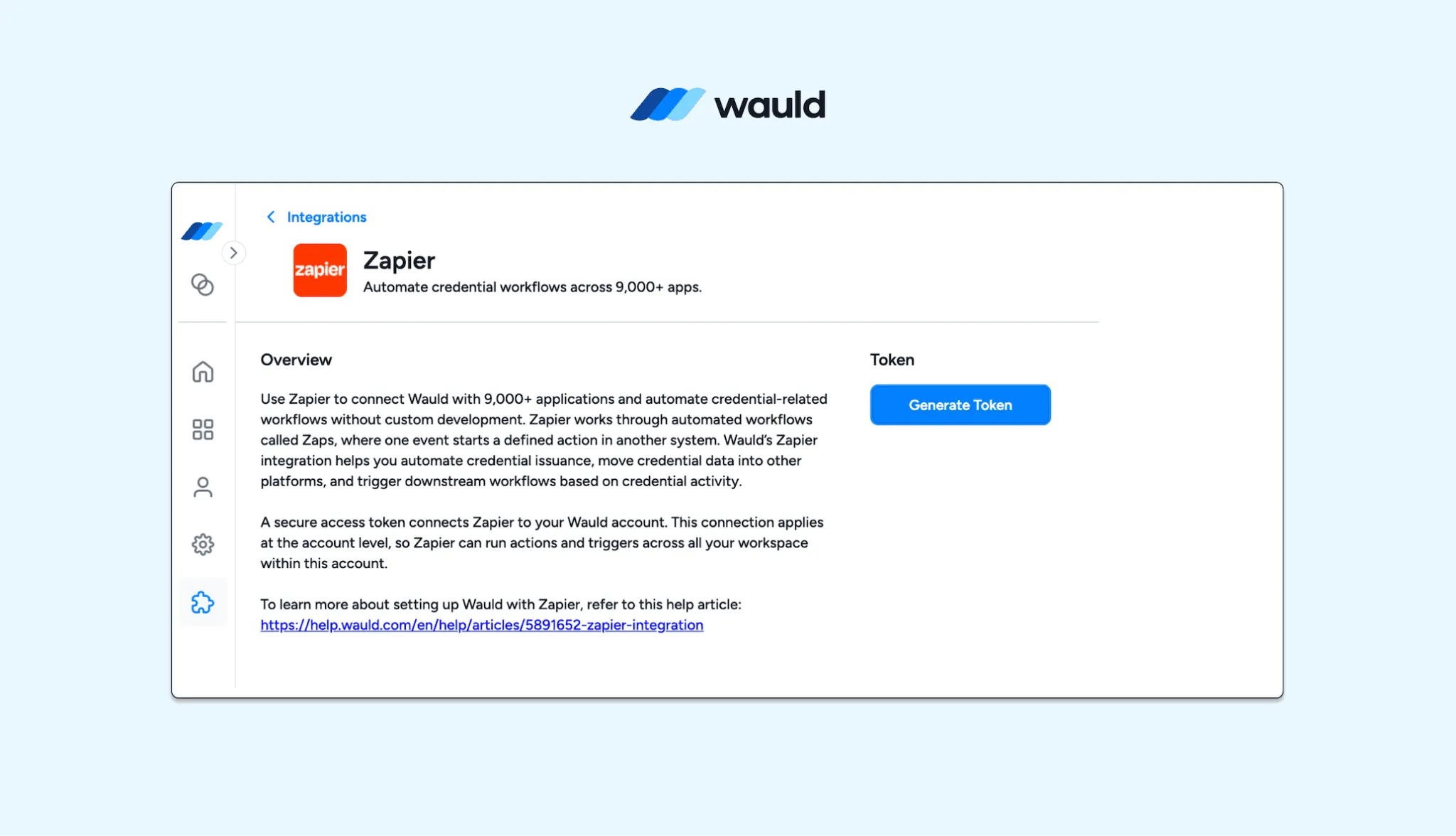
Locate the Zapier integration in Wauld's Integrations gallery and click Generate Token to create your access token.
Part 1: Use Wauld as the Trigger App
This setup fires an action after a credential goes out. The common case is a personalized email through Gmail. The flow is simple. Wauld issues, Zapier catches, and Gmail sends.
Setting Up the Trigger in Zapier
Log in to Zapier, click Create, and select Zap. In the editor, click the Trigger step and search Wauld. Pick the event called New Credential Issued. It fires each time you issue from a chosen document.
Zapier now asks you to connect your Wauld account. Returning user? Select the account you linked before. First time? Paste your token and click Yes, Continue to Wauld. Once it connects, click Continue.
Configuring Which Document to Monitor
Now tell Zapier which document to watch closely. Select the workspace, then the engagement, then the document. The Zap only runs for the document you pick here. A completion doc and an attendance doc need separate Zaps.
Testing the Trigger
Zapier looks for recent issuances and pulls one as a sample. Open it to see the fields Wauld sends across. These are the fields you map in the next step.
No records found? Nothing has been issued from that document yet. Issue a quick test credential, then run the test again. Select your sample and click Continue with selected record.
What Data Wauld Sends Across
Each issued credential passes a full field set to Zapier.
- Credential details: the credential ID, issue time, and expire time.
- Document details: ID, name, type, skills, and earning criteria.
- Issuing authority details: ID, name, website, and verification status.
- Recipient details: the recipient name and email.
- Custom attributes: name and value pairs from your document.
Have custom fields on the document? They appear here for mapping.
Part 2: Use Wauld as the Action App
This is the most powerful setup for issuing at scale. Another platform collects data, and Wauld creates the award. It is the most common workflow people build here.
The trigger does not have to be Google Forms. Typeform, HubSpot, Sheets, or Webhooks all work fine. The steps stay the same across every trigger app.
500+ Apps for No-Code Certificate Delivery
Wauld connects with 500+ apps across many categories. These span LMSs, forms, webinars, CRMs, and HR systems. Payment gateways and other workflow tools are covered too.
- Forms and Assessments: Google Forms, Typeform, Jotform, Tally, Microsoft Forms
- LMS and Course Platforms: Thinkific, Teachable, Moodle, LearnDash, TalentLMS, Canvas LMS
- Video and Webinar Platforms: Zoom, Microsoft Teams, Webex, Airmeet, Livestorm, Hopin
- Community Platforms: Circle, Discord, Slack, Skool, Mighty Networks
- Event Platforms: Eventbrite, Meetup, Luma, Cvent
- HR and Employee Training: BambooHR, Workday, SAP SuccessFactors, Deel
- Automation and Workflow Tools: Zapier, Airtable, Google Sheets, Webhooks
Certificate automation looks like this in real life:
- A learner finishes a Thinkific course, and a branded credential goes out.
- An attendee joins a Zoom webinar, and a participation badge sends instantly.
- A user submits a Typeform quiz, and the credential generates automatically.
- A new hire completes BambooHR onboarding, and internal training awards issue.
Our walkthrough uses Google Forms as the trigger.
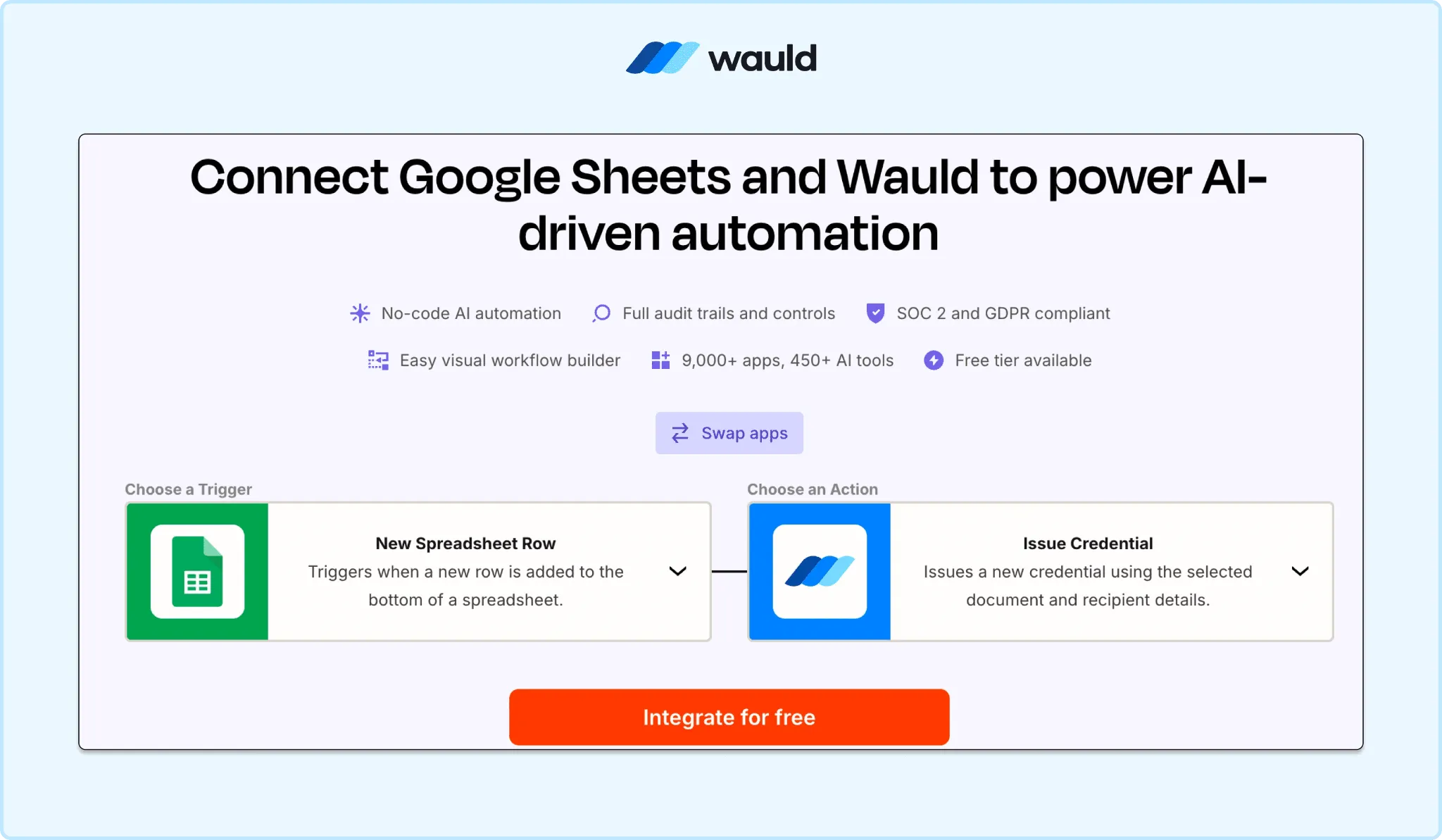
Automated Templates for Google Sheets and Wauld Integration
Setting Up the Trigger: Google Forms
Create a new Zap, click Trigger, and search Google Forms. Choose New Form Response, connect Google, and click Continue. Pick the exact form you want to use here. You may also choose the worksheet that stores entries.
Your form should collect everything the credential needs. At minimum, capture the recipient name and email address. Collect custom fields too, like course name or completion date. In the test step, confirm every field appears correctly.
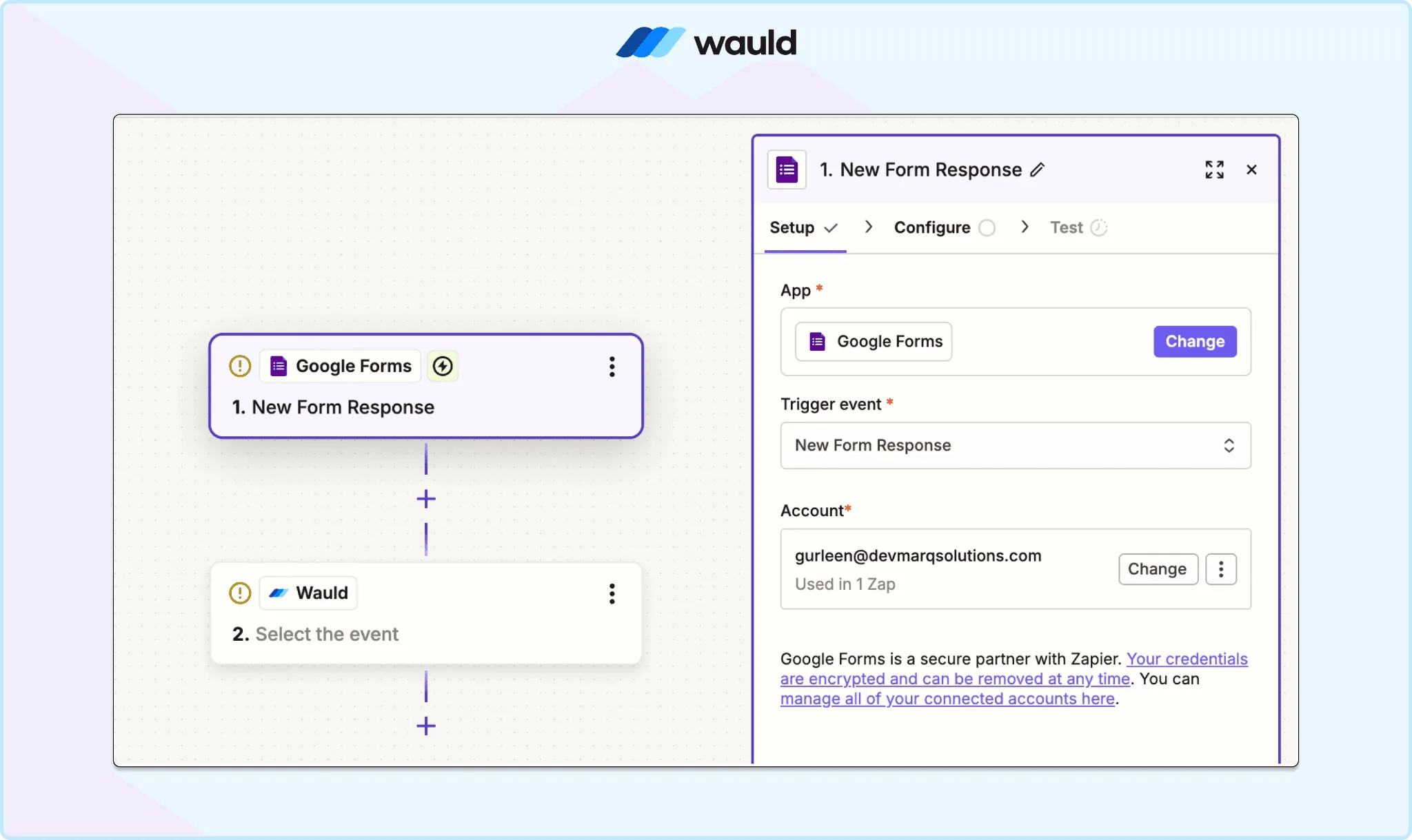
Search for Google Forms in the Zapier trigger step, select New Form Response, and choose the form that collects your recipient details.
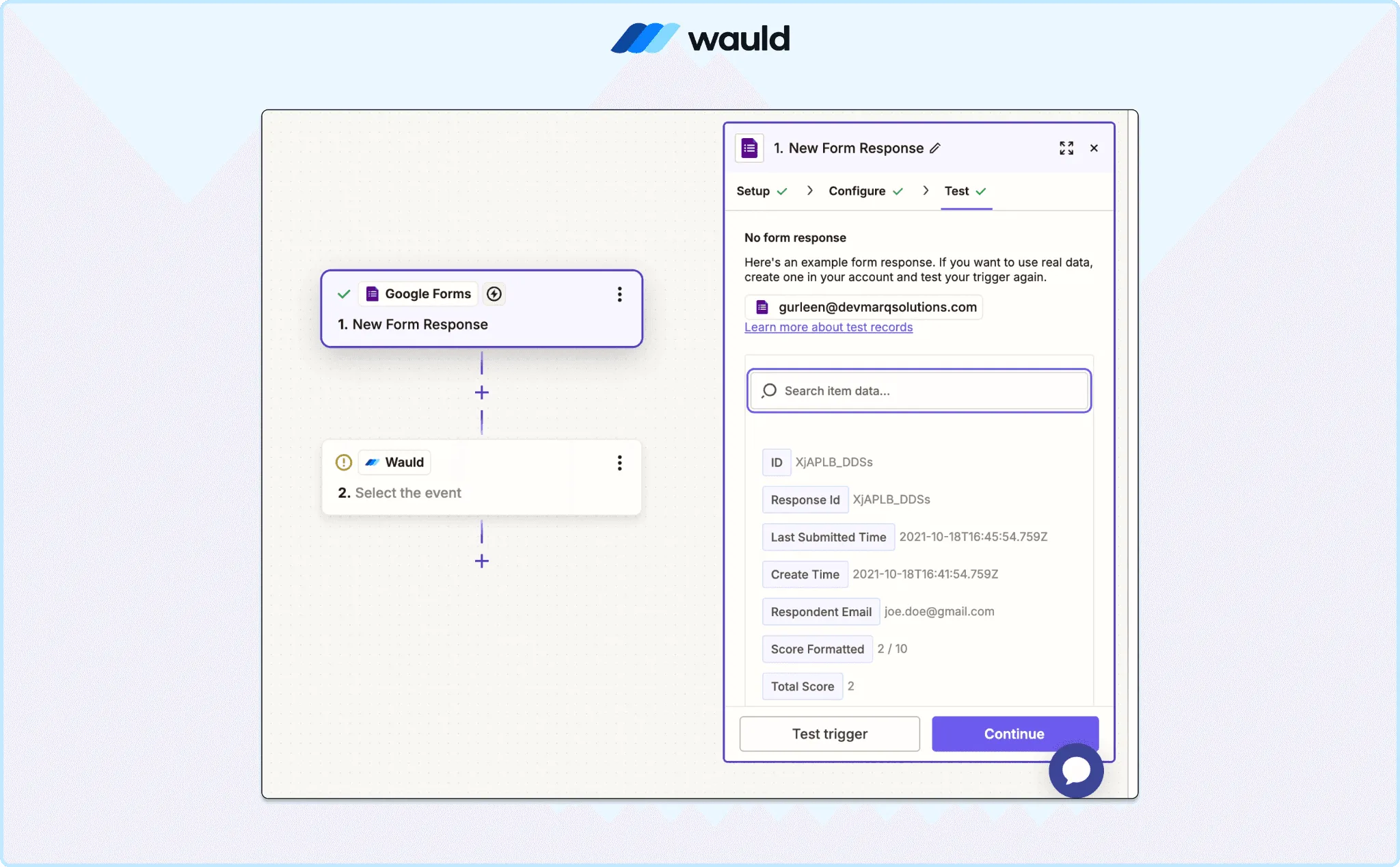
Configure and Test your Setup
Setting Up the Action: Wauld Issue Credential
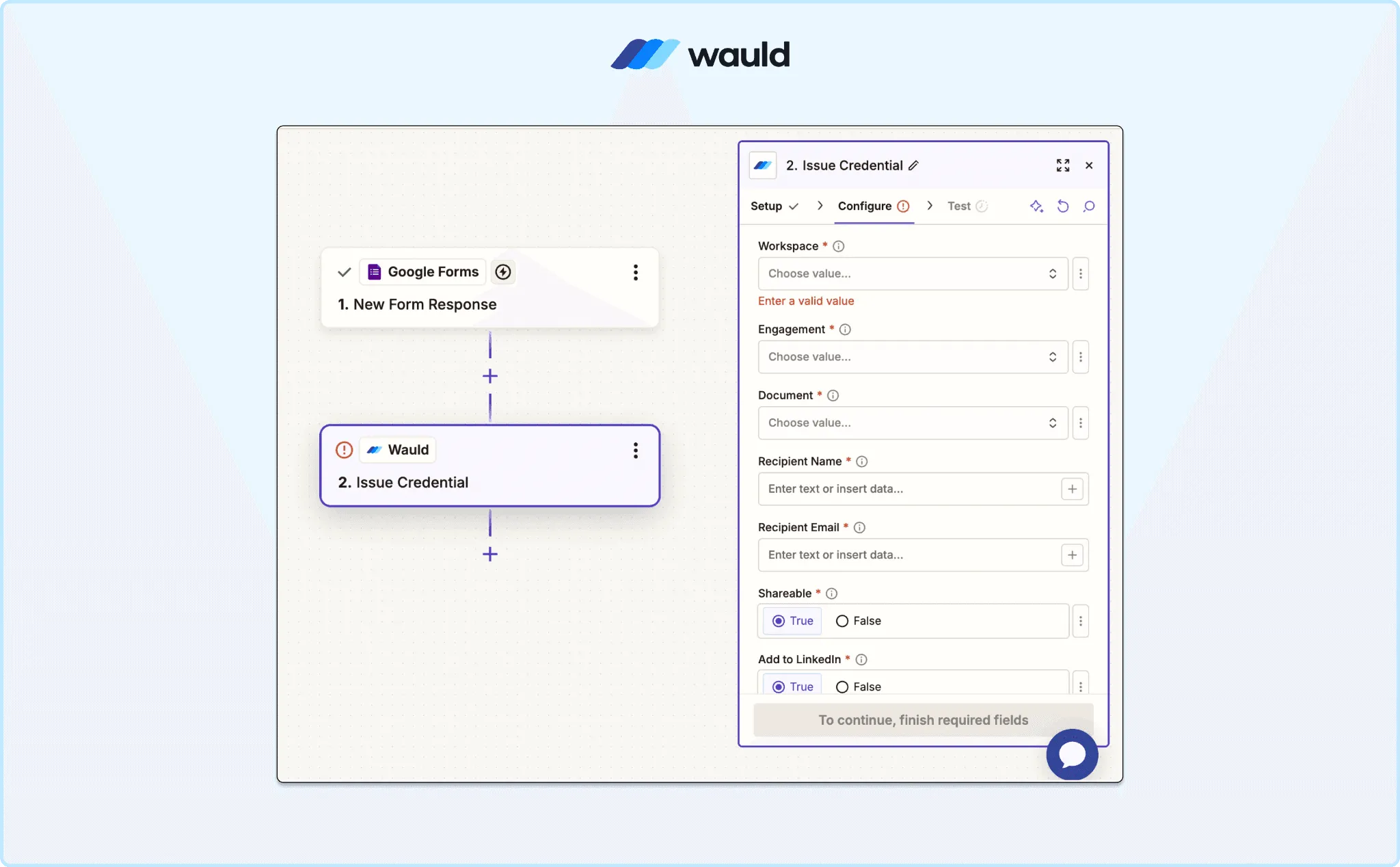
Click the Action step, search Wauld, and select it. Choose Issue Credential, connect your account, then click Continue.
Selecting the right document
Select the workspace, then the engagement, then the document. The chosen document controls which fields appear below it. Custom attributes must be mapped before issuing can succeed.
Mapping recipient details
Map the recipient name and email from your form fields. These two fields are always required to issue.
Credential options
Wauld offers two options: Shareable and Add to LinkedIn. Both stay true by default for every new award. Shareable gives recipients a link they can post anywhere. Add to LinkedIn lets them showcase it on their profile.
Expiry date
Leave this blank if the credential should never expire. To set expiry, type the date or map a field. Use a valid format, and keep the date in the future. A past date will block issuing every single time.
Custom attributes
Map any custom attributes the document requires. Common ones include course name, score, or instructor name. Each required field needs a value to work. A blank required field fails the issue every time.
Pro Tip: Dynamic attributes make certificate automation far more powerful. Rather than creating separate templates for every course or event, map fields such as Course Name, Assessment Score, Completion Date, and Instructor from Google Forms, Typeform, or your LMS. Wauld automatically inserts the correct values into each credential at issuance time, saving hours of manual work.
Testing before you publish
Zapier shows the exact data it will send to Wauld. Review every field, from workspace down to custom attributes. One caution: testing may create a real credential here. Check everything, then click Test step with confidence.
When the test passes, click Publish to go live. Now every form submission issues an award on its own.
Setup your Wauld Account
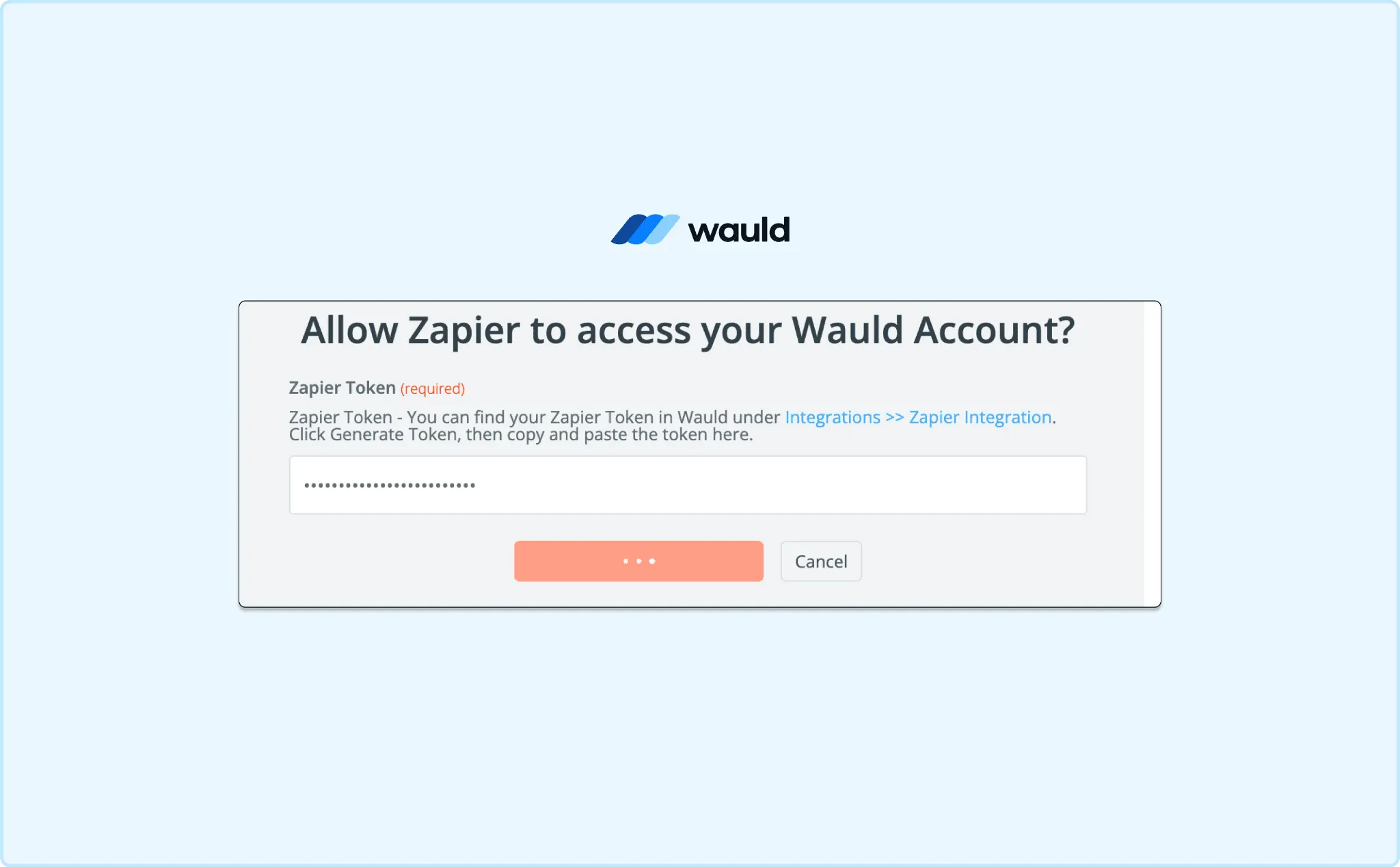
Allow Zapier access using the Token Generated
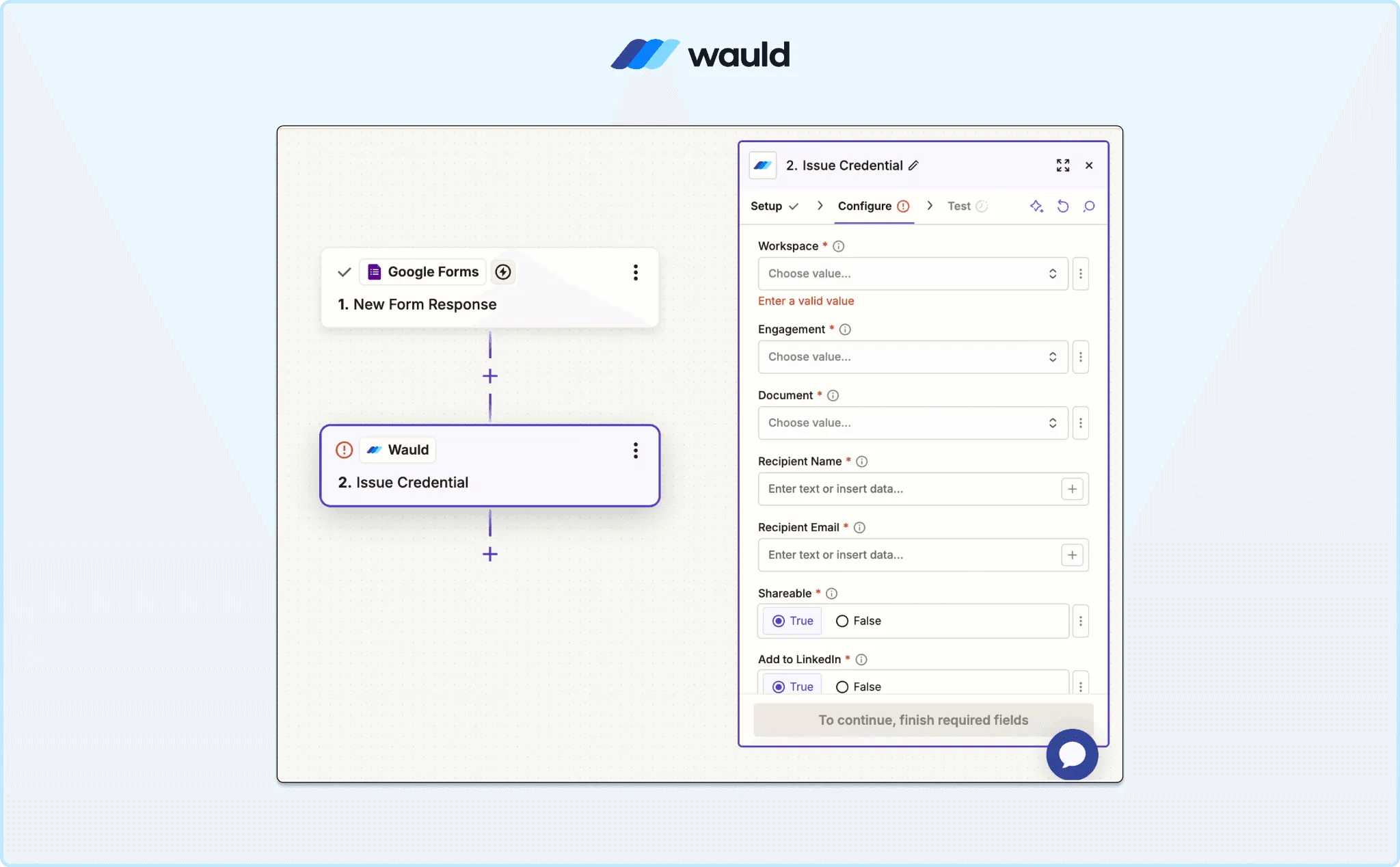
Configure and Test Your Setup
Best Practices for Zapier Certificate Automation
- Test with realistic data that mirrors real submissions closely.
- Use clear field names like Recipient Name and Course Name.
- Review your Zaps whenever you change a document later.
- Build one Zap per document, since each watches only one.
Why Wauld Credentials Go Beyond Static PDF Templates
A static PDF cannot be verified, tracked, or updated later. Every Wauld award adds a permanent verification link instead. It also includes a shareable page and a QR code.
Recipients get a personal page to view and share their award. They can add it to LinkedIn or send it to employers. Anyone can confirm it instantly using the QR code.
Your issuer dashboard shows everything across issued certificates and badges. See who opened, viewed, shared, or verified each one. You can also edit, void, or reissue from one place.
More Automation Guides From Wauld
Want this same no-code setup on other platforms? Start here.
- How to Automate Certificate Issuance in Skilljar
- How to Automate Certificate Issuance in Skool for Free
- 5 Ways SAP Litmos Teams Can Automate Workforce Certification
Browse the Wauld certificate template gallery before you build. Pick a design that fits your brand and audience.
Ready to Automate Certificate Issuance With Zapier?
Still sending awards by hand? This setup is worth one hour. Once live, credentials send themselves while you focus elsewhere. You also gain tracking and verification on every issue.