How to Generate Certificates from Google Sheets: 4 Easy Methods

Certificates from Google Sheets: Where the Data Already Lives
Your training program just wrapped up. You have a spreadsheet full of names, emails, course titles, and completion dates sitting in a google sheet. Now you need to generate certificate copies for everyone on the list.
Most teams keep recipient data in a google sheet because that is where it already lives, often pulled from a google account form, a folder in google drive, or training programs run earlier in the year. The real question is not where the data sits. It is how you generate certificates from google sheets without copying every name by hand.
This guide covers four practical ways to create certificates from google sheets: a CSV export for one-time batches, Google Apps Script for a native Google Workspace setup, Zapier for multi-app automation, and Wauld for verified, branded credentials at scale.
How to Prepare Your Google Sheet
Clean spreadsheet data prevents most errors when you automate certificate delivery, no matter which method you pick.
- Use row 1 for a clear header such as Recipient Name, Email, Course Name, and Issue Date.
- Keep one recipient per row in the spreadsheet, with no merged cells.
- Customize and validate email addresses before sending. Remove spaces and duplicates.
- Use a consistent date format, preferably YYYY-MM-DD, if dates appear on the certificate template.
- Avoid blank rows in the middle of the table and hidden rows above the header.
- Keep an Input tab separate from a Live tab. Preview a few rows in Input, then copy only finished rows into Live so nothing fires on incomplete data.
With the spreadsheet ready, here are the four methods to generate certificates from google.
Method 1: Export Google Sheets to CSV
CSV upload is the simplest way to send certificates in bulk when your recipient list in google sheets is final. Many people start here when first generating certificates using a spreadsheet, since there is no automation to configure.
| Step | What to do |
|---|---|
| 1 | Remove unused columns and blank rows from the spreadsheet. |
| 2 | In Google Sheets, go to File, then Download, then CSV. |
| 3 | Upload the CSV to your certificate generator. |
| 4 | Map columns to recipient name, email, and any custom fields. |
| 5 | Preview a sample certificate, then publish. |
| Good for | Not good for |
|---|---|
| Finished lists, one-time webinars, completed cohorts | Recurring programs where the sheet keeps changing |
| A manual checkpoint before anything is sent | Live automation without a fresh CSV each time |
The tradeoff: a CSV is a snapshot. Edit the sheet afterward and you need a new export.
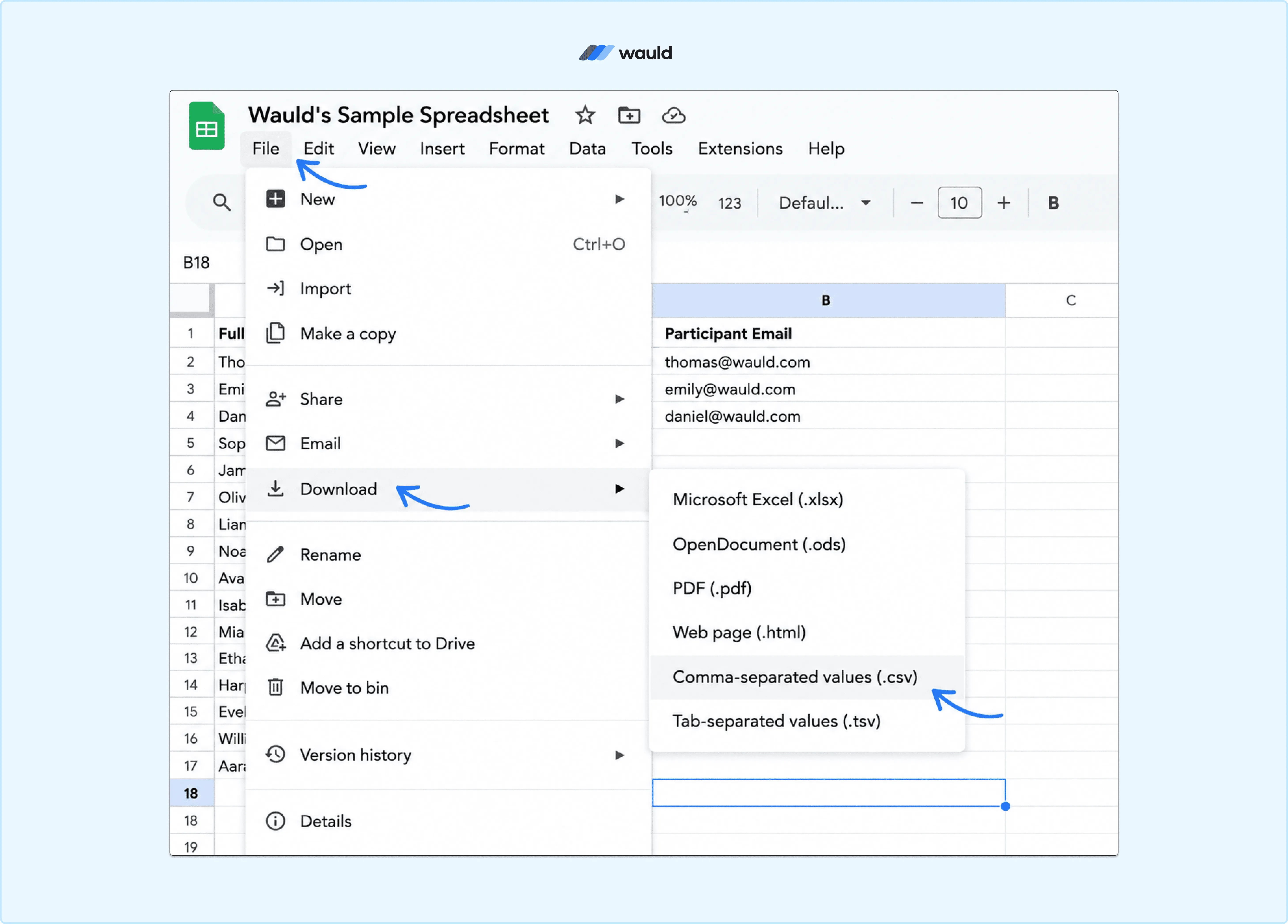
Export your Google Sheets data as a CSV file to prepare it for bulk certificate generation.
Method 2: Google Apps Script for Certificates with Employee Data
Google Apps Script can create certificates from google sheets natively, inside Google Workspace, if your team can run and maintain a script. This is the route many people search for under "how to generate e certificate from excel sheet" or "google slides certificate template," since the underlying mechanics are the same once data moves from a spreadsheet into a design.
Google publishes an official sample built for sending certificates with employee data from google sheets to a matching Google Slides certificate template, then emailing each one as a Gmail PDF. The workflow copies the template, replaces a placeholder, and produces the generated PDF automatically. The placeholder text inside the Slides template, not the spreadsheet, is what makes each certificate dynamically personalized.
| Step | What to do |
|---|---|
| 1 | Create a Google Slides template, or create a google slides deck from scratch, with placeholder text for name and date. |
| 2 | Create a google sheet with one row per recipient and matching headers. |
| 3 | Open Extensions, then Apps Script, and configure the script with your file IDs. |
| 4 | Run the script on one test row and view the generated PDF before sending more. |
| 5 | Add a status column so rows are not processed twice, and check Gmail sending limits before a big batch. |
This method to auto-generate certificates is free if you already use google workspace, and the design is fully customizable in Slides or Google Docs. The cost is hidden in maintenance. You run the script yourself, fix it when the header changes, and build any verification on top of the generated pdf by hand, since the script only produces pdf attachments and nothing else.
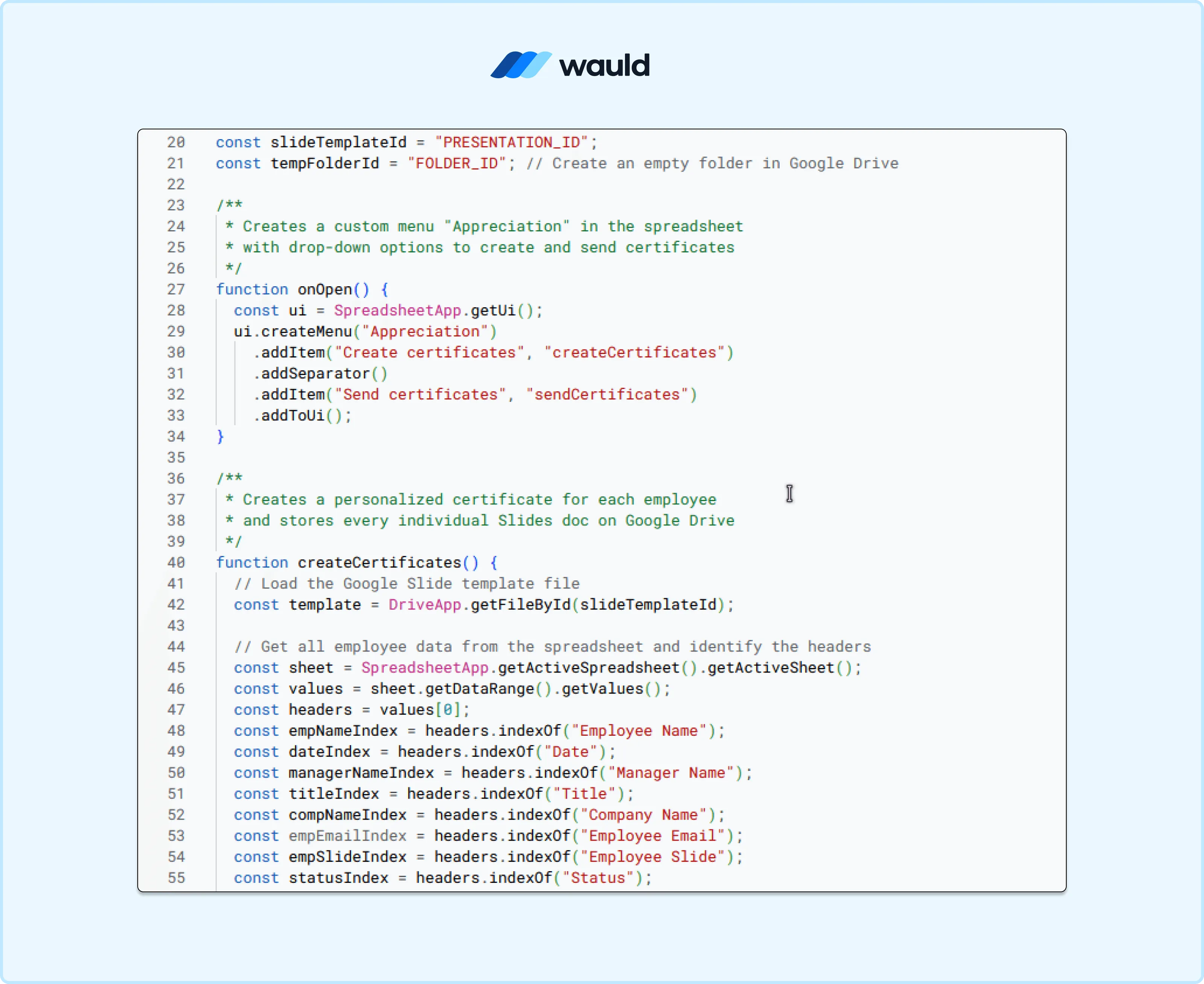
Google Apps Script code that automates certificate creation and delivery from data stored in Google Sheets.
Method 3: Zapier for Certificates from Google Forms and Other Apps
Zapier and similar tools are useful when google sheets is one step inside a larger workflow, such as data in google sheets that started life as google forms responses, an LMS export, or a CRM update. Tools such as Make or an n8n workflow follow the same trigger-and-action pattern and automatically generate the same result.
Event organizers use this method too, since registration data collected for an event can land in a sheet before any certificate goes out.
A Zap pairs a trigger with an action. To issue certificates automatically the moment a row appears, configure the trigger as a new row, then connect an action to your certificate tool.
| Step | What to do |
|---|---|
| 1 | Pick the trigger app: google sheets using a new row, or google forms using new form responses. |
| 2 | Add filters so only complete rows continue. |
| 3 | Send the cleaned spreadsheet data to your issuing step. |
| 4 | Map name, email, course, and date fields. |
| 5 | Test with one internal recipient before turning it on. |
The advantage is flexibility across tools that do not share a native integration. The tradeoff is overhead: another automation platform in the chain is another thing to monitor.
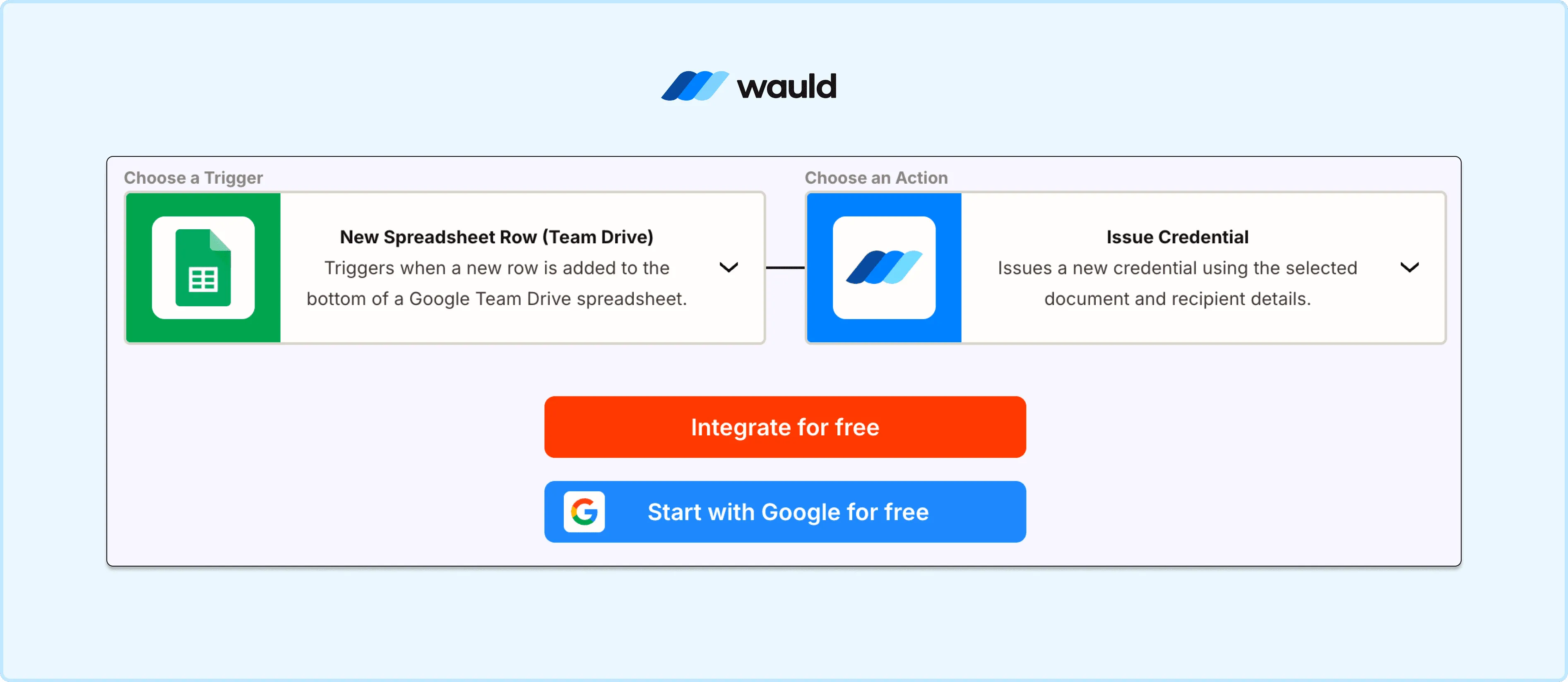
Configure a Zapier workflow to automatically issue Wauld credentials whenever a new row is added to a Google Sheets spreadsheet.
Method 4: Wauld, the Best Way to Generate Certificates from Google Sheets
Wauld is a dedicated credentialing platform, a tool built to issue, track, and verify certificates and badges. It watches your google sheets and sends a credential the moment a finished row appears. Compared to a no-code Zap or a script you run yourself, Wauld removes the parts every other method leaves for you to build: verification, branding, and a place recipients can return to. The full setup is documented in Wauld's Zapier integration guide.
How to Connect Google Sheets to Wauld
Wauld supports two pieces in Zapier: a New Credential Issued trigger and an Issue Credential action. To send certificates from a spreadsheet, you use Wauld as the action.
| Step | What to do |
|---|---|
| 1 | Design your certificate template in Wauld's gallery or build a template from scratch. Add a logo, brand colors, and placeholder fields for name and course. |
| 2 | In Wauld, open Integrations, select Zapier, and click Generate Token. |
| 3 | In Zapier, set Google Sheets as the trigger app and choose its new row event. Wauld's own documentation walks through Google Forms as the example trigger, but Google Sheets uses the same new row pattern. |
| 4 | Add Wauld as the action and choose Issue Credential. Connect using your token, then select the matching workspace and document. |
| 5 | Map recipient name and recipient email from the row, plus any custom attributes. |
| 6 | Test the Zap, confirm the fields, and publish. |
Once published, every finished row in your Live tab becomes a credential automatically, with no copy-paste step left in the workflow.
Why Wauld Is the Best Method
A CSV upload solves issuance for one batch. Apps Script solves design and using Gmail for delivery. Zapier solves routing between apps. None of the three solve what happens after a certificate lands in an inbox. Wauld does:
- Verification built in. Every credential carries a unique ID and a three-step check confirming the recipient, the issuer, and the certificate itself. No-code automation through other tools cannot replicate this on its own.
- QR codes on every certificate. Anyone can verify a credential in seconds with a scan, with no email or login required.
- LinkedIn sharing in one click. Recipients add their certificate to LinkedIn instantly, carrying your branding and a live verification link with it.
- A recipient wallet that outlives a download. Certificates live in a wallet accessible from any device, including Apple Wallet, so nothing gets buried in a downloads folder.
- Full post-issuance control. Edit, reissue, or void any credential, and handle recipient correction requests, all from one dashboard, something no spreadsheet workflow offers.
- 900 plus templates, ready to customize. Skip designing a template from scratch, and issue credentials built on the Open Badge 3.0 standard so they stay portable.
Comparing All Four Methods
| CSV | Apps Script | Zapier | Wauld | |
|---|---|---|---|---|
| Cost | Free | Free | Free tier, paid for volume | Free for up to 300 credentials |
| Setup | No-code | Script required | No-code | No-code |
| Timing | Manual batch | Manual run | Real-time | Real-time |
| Verification | None | None | Depends on the destination | QR codes, unique ID |
| LinkedIn sharing | No | No | Depends on the destination | Built in |
| Best for | One-time, final lists | Native Workspace setup | Multi-app routing | Recurring, verifiable credentials |
A single, finished batch is fastest as a CSV. A Workspace-only setup with someone to maintain code fits Apps Script. A workflow that starts in a form builder or CRM fits Zapier. For certificates that recipients can trust, verify, and actually share, Wauld is the method built for the job, using the same google sheet you already have.
Start Generating Certificates from Google Sheets
The spreadsheet already holds everything: names, emails, course details, and dates. The only decision left is which workflow turns that into a certificate worth keeping.
Wauld's free plan covers up to 300 verifiable credentials, with QR verification, bulk issuance, LinkedIn sharing, and the full template gallery included. Connect your sheet through Zapier's Google Sheets integration, map your columns once, and let every new row become a credential.