How to Add a Coursera Certificate to LinkedIn

The first time I added a course certificate to LinkedIn, I treated it like a small admin task. Copy the title, paste the link, click save, move on.
Then a former colleague messaged me about it.
Not because the certificate was rare. Not because the course changed my career overnight. They noticed because the credential made a quiet statement: I was learning something specific, recently, and publicly enough that anyone could verify it.
That is the real reason people search for how to add a Coursera certificate to LinkedIn. The goal is not just to decorate a profile. It is to turn learning into visible proof.
This guide shows you exactly how to add a Coursera certificate to LinkedIn, what to put in each LinkedIn field, how to use your Coursera certificate URL, and how to make the credential work harder once it is live.
Quick Answer: How to Add a Coursera Certificate to LinkedIn
To add a Coursera certificate to LinkedIn, log in to Coursera, go to My Learning, open the Certificates tab, find the certificate you earned, and click Add to LinkedIn. Follow LinkedIn's prompts to add it to your Licenses & certifications section.
If the automatic option does not work, add it manually:
- Open your LinkedIn profile.
- Click Add profile section.
- Choose Recommended.
- Select Licenses & certifications.
- Enter the certificate name, issuing organization, issue date, credential ID if available, and your Coursera certificate URL.
- Click Save.
Coursera's help center says certificates can be viewed from the Certificates tab in My Learning, and LinkedIn's help center lists Licenses & certifications as a recommended profile section.
Why Adding a Coursera Certificate to LinkedIn Matters
A Coursera certificate sitting in your downloads folder is evidence. A Coursera certificate on LinkedIn is a signal.
That difference matters because modern hiring is increasingly shaped by visible skill signals. Recruiters, peers, clients, and managers rarely see the private work behind your growth. They see what your profile makes legible.
Adding a Coursera certificate to LinkedIn can help you show:
- The skill you intentionally developed
- The institution or company connected to the course
- The month and year you completed the work
- A public certificate URL that verifies the credential
- A pattern of continuous learning over time
The visibility question is not abstract. In a large study of online certificate earners, researchers found that nudging learners to share non-traditional credentials on LinkedIn increased credential sharing and improved employment outcomes for some groups. The paper, The Value of Non-Traditional Credentials in the Labor Market, is a useful reminder that learning has more market value when it becomes visible and verifiable.
That does not mean every Coursera certificate will get you a job. It means hidden proof has limited power. Searchable, verifiable proof travels farther. We covered the wider case for this in Share Certificates on LinkedIn and Grow Your Brand.
Before You Start: Collect Your Certificate Details
Before you add your Coursera certificate to LinkedIn, open the certificate page and collect the details you will need. This keeps you from guessing, shortening names incorrectly, or leaving out the verification link.
Use this checklist:
| Field | What to Use |
|---|---|
| Certificate name | The exact title shown on Coursera |
| Issuing organization | The university, company, or Coursera partner shown on the certificate |
| Issue date | The month and year Coursera shows on the certificate |
| Expiration date | Usually leave blank unless the credential expires |
| Credential ID | Use it if Coursera displays one |
| Credential URL | Your public Coursera certificate URL |
Coursera says a Course Certificate includes a verification URL that lets others check authenticity. Coursera also notes that certificate share URLs are public links that can be used by employers, institutions, portfolios, websites, and social media.
That URL is the most important part of your Coursera certificate LinkedIn entry. Without it, your certificate becomes a claim. With it, your certificate becomes checkable evidence. The same principle applies to any credential you issue or receive, which is why modern certificates increasingly carry QR code verification alongside a public link.
Method 1: Add Your Coursera Certificate From Coursera
This is the fastest route if your Coursera account and LinkedIn account cooperate.
- Log in to Coursera.
- Click My Learning at the top of the page.
- Click the Certificates tab.
- Find the name of the course, Specialization, Professional Certificate, or Coursera Badge.
- Click Add to LinkedIn under the certificate title.
- Sign in to LinkedIn if LinkedIn asks you to.
- Follow the on-screen steps to add the certificate to your LinkedIn profile.
- Save the entry, then view your profile to confirm it appears under Licenses & certifications.
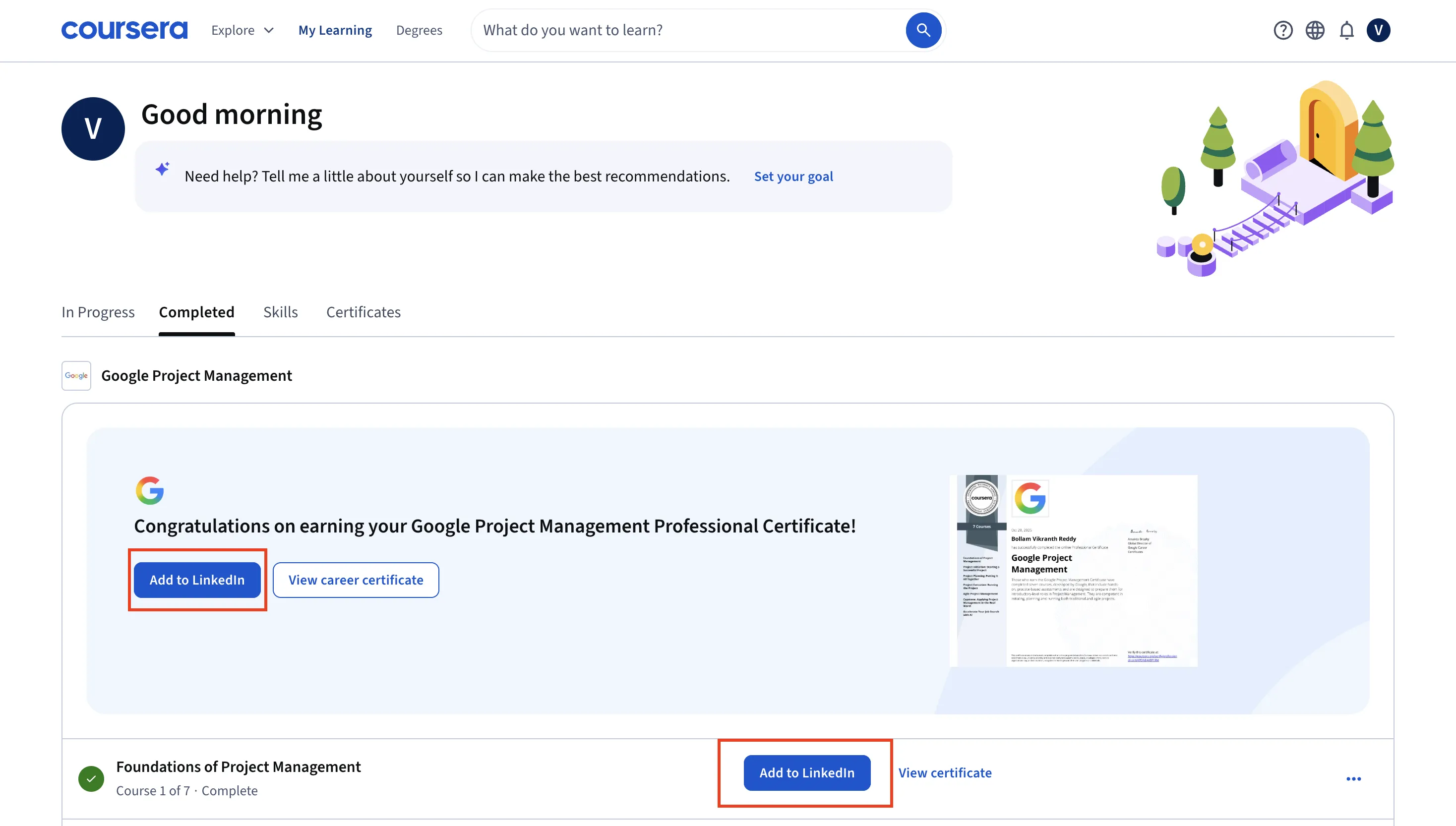
This method is convenient, but check every field before saving. LinkedIn has changed how third-party Add to Profile flows work. Its help center explains that the Add to Profile button can send users to the right form, but certificate details may not automatically fill in every field. LinkedIn's Add to Profile button FAQ says users may need to enter certification or degree information directly.
In practice, that means the button gets you close. Your responsibility is to make the details accurate.
Method 2: Add Your Coursera Certificate Manually on LinkedIn
Use the manual method if the Coursera Add to LinkedIn button is missing, LinkedIn opens the wrong screen, or you want tighter control over the wording.
Here is how to add a Coursera certificate to LinkedIn manually:
- Open LinkedIn and go to your profile.
- Click Add profile section near the top of your profile.
- Open Recommended.
- Click Add licenses & certifications.
- Paste the exact Coursera certificate name.
- Add the issuing organization.
- Add the issue date.
- Leave expiration blank unless the certificate expires.
- Add the credential ID if Coursera provides one.
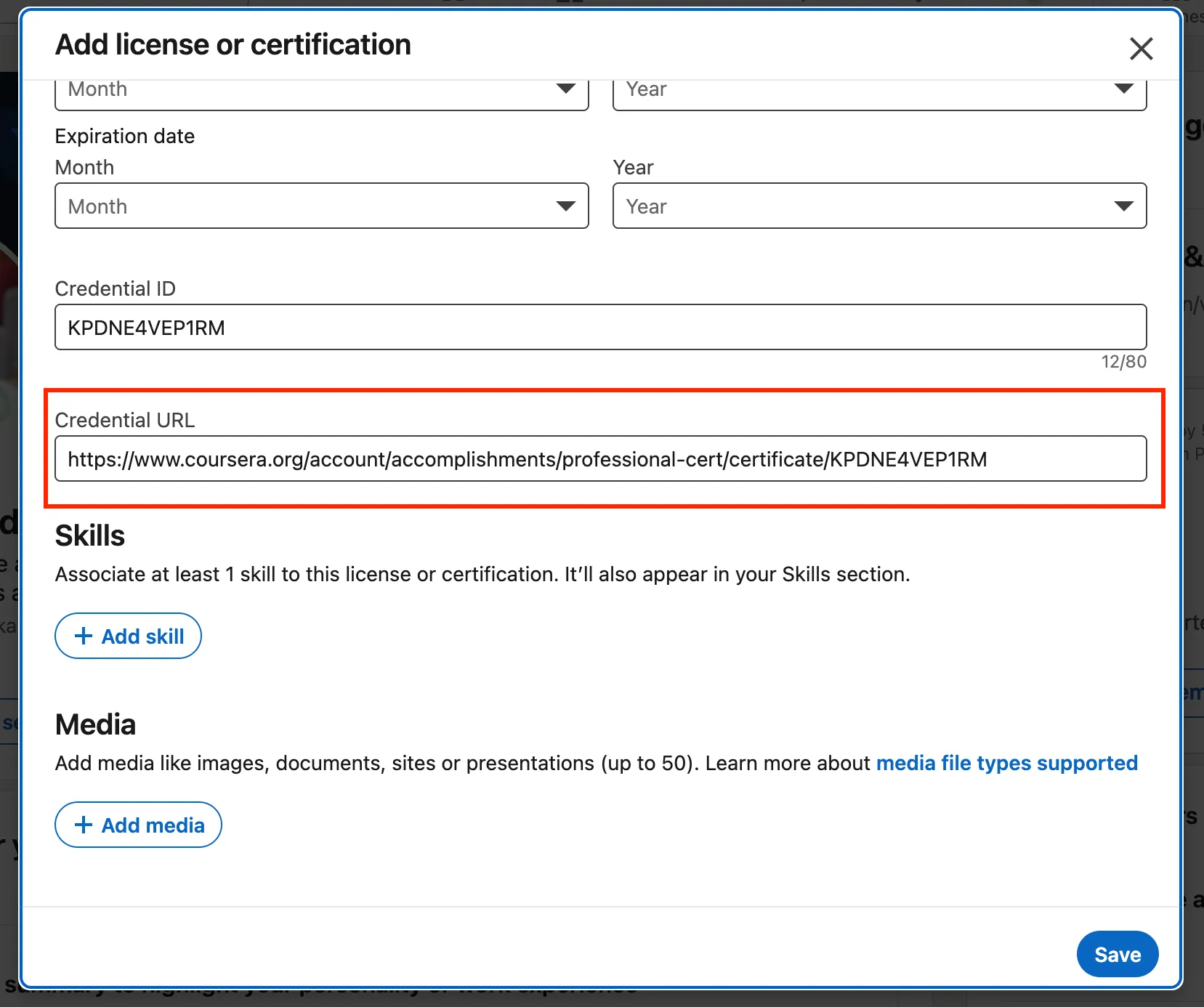
- Paste your Coursera certificate URL into the credential URL field.
- Click Save.
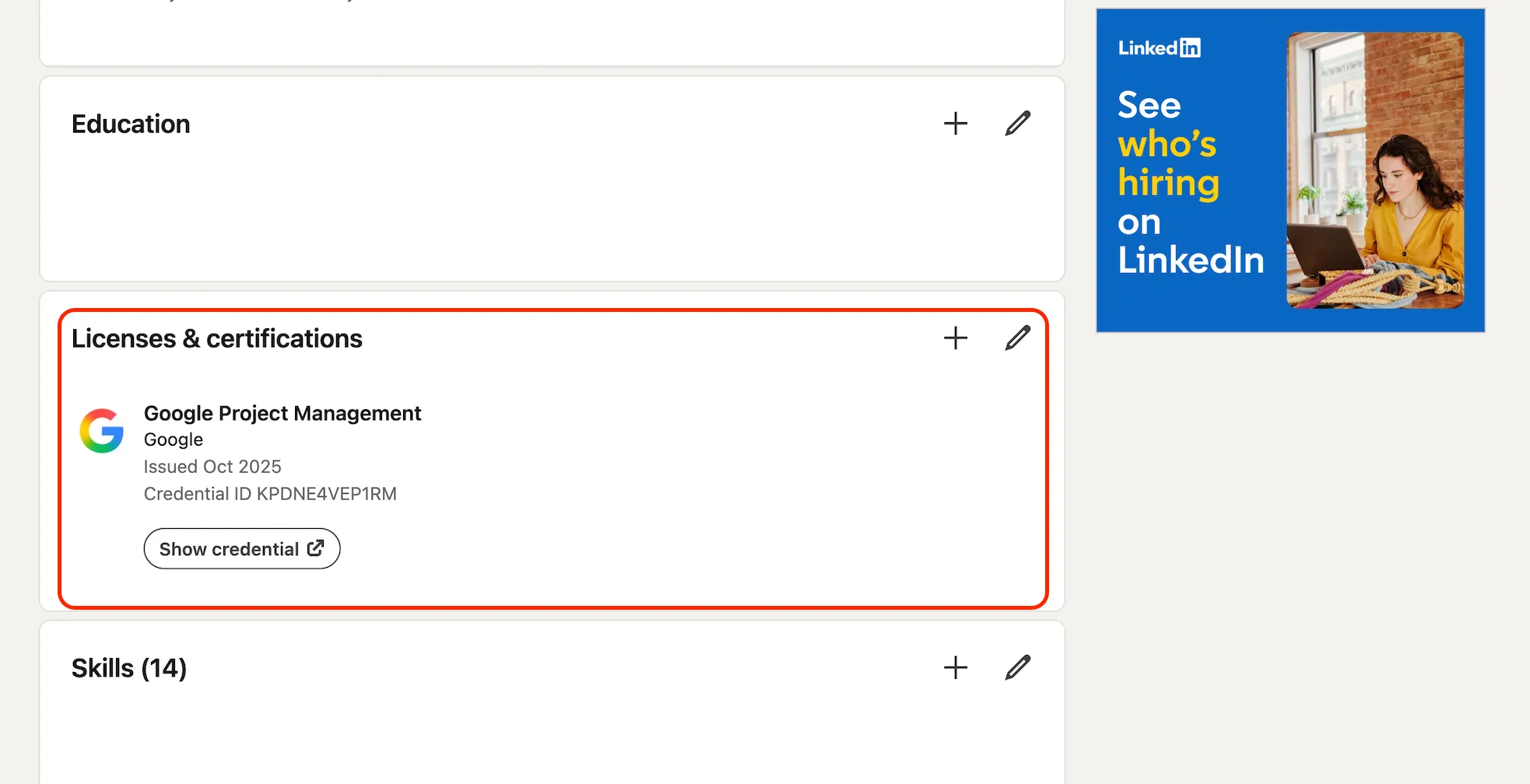
After saving, open your public profile and click the credential URL. It should lead to the public Coursera certificate page, not to your private Coursera dashboard.
This test matters. A recruiter should not have to log in as you, request permission, or guess whether the certificate is real.
What to Write in Each LinkedIn Certification Field
Small wording choices affect how credible your Coursera certificate looks. Use official names, not shorthand.
Name
Use the exact certificate title shown on Coursera. If the credential is part of a larger program, use the program title, not your own summary.
Good example:
Google Data Analytics Professional Certificate
Weak example:
Data analytics course
Specific names make your LinkedIn certification easier to recognize and search.
Issuing Organization
Use the organization shown on the certificate. For many Coursera credentials, this may be a university or company partner, such as Google, IBM, Yale University, University of Michigan, or another Coursera partner.
If the certificate clearly names Coursera as the issuer, use Coursera. If it names a partner institution, use that partner. The rule is simple: match the certificate.
Issue Date
Use the month and year displayed by Coursera. Do not use the date you started the course unless LinkedIn specifically asks for it elsewhere.
Expiration Date
Most Coursera course certificates do not expire. Leave This credential does not expire selected unless the certificate page says otherwise.
Credential ID
If Coursera provides a credential ID, add it. If you only see a public certificate URL and no separate ID, it is acceptable to leave the credential ID blank.
Do not invent an ID. A fake ID makes the entry look less trustworthy, not more complete.
Credential URL
Paste the public Coursera certificate URL. To find it, open your certificate, click the share option, and copy the certificate link.
This is the link employers can use to verify that you earned the Coursera certificate. It is also the link that turns a LinkedIn profile entry into a verifiable credential entry.
How to Make Your Coursera Certificate More Discoverable
Adding the certificate is step one. Positioning it well is step two.
A LinkedIn profile is not a filing cabinet. It is closer to a search result for your professional identity. The question is not just "Did I add my Coursera certificate to LinkedIn?" The better question is "Will the right person understand why this certificate matters?"
For a deeper look at positioning, read our guide to strategically leveraging your digital certificate or badge on LinkedIn.
Add Skills That Match the Certificate
If your Coursera certificate is about project management, data analytics, cybersecurity, instructional design, or AI, make sure those skills appear in your LinkedIn Skills section too.
Consistency helps readers connect the dots:
- Certificate: IBM Cybersecurity Analyst Professional Certificate
- Skills: Cybersecurity, incident response, network security, security monitoring tools
- About section: One sentence about why you developed those skills
The certificate proves the learning. The skills make the learning easier to find.
Write a Short LinkedIn Post
Many people add a Coursera certificate to LinkedIn and stop there. That is fine, but a short post can give your network context.
Use a simple structure:
- What you completed
- Why you chose it
- What you learned
- Where you plan to apply it
Example:
I recently completed the Google Data Analytics Professional Certificate on Coursera.
I took it to strengthen my SQL, spreadsheet, and dashboarding skills. The most useful shift was learning how to frame analysis around business questions, not just charts.
I am now applying the same thinking to customer reporting and campaign performance analysis.
Notice what the post avoids. It does not oversell. It does not claim mastery after one course. It translates learning into practical context. If you want more angles on this, we broke down how to share certificates on social media without sounding promotional.
Add the Certificate to Featured if It Supports Your Goal
If the Coursera certificate is central to the role you want next, consider adding the certificate URL or announcement post to the Featured section of your LinkedIn profile.
Do this selectively. One or two high-signal credentials are stronger than a crowded display of every short course you have ever completed.
Keep Your Most Relevant Certificates Visible
If you complete many Coursera courses, your LinkedIn Licenses & certifications section can become noisy.
Group your choices by relevance:
- Add professional certificates that match your target role.
- Add technical or compliance credentials that employers verify.
- Skip introductory courses unless they fill an important career story gap.
- Remove or de-emphasize old certificates if they distract from your current direction.
The point is not to show that you took many courses. The point is to show a coherent learning path. The same editing instinct applies when you list certifications on a resume, and it helps to be clear on what a certificate proves compared with a degree or a credential before you decide what stays on your profile.
Common Mistakes to Avoid
When people ask how to add a Coursera certificate to LinkedIn, the mechanics are usually easy. The mistakes happen around accuracy and credibility.
Avoid these:
- Using a vague certificate name. Always use the official Coursera title.
- Choosing the wrong issuer. Match the issuing organization shown on your certificate.
- Forgetting the Coursera certificate URL. The URL is what makes the credential verifiable.
- Adding every course without context. Too many unrelated entries can dilute your profile.
- Claiming more than the certificate proves. A certificate signals learning and completion. Your work examples should prove application.
- Leaving a broken link. Test the credential URL after saving.
The best LinkedIn certification entries feel boring in one sense: exact, clean, and verifiable. The story can be thoughtful. The data should be precise.
What Course Creators Can Learn From Coursera and LinkedIn
If you issue certificates for your own courses, workshops, webinars, or training programs, there is a useful lesson here.
Learners do not only want a certificate. They want a certificate they can use.
Coursera makes certificates easy to find, share, and verify. LinkedIn gives learners a dedicated place to display credentials. The combination works because it respects the recipient's next step. It is also why micro-credentials keep gaining ground, and why it pays to understand how digital badges differ from digital certificates before you choose what to issue.
That is exactly the gap Wauld helps training providers close.
With Wauld's digital certificate platform, you can issue branded, verifiable certificates with secure links, QR codes, recipient sharing, and lifecycle management. Instead of sending static PDFs that get buried in inboxes, you can give learners credentials that are built to be shared on LinkedIn and verified by employers.
For training providers, this means certificates can become part of learner outcomes, not just course administration. For coaches and creators, it means each learner's achievement can also become credible word-of-mouth for the program. And if you need ready-made designs, Wauld's certificate templates help you start with a professional layout before you issue at scale.
The bigger idea is simple: a certificate is not finished when it is issued. It is finished when the learner can use it confidently.
Final Thought
Learning privately can change what you know. Sharing proof publicly can change what others know about you.
That is why adding a Coursera certificate to LinkedIn is more than a profile update. It is a small act of professional translation. You are taking effort that happened in lessons, quizzes, projects, and late-night study sessions, and turning it into a signal that recruiters, colleagues, clients, and collaborators can understand.
Add the certificate. Check the link. Write the context. Then let the credential do what good credentials are meant to do: make earned learning easier to trust.
Issue certificates learners are proud to share
Create branded, verifiable digital certificates with secure links, QR codes, and LinkedIn-ready sharing.
FAQs About Adding Coursera Certificates to LinkedIn
How do I add a Coursera certificate to LinkedIn step by step?
Log in to Coursera, go to My Learning, click Certificates, find your certificate, and choose Add to LinkedIn. If that button does not work, open LinkedIn, go to your profile, click Add profile section, choose Licenses & certifications, and manually enter the certificate details.
Where do I find my Coursera certificate URL for LinkedIn?
Go to Coursera, open My Learning, click Certificates, select View certificate, then use the share option to copy your Coursera certificate URL. Paste that URL into LinkedIn's credential URL field.
What should I put as the issuing organization for a Coursera certificate on LinkedIn?
Use the issuing organization shown on your certificate. Some Coursera certificates are associated with Coursera, while many are issued by partner companies or universities. Match the name displayed on the certificate.
Do Coursera certificates expire on LinkedIn?
Most Coursera certificates do not expire. If your certificate does not show an expiration date, select the option that says the credential does not expire. If your specific credential lists an expiration date, add it exactly as shown.
Should I add every Coursera certificate to LinkedIn?
No. Add the Coursera certificates that support your current career direction, target role, or professional story. A focused set of relevant certificates is usually stronger than a long list of unrelated courses.
Why is my Coursera certificate not showing on LinkedIn?
The automatic Add to LinkedIn flow may not complete if you are not signed in, if LinkedIn needs you to fill fields manually, or if the certificate has not appeared in Coursera yet. Coursera says some newly earned certificates may take 24 to 48 hours to appear in the Certificates tab.
Can recruiters verify my Coursera certificate from LinkedIn?
Yes, if you add the correct Coursera certificate URL. The public certificate link lets employers, recruiters, and institutions check the certificate details from the LinkedIn entry.
Is a Coursera certificate worth adding to LinkedIn?
It is worth adding when the certificate is relevant to the work you want to be known for. A Coursera certificate on LinkedIn can show recent learning, skill focus, and verifiable proof of completion.
Can I add a Coursera Specialization or Professional Certificate to LinkedIn?
Yes. Coursera says its sharing instructions work for Course Certificates, Specialization Certificates, Professional Certificates, and Coursera Badges. Use the certificate or program title exactly as it appears on Coursera.
What is the difference between sharing a Coursera certificate in a LinkedIn post and adding it to Licenses & certifications?
A LinkedIn post creates immediate visibility in the feed. The Licenses & certifications section gives the certificate a permanent place on your profile. For important credentials, do both: add the certificate to your profile and write a short post explaining why the learning matters.