How to Make an Attendance Sheet in Google Sheets

Key Takeaways
The short answer
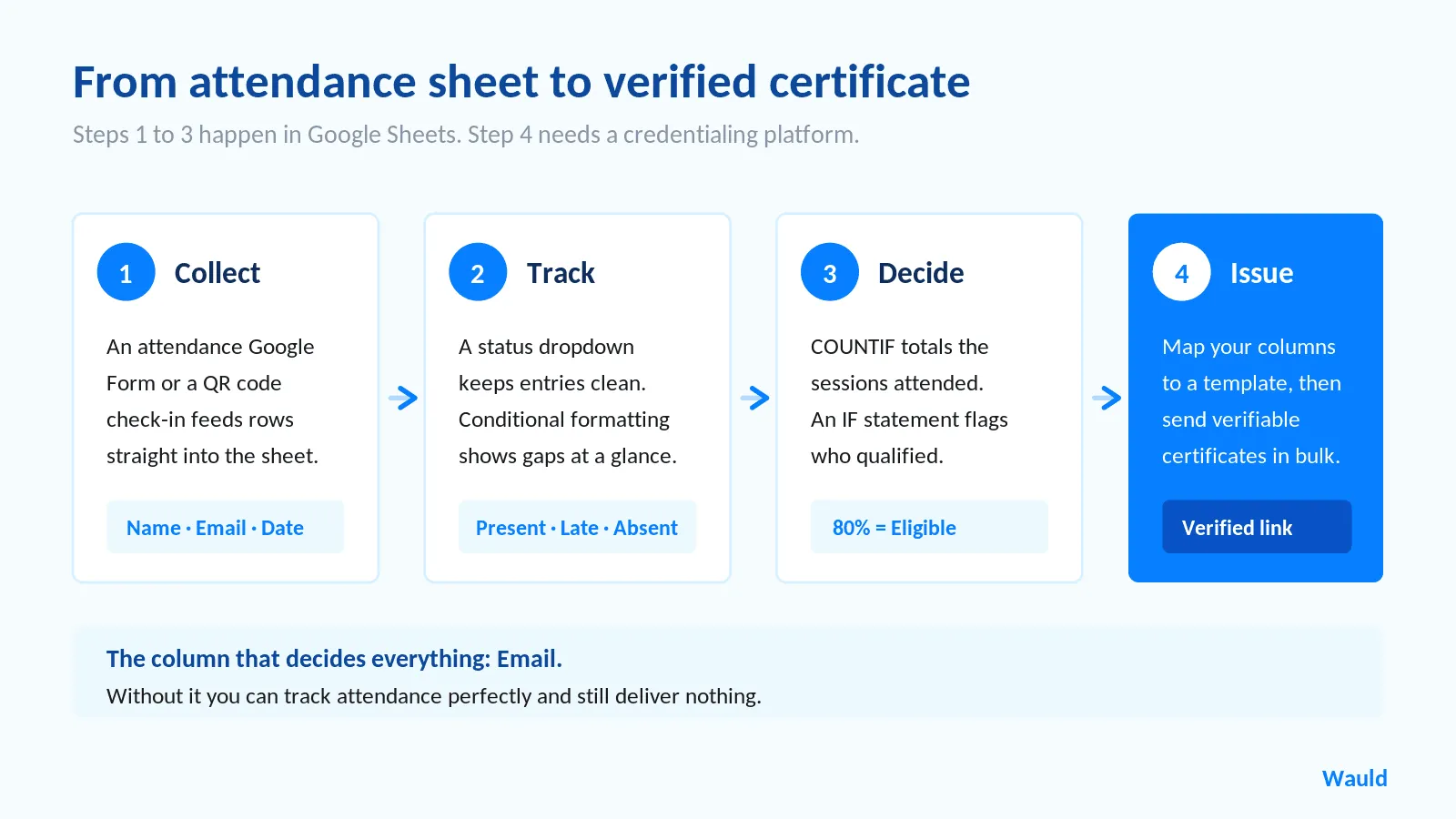
Here is how to make an attendance sheet in Google Sheets. Open a blank spreadsheet. Add columns for First Name, Last Name, Full Name, Email, Participant ID, Session Date, Attendance Status, and Notes. Use Data > Data validation to build a status dropdown. Then use COUNTIF to total attendance and IF to flag who qualifies for a certificate.
That is the whole build. The rest of this guide walks through each step. It also covers the formulas that count for you. Finally, it shows how to turn finished records into certificates people can verify.
Why attendance records matter for certificate issuers
Your attendance sheet is not just admin work. It is the evidence behind every certificate you issue.
When a learner asks why they did not receive a certificate, your sheet holds the answer. When an auditor asks how you confirmed completion, your sheet is the proof. Therefore the columns you set up today decide how smooth your issuing day feels later.
This matters most for accredited programs. IACET sets the ANSI/IACET standard for continuing education. It requires providers to keep a record for every person awarded CEUs. Providers must also produce a transcript of that record on request.
A shared spreadsheet is a good place to start that record. It is not a good place to finish it.
What most attendance sheets get wrong
Most attendance sheets work for one week. Then they break. Here is what usually goes wrong.
- Statuses do not match. One person types "Present." Another types "present." A third writes "P." Now your formulas count three different things.
- There is no email column. You tracked class attendance perfectly. However, you cannot send anything to anyone.
- Names live in two columns. Certificates need one clean name field. Splitting it creates work later.
- Nobody set a rule. You have the data, although you never decided what counts as "completed." So every certificate becomes a judgment call.
- Everyone can edit everything. A column quietly disappears in week three, and nobody notices.
Each problem is easy to prevent. You just have to build the sheet with certificates in mind. Let's do that.
How to make an attendance sheet in Google Sheets
Step 1: Open a new sheet and name it
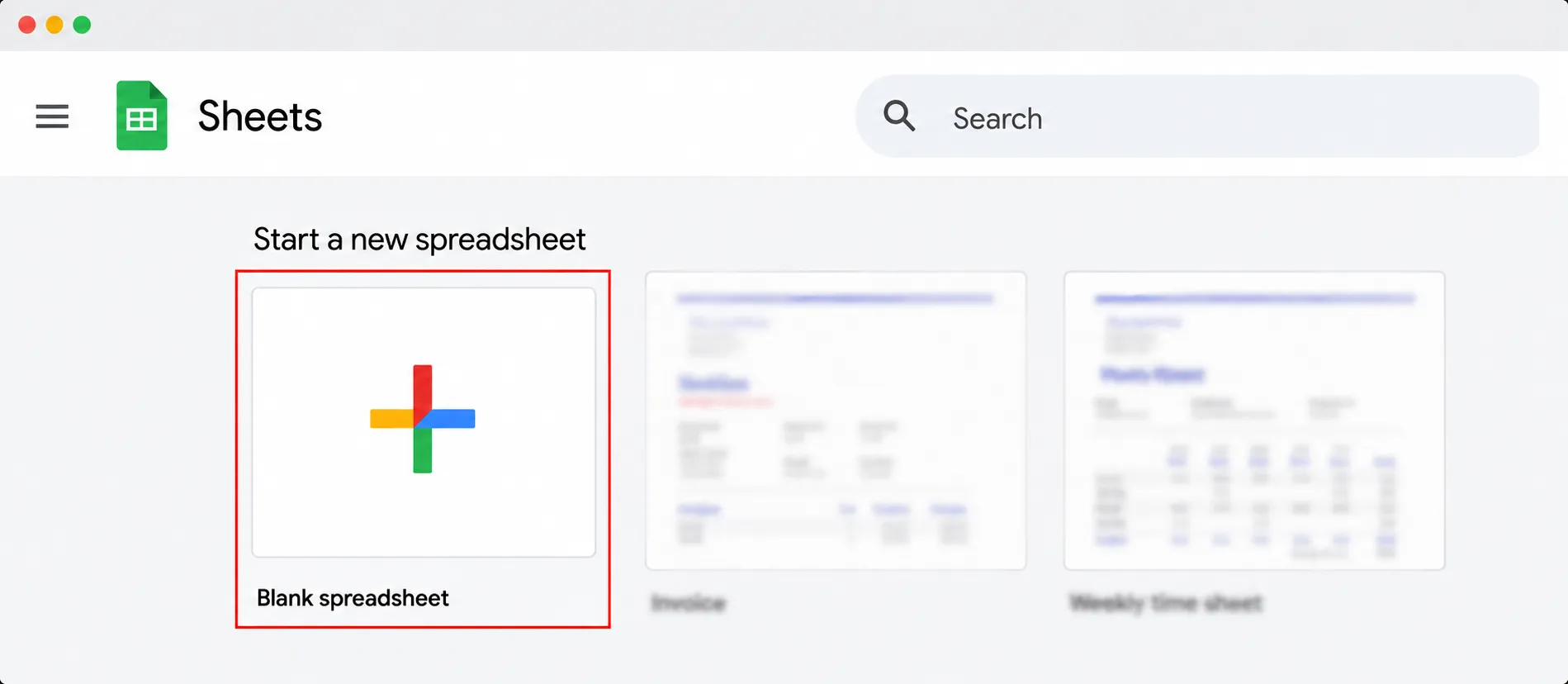
Open Google Sheets and click Blank spreadsheet. Then click "Untitled spreadsheet" in the top left. Give it a real name, such as "Q3 Safety Training Attendance 2026."
Clear names matter more than they seem. Most issuers end up with a folder of similar files by year end.
Step 2: Add the right column headers
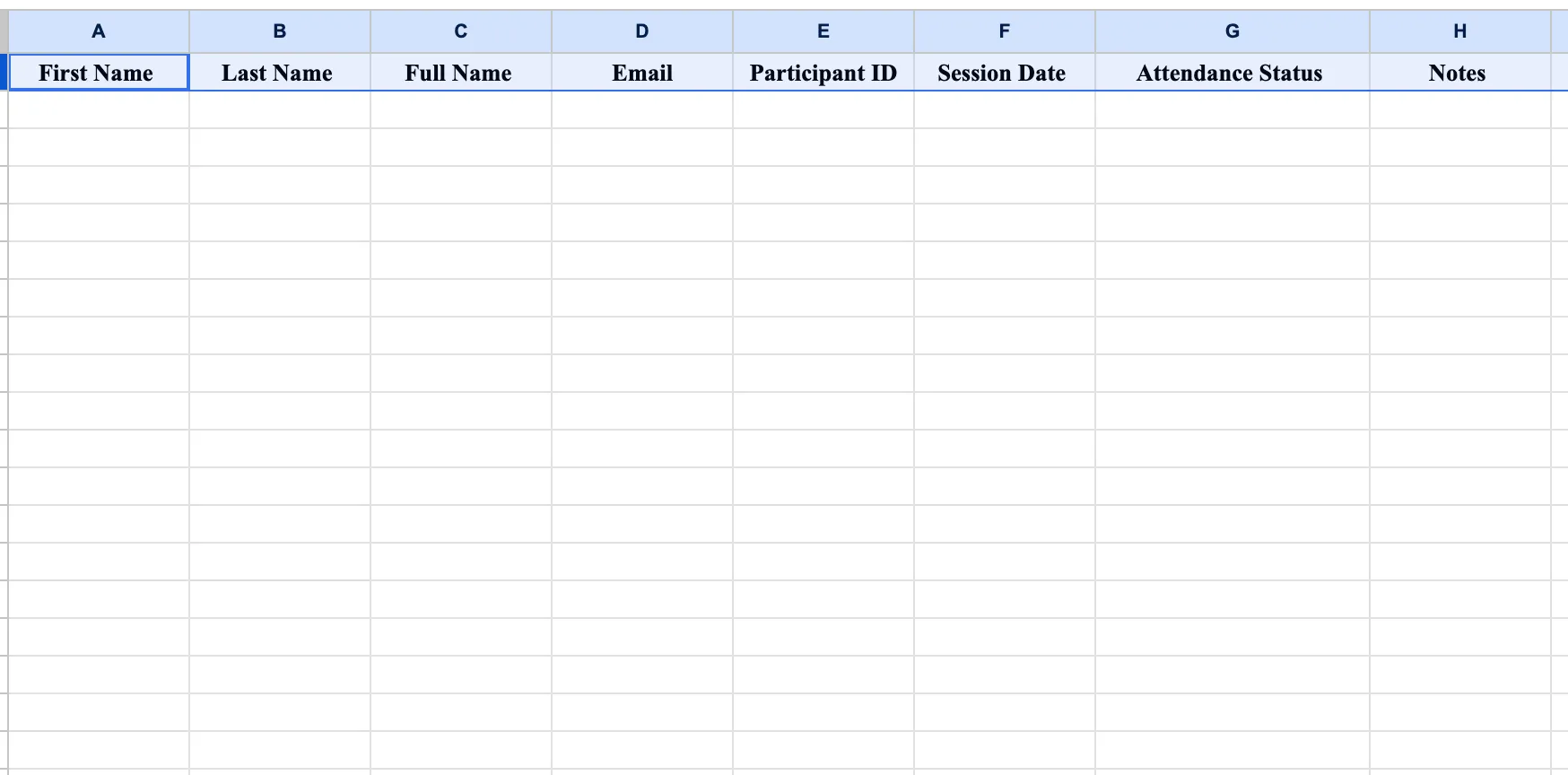
Type these headers into row 1. Each one earns its place.
| Column | Header | Why you need it |
|---|---|---|
| A | First Name | Personalizes the certificate |
| B | Last Name | Pairs with first name |
| C | Full Name | The field most credential tools map to |
| D | Required to deliver anything | |
| E | Participant ID | Matches records across systems |
| F | Session Date | Builds your audit trail |
| G | Attendance Status | Present, Absent, Late, or Excused |
| H | Notes | Holds context a formula cannot capture |
People skip the Email column most often. It is also the column that blocks certificate delivery later. Add it now.
Step 3: Build a Full Name column
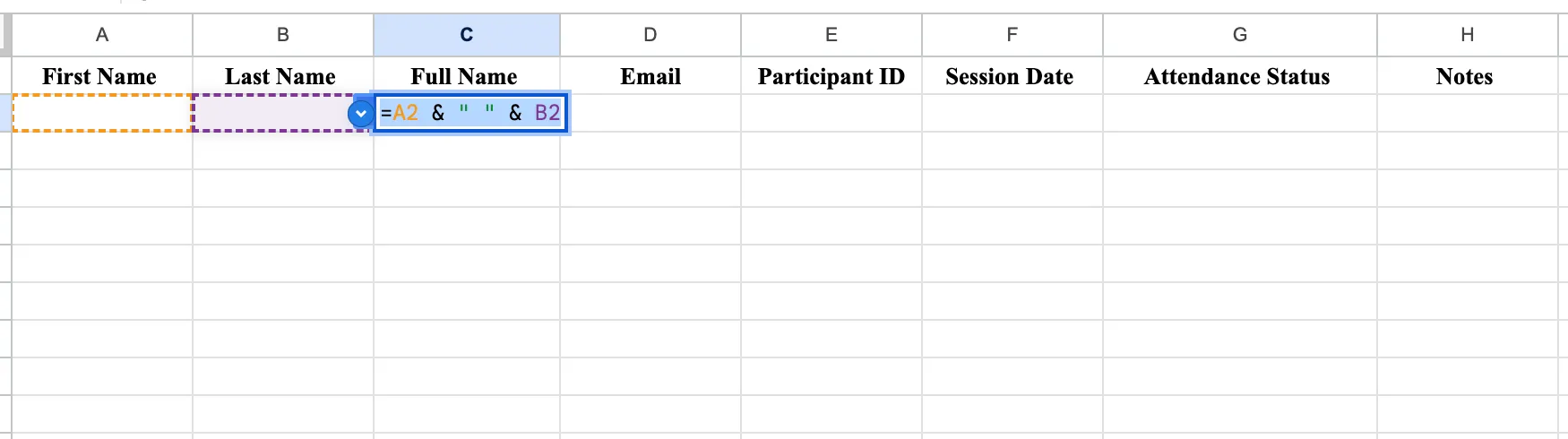
Click cell C2. Enter this formula:
=A2 & " " & B2Press Enter. Then drag the small blue square at the bottom right of the cell down the column.
Prefer a formula that fills itself? Use this in C2 instead:
=ARRAYFORMULA(IF(A2:A="", "", A2:A & " " & B2:B))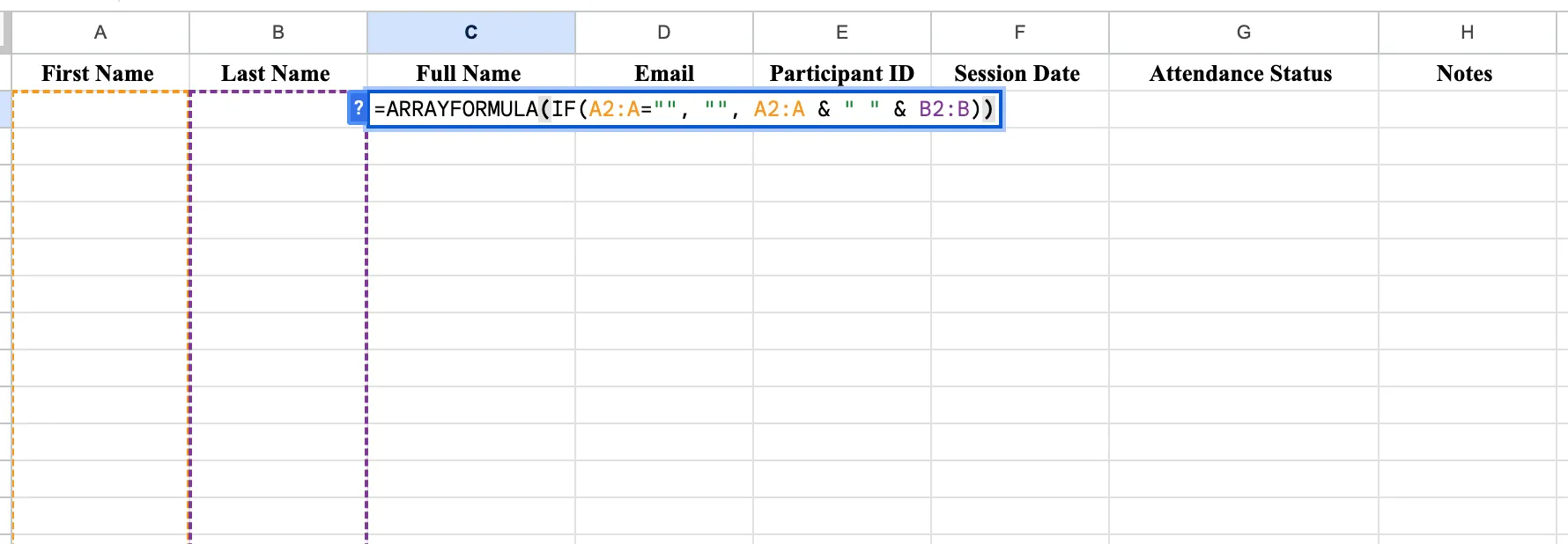
This step matters more than it looks. Most credentialing platforms map a single name field onto the certificate. A clean Full Name column means no cleanup on issuing day.
Step 4: Freeze the header row and fix your dates
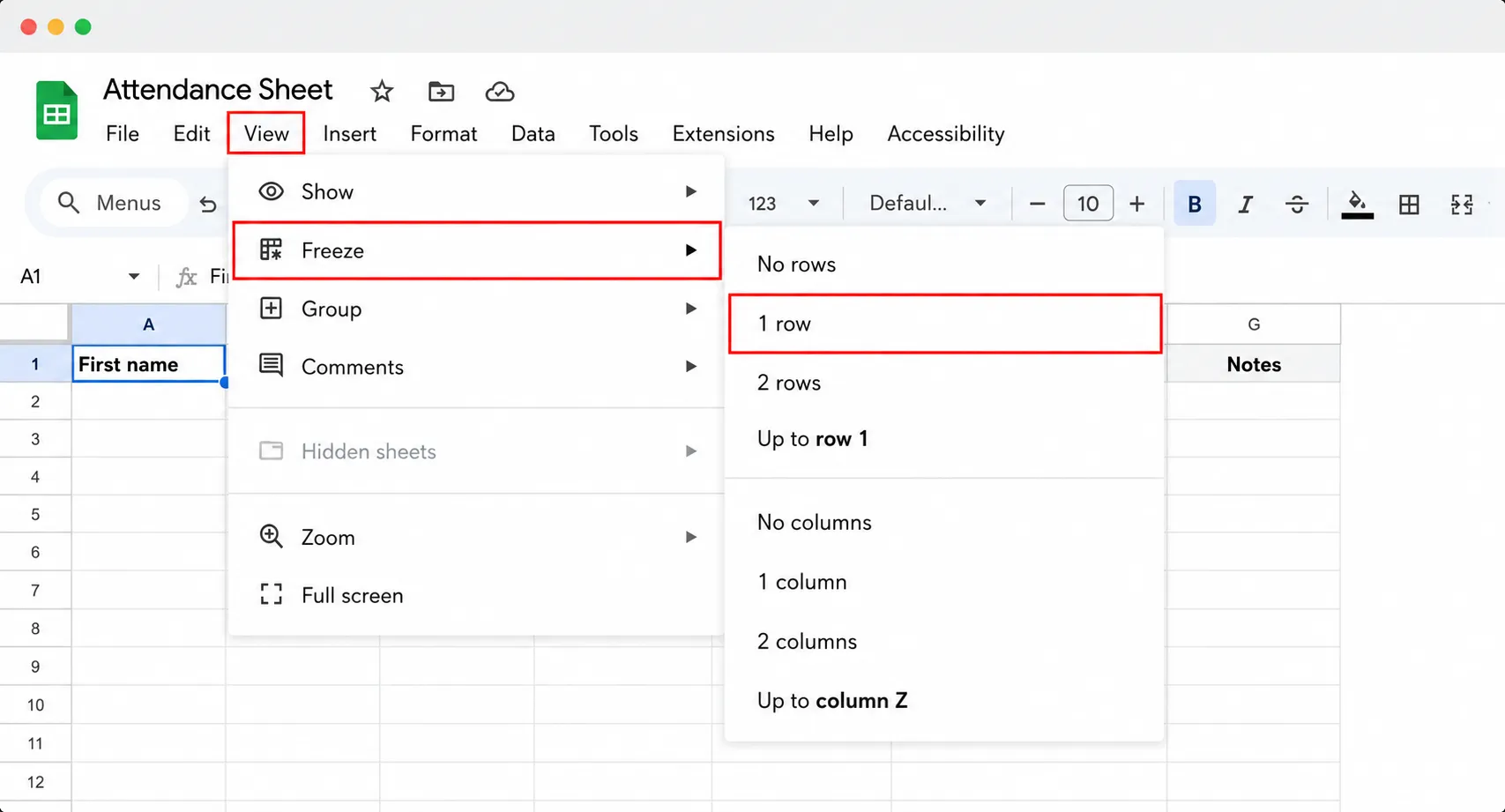
Select row 1. Then go to View > Freeze > 1 row. Your headers now stay visible as the roster grows.
Next, select your Session Date column. Choose Format > Number > Date.
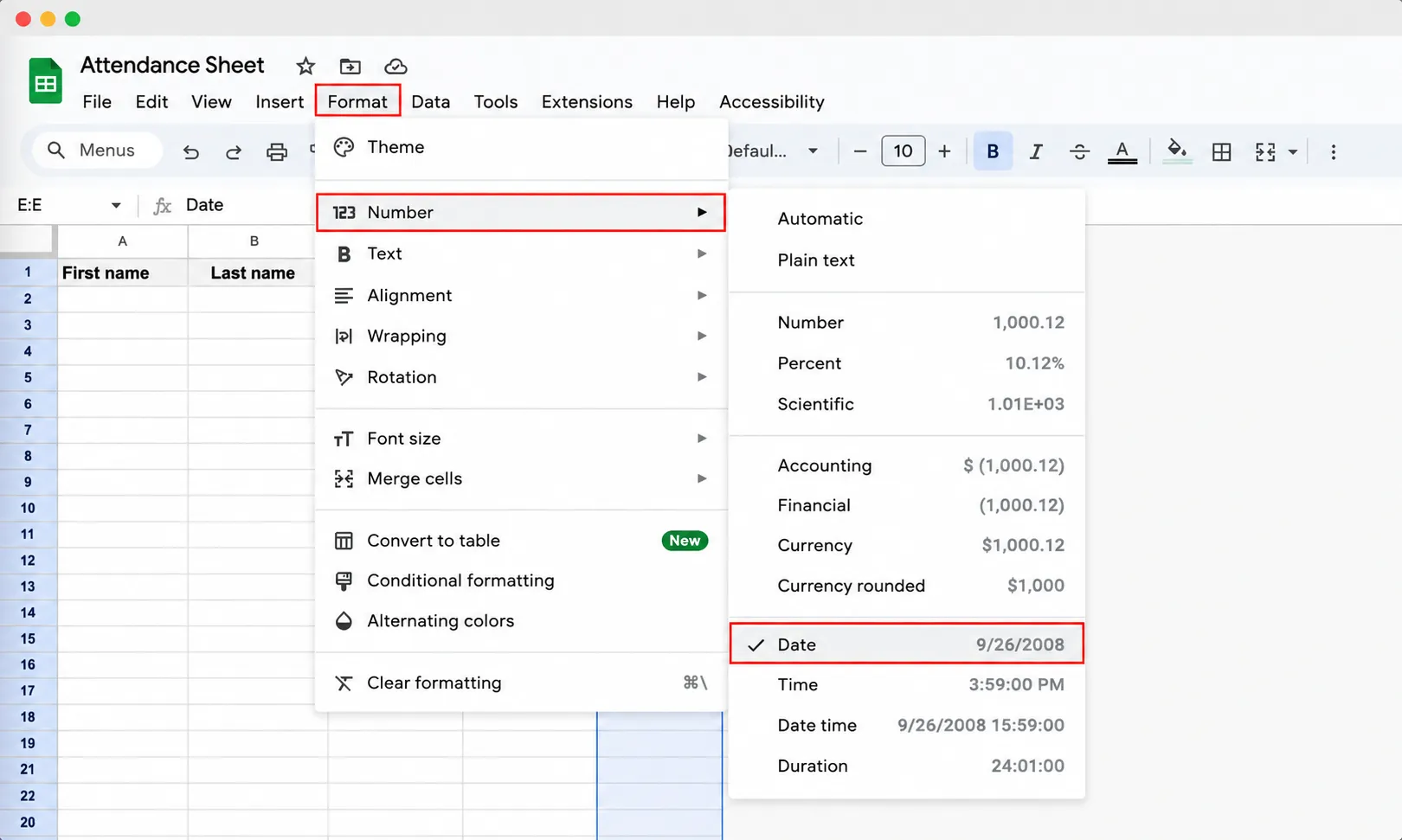
Consistent dates sound trivial. However, try filtering by month when half your entries are plain text. You will feel the difference.
Step 5: Add an attendance status dropdown
This single step protects every formula you write later.
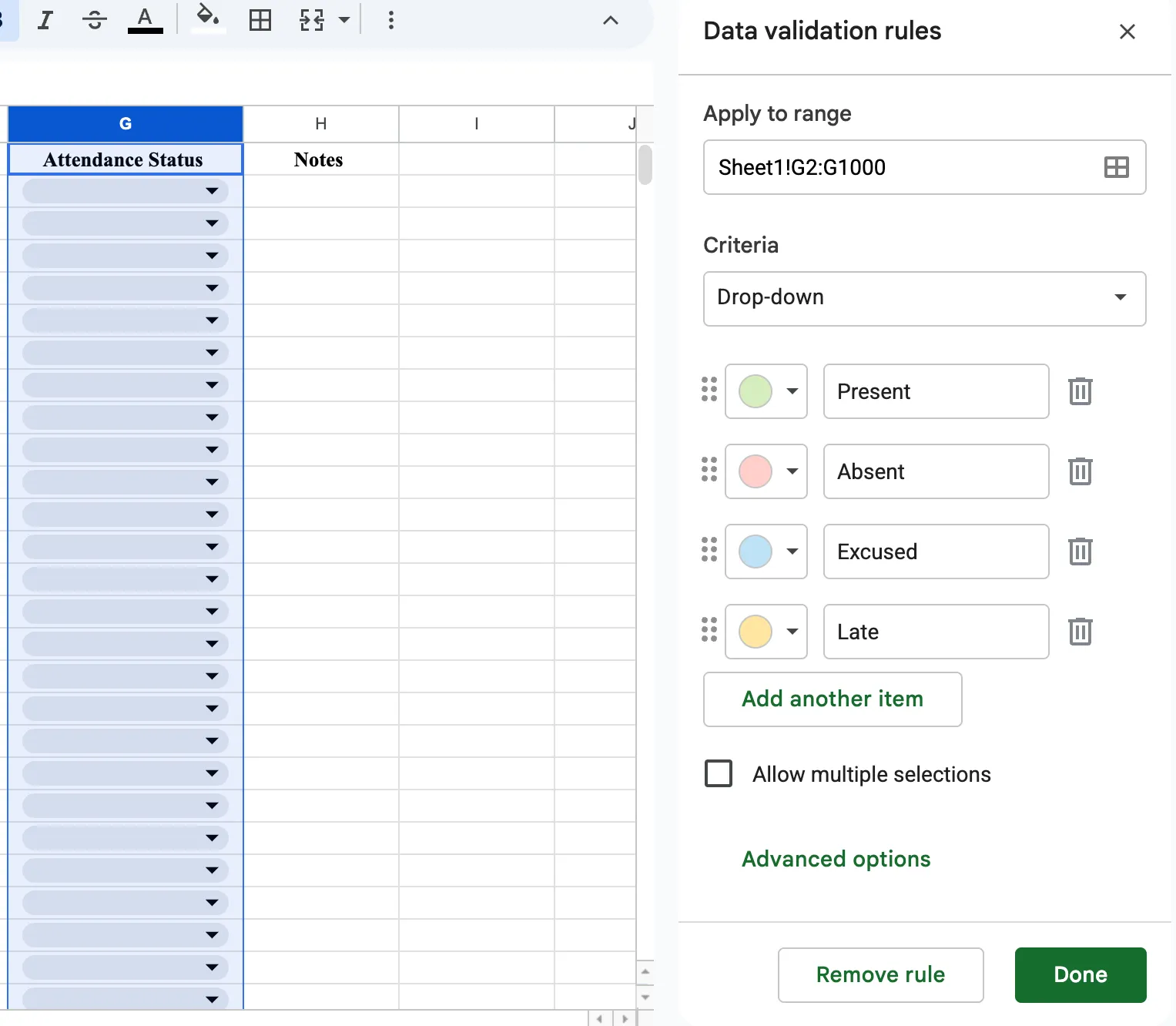
- Select the cells under Attendance Status, such as G2 downward.
- Click Data > Data validation > Add rule.
- Under Criteria, choose Dropdown.
- Add four options: Present, Absent, Late, Excused.
- Give each option a color. Click Done.
Now nobody can type "prsent." Every entry matches one of four exact values. Therefore every count you run afterward is trustworthy.
Step 6: Color-code with conditional formatting
Select the Attendance Status column. Go to Format > Conditional formatting. Add one rule per status using "Text is exactly."
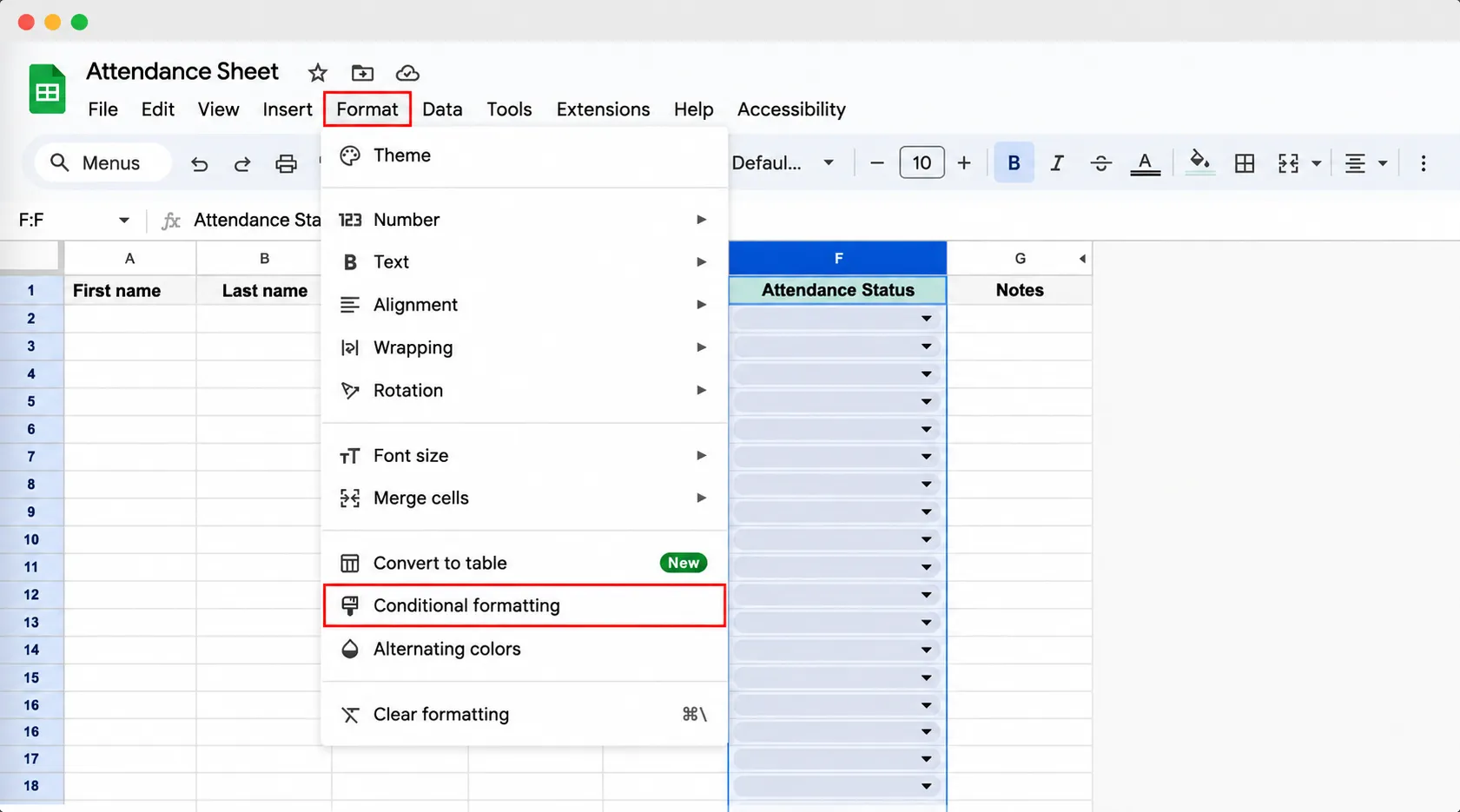
- Present gets a green fill
- Absent gets a red fill
- Late gets an orange fill
- Excused gets a blue fill
A glance down the column now tells you who is falling behind. You do not have to read a word.
Step 7: Count attendance with COUNTIF
Here is where your attendance tracker starts working for you. Start from a roster with real rows in it.
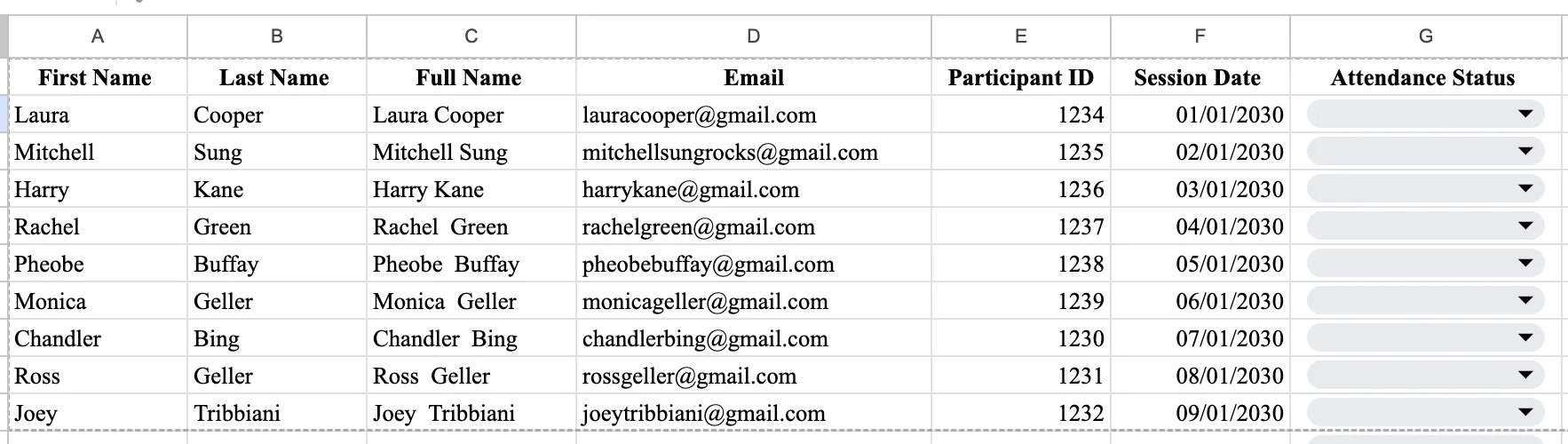
- Total present:
=COUNTIF(G2:G100, "Present") - Total absent:
=COUNTIF(G2:G100, "Absent") - Sessions one person attended:
=COUNTIFS(C2:C100, "Priya Raman", G2:G100, "Present") - Attendance percentage:
=COUNTIFS(C2:C100, "Priya Raman", G2:G100, "Present") / COUNTIF(C2:C100, "Priya Raman")
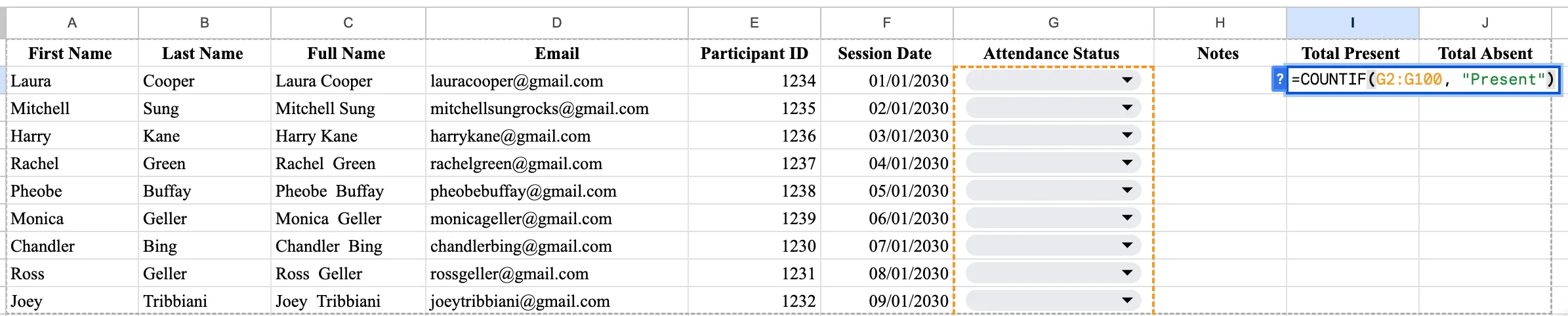
Format that last cell as a percentage. Go to Format > Number > Percent. You now have the number that decides who earns a certificate.
Step 8: Add an eligibility flag
Most programs set a rule. For example, attend 80 percent of sessions to receive a certificate.
Put that rule in the sheet. Then it applies to everyone the same way:
=IF(I2>=0.8, "Eligible", "Not yet")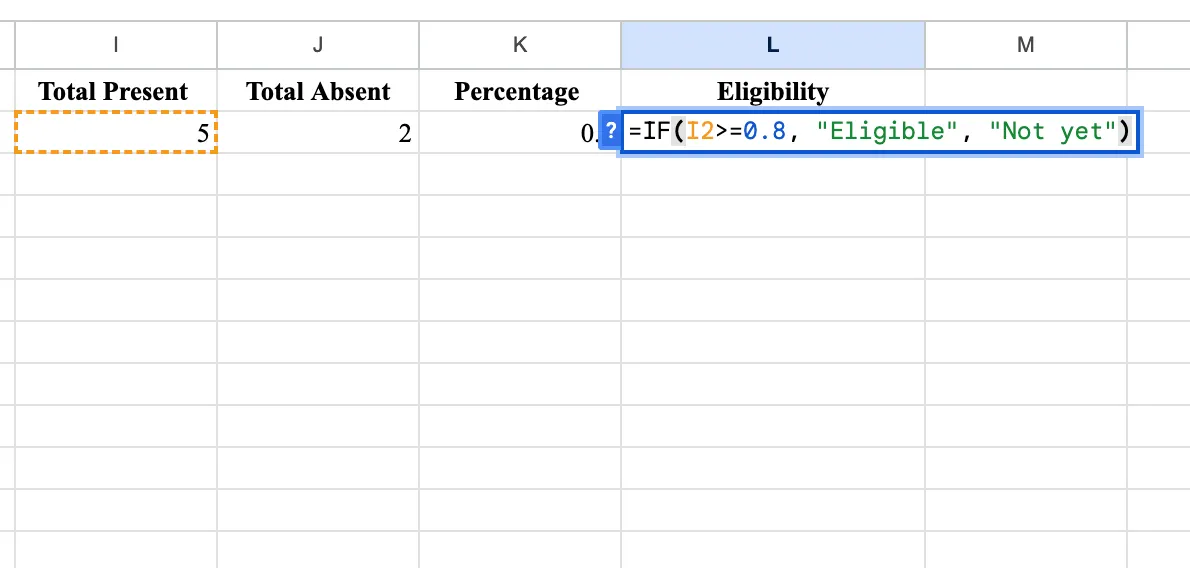
Here, I2 holds the attendance percentage. Issuing certificates is now a filter, not forty separate decisions.
Step 9: Share the sheet safely
Click Share in the top right corner. Under General access, keep it Restricted. Avoid "Anyone with the link."
Add co-facilitators by email with Editor access. Give everyone else Viewer or Commenter rights.
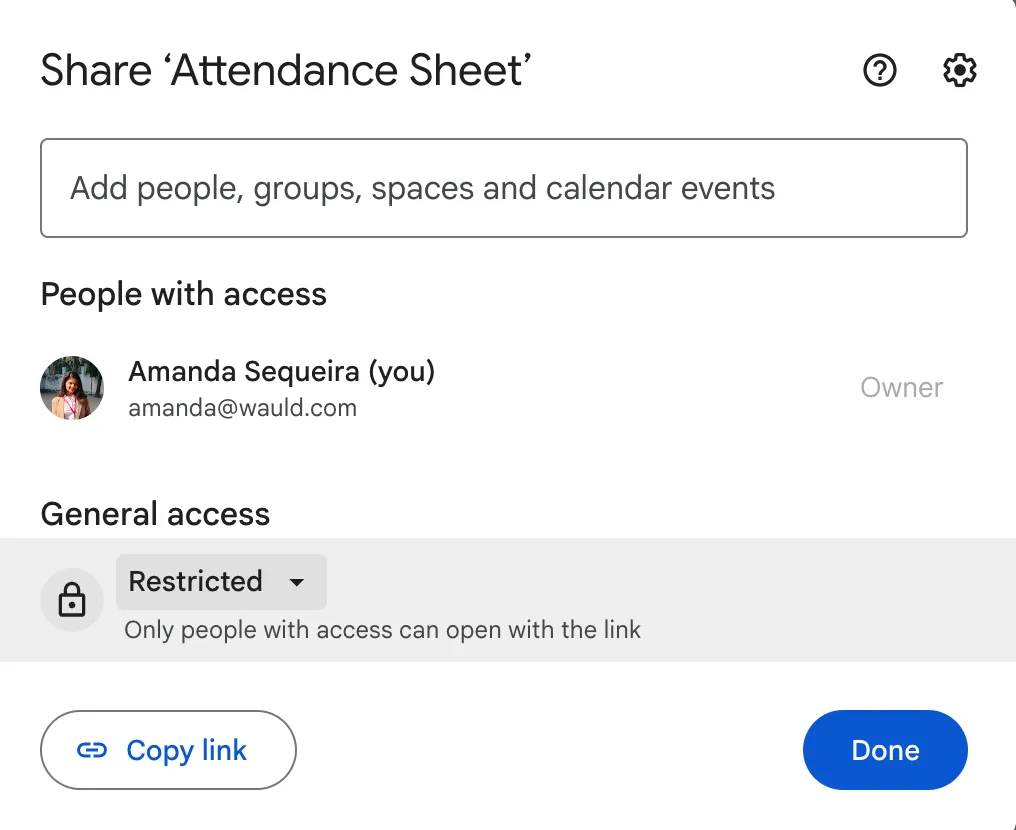
Attendance records hold names and email addresses. Therefore treat the file as personal data.
How to build an attendance Google Form that fills your sheet
Typing names during a live session is a good way to miss half of them. An attendance Google Form solves this.
- Open Google Forms. Create a form called "Session Check-In."
- Add short-answer fields for First Name, Last Name, and Email.
- Mark Email as required. Turn on response validation so it must be a real address.
- Add a multiple-choice question for the session or date.
- Open the Responses tab. Click the Sheets icon to link the form to your attendance sheet.
Every submission now creates a row automatically. Meanwhile, you spend the session teaching.
This setup works for any audience. Use it for class attendance, workshop sign-ins, or an employee attendance tracker. Want the form itself to trigger credentials? We cover that in how to generate certificates and badges with Google Forms.
Add a QR code for in-person check-in
A QR code makes check-in almost effortless. Here is how to make one.
- Open your attendance form and click Send.
- Click the link icon. Select Shorten URL and copy it.
- Paste the link into any free QR code generator.
- Download the image.
Print the code for the door at a live workshop. For a virtual session, drop it on a slide. Attendees scan, fill in three fields, and land on your sheet.
How to pull class attendance from Google Meet
Do your sessions run on Google Meet? Then you may not need to collect anything by hand.
On eligible plans, Meet emails the organizer an attendance report after the call. The report arrives as a Google Sheets file. It lists each participant's name, email, join time, exit time, and total duration.
Google's documentation confirms which editions include it: Workspace Essentials, Business Plus, Enterprise Starter, Enterprise Essentials, Enterprise Standard, Enterprise Plus, Education Plus, and the Teaching and Learning Upgrade. Education Plus and Teaching and Learning users get a report automatically for any meeting with two or more participants.
That duration column is valuable for issuers. For example, your rule might be "attend 45 minutes of a 60 minute webinar." You can now calculate that instead of guessing.
Where a Google Sheets attendance sheet stops working
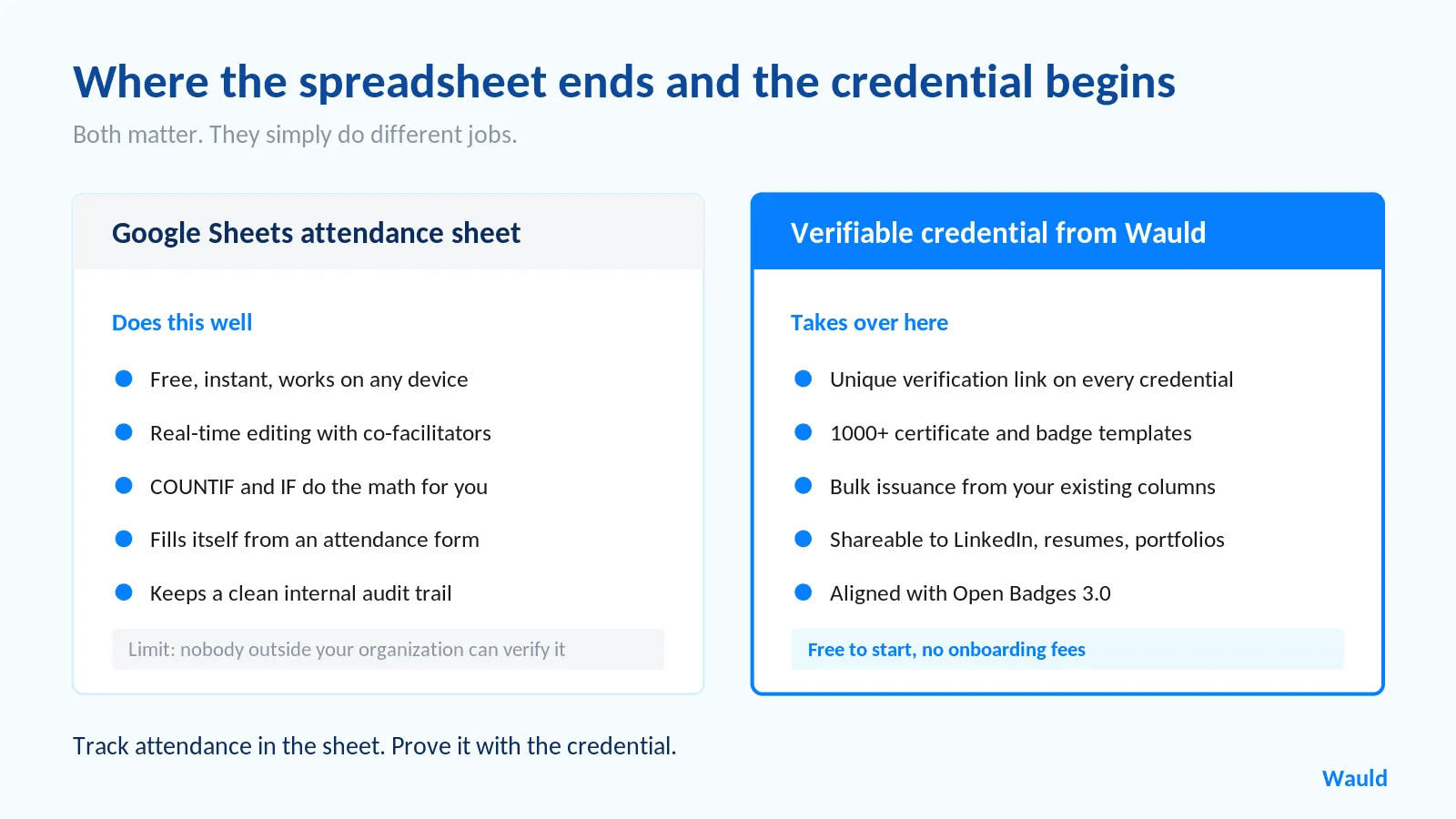
Your attendance sheet now does real work. However, three things sit outside its reach. All three matter once a program ends.
- It cannot prove anything to an outsider. A cell reading "Present" is not evidence a stranger can check. If a learner lists your training on a résumé, an employer has no way to confirm it.
- It cannot deliver recognition. Your data sits in a sheet. The person who showed up wanted the credential, not the row.
- It does not scale. Designing and emailing 200 certificates by hand takes a full day. One typo means reissuing.
How to turn your attendance sheet into verified certificates
Your sheet now holds clean names, valid emails, and an eligibility column. Therefore issuing credentials becomes a short task.
Here is how the handoff works with Wauld:
- Design once. Choose from 1000+ customizable certificate and badge templates. Add your logo, colors, signature, and a QR code.
- Filter your sheet. Sort by the "Eligible" column. You now work only with people who met the rule.
- Issue in bulk. Upload your filtered list. Map Full Name and Email to your template fields, then send. You can map extras too, such as session date, program name, or attendance percentage.
- Let recipients prove it. Every credential carries a unique verification link. Recipients share it on LinkedIn, résumés, email signatures, and portfolios.
- Watch what happens next. Track opens, downloads, shares, LinkedIn additions, and verifications from one dashboard.
Wauld issues credentials aligned with open standards, including Open Badges 3.0. Therefore a badge you issue stays readable and verifiable beyond your own platform. That is the difference between a PDF lost in a downloads folder and a credential that keeps working.
Wauld is free to start, with no onboarding fees. The step-by-step setup lives in how to generate certificates from Google Sheets.
Honest trade-off: a credentialing platform adds one more tool to your stack. If you issue five certificates a year, a spreadsheet and a PDF may be enough. Although once you pass roughly fifty per program, or once anyone needs to verify them, manual issuing stops being cheaper.
Four habits that keep your attendance tracker clean
- Protect your formula columns. Use Data > Protect sheets and ranges. Nobody can overwrite your COUNTIF cells by accident.
- Never rename columns mid-program. A workflow mapped to "Full Name" breaks quietly when you rename it "Name."
- Turn on notifications. Under Tools > Notification settings, ask Sheets to email you when the file changes.
- Archive rather than delete. Duplicate the sheet at the end of each program. Accreditation bodies often expect records kept for years.
Ready to give your attendees something they can use?
Create your free Wauld account and issue your first verified certificate today. No onboarding fees, 1000+ templates, every credential verifiable from day one.
Conclusion
Building an attendance sheet in Google Sheets is quick once you know which columns matter. Set your headers with certificates in mind. Use a dropdown instead of free typing. Let COUNTIF do the counting. Collect check-ins with an attendance Google Form. Then share the file carefully.
That gives you a free, reliable attendance tracker. It works for class attendance, webinars, workshops, and employee training alike.
The interesting part comes next. Attendance data only pays off when it becomes recognition someone can carry, and anyone can verify. Your spreadsheet takes you to that edge. A verifiable digital certificate carries it across.
FAQs On Making an Attendance Sheet in Google Sheets
How do I make an attendance sheet in Google Sheets for free?
Open a blank Google Sheet. Add columns for First Name, Last Name, Full Name, Email, Participant ID, Session Date, Attendance Status, and Notes. Use Data > Data validation to build a status dropdown. Then apply conditional formatting for color and use COUNTIF to total attendance. Google Sheets is free with any Google account, so the setup costs nothing.
How do I create a Google Form attendance sheet?
Build a form in Google Forms with fields for name, email, and session. Mark the email field as required. Then open the Responses tab and click the Sheets icon to link it to a spreadsheet. Every submission adds a row automatically. Share the form link or a QR code so attendees can check themselves in.
Does Google have a built-in attendance tracker?
Not as a standalone product. However, Google Meet generates an attendance report as a Google Sheets file on eligible Workspace editions. That report shows each participant's name, email, join and exit times, and duration. For everything else, a Google Sheet paired with a Google Form is the standard free setup.
Does Google Classroom track attendance?
Google Classroom has no built-in daily attendance feature. Teachers usually work around this in one of two ways. Some use a Google Form or a graded question and export the responses. Others run the class through Google Meet on an eligible edition and use the automatic attendance report.
What formula calculates attendance percentage in Google Sheets?
Divide sessions attended by total sessions using COUNTIFS. For example: =COUNTIFS(C2:C100,"Priya Raman",G2:G100,"Present")/COUNTIF(C2:C100,"Priya Raman"). Format the cell as a percentage. Then add =IF(I2>=0.8,"Eligible","Not yet") to flag who qualifies for a certificate.
Can I issue certificates directly from a Google Sheets attendance sheet?
Yes. You need a clean Full Name column, a valid email column, and an eligibility flag. Then a credentialing platform can generate certificates in bulk from those rows. Wauld maps those columns to your template and issues verifiable certificates or badges to everyone who qualified.
Is a spreadsheet enough proof of attendance for accredited programs?
Usually not on its own. Bodies like IACET expect providers to keep an individual record for each person awarded CEUs. They also expect a transcript on request. A spreadsheet works well as an internal record. A verifiable credential adds a link that learners and employers can check independently.