How to Add a Certificate on LinkedIn: Step-by-Step Guide

A few months ago a colleague forwarded me her profile and asked why nobody was noticing her new certification. She had finished a serious program. Nine weeks, three assessments, a capstone. On her profile it read: Certificate, Online course, 2026. No issuer logo. No dates. No link. A recruiter scanning that entry has no way to tell it apart from a weekend webinar someone sat through with the tab muted.
That is the strange thing about learning how to add a certificate on LinkedIn. The clicking part takes ninety seconds. The part that decides whether the entry does anything for you happens in two fields most people leave blank.
This guide walks through the whole process screen by screen, on desktop and on mobile. But it also covers the thinking underneath it, because a certificate on LinkedIn is not a trophy shelf. It is a claim, and claims are only worth what they cost to check.
How to Add a Certificate on LinkedIn (Quick Answer)
To add a certificate to your LinkedIn profile:
- Open your LinkedIn profile and click Add profile section.
- Open Recommended, then choose Add licenses & certifications.
- Enter the certificate Name exactly as the issuer wrote it.
- Enter the Issuing organization and pick the verified page from the dropdown.
- Set the Issue date, and tick "This credential does not expire" if it has no expiry.
- Paste the Credential ID and the Credential URL from your certificate.
- Add up to five Skills the credential proves, attach the certificate image under Media, and click Save.
The whole flow takes under two minutes. Steps 6 and 7 are the ones that separate a certification entry recruiters trust from one they scroll past.
Step-by-Step: How to Add a Certificate on LinkedIn
Here is the same process with the screens you will actually see.
Step 1: Open Your Profile and Click Add Profile Section
Go to your LinkedIn profile. Directly under your headline and location, next to the Open to button, you will find Add profile section.
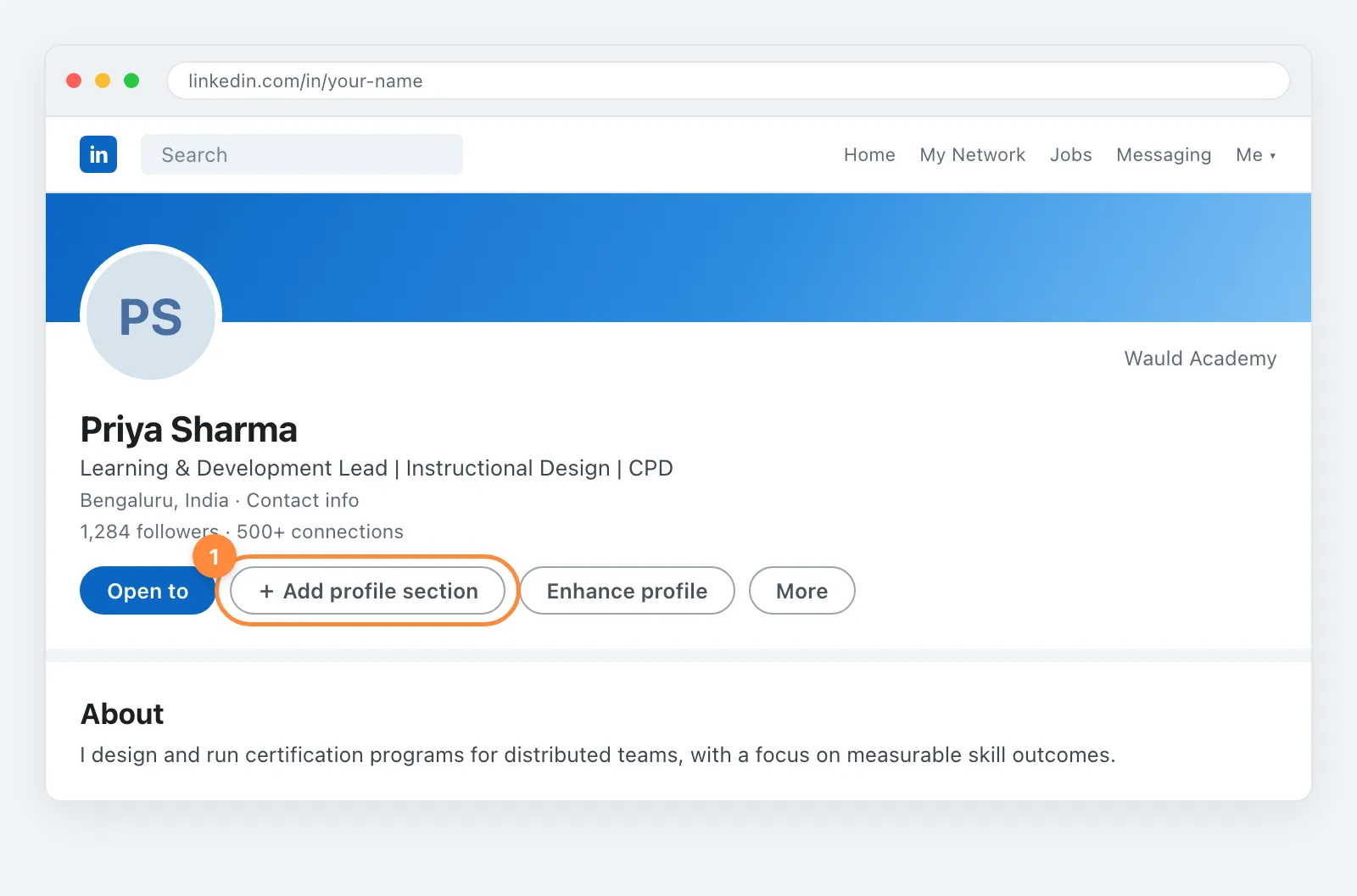
If you already have a Licenses and certifications section on your profile, you can skip the panel entirely. Scroll to that section and click the small + in its top-right corner instead. That drops you straight into the form.
Step 2: Choose Add Licenses & Certifications Under Recommended
The Add to profile panel opens with three groups: Core, Recommended, and Additional. Certificates live under Recommended.
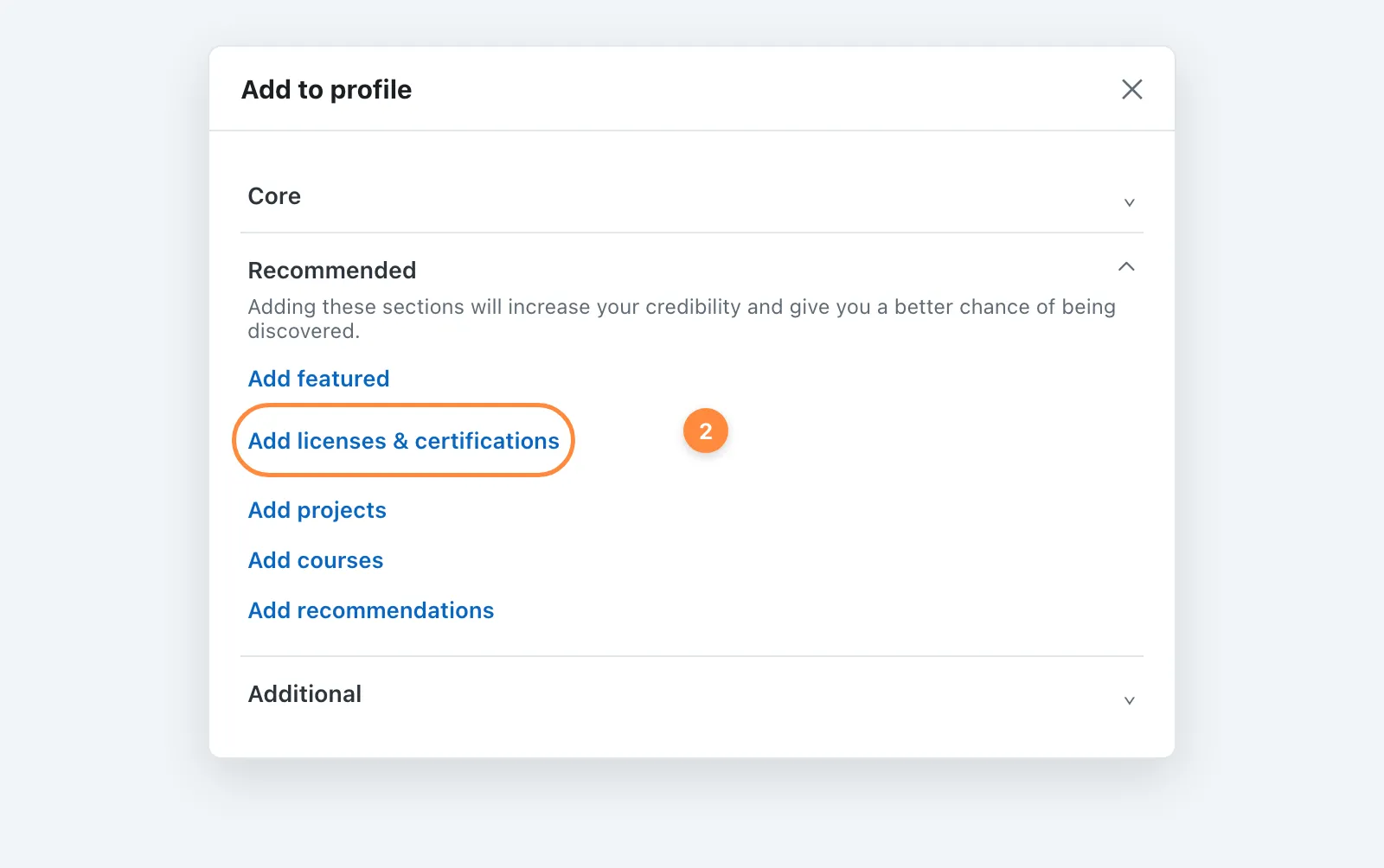
People sometimes hunt for this under Core and give up. It is not there. LinkedIn treats certifications as a credibility booster rather than a structural part of your profile, which tells you something about how the platform ranks them: they are optional, so the ones that are filled in properly stand out more.
Step 3: Open the Add License or Certification Form
This is the form itself. Two required fields, six optional ones.
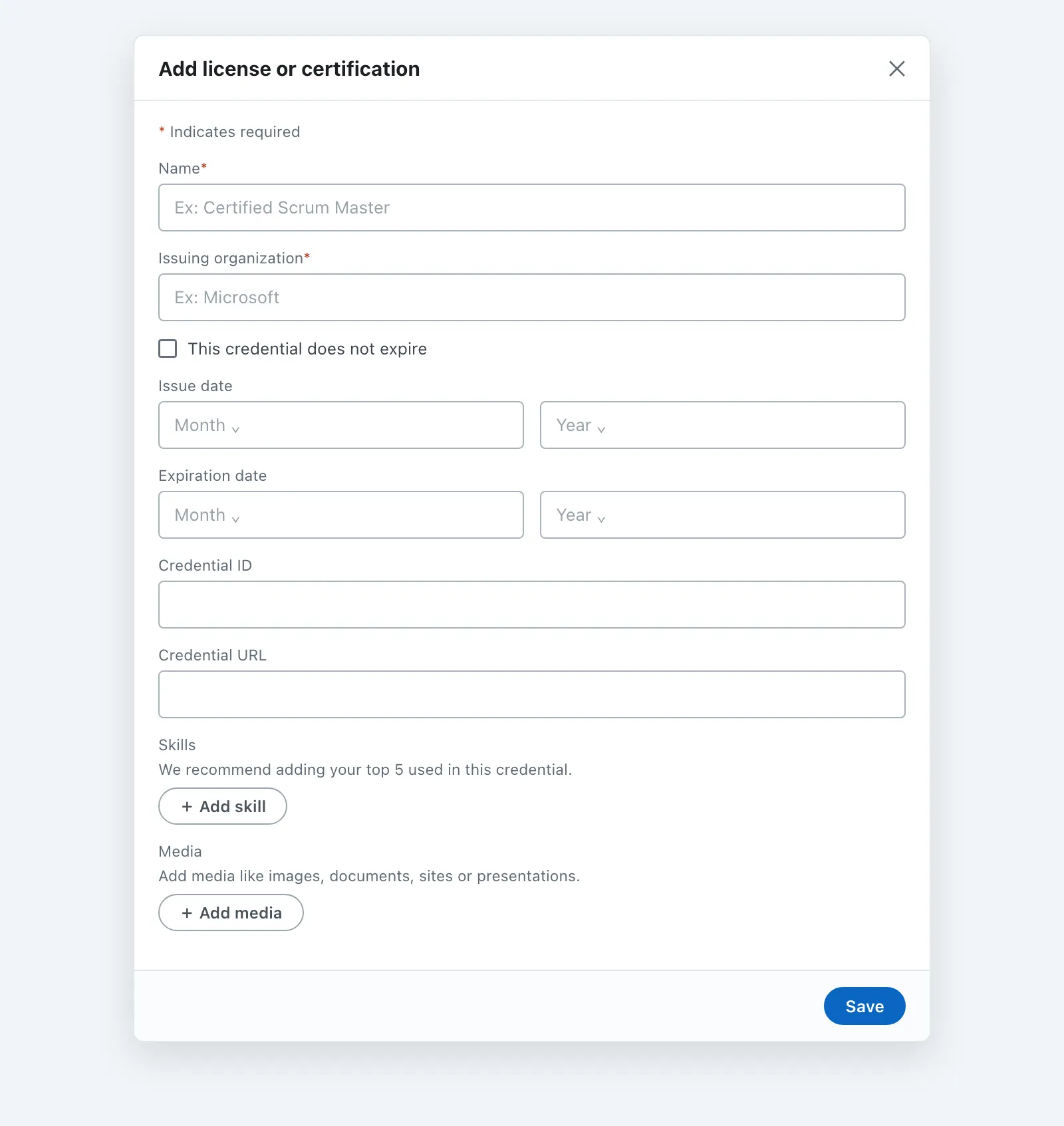
Most people fill the two required fields, hit Save, and move on. That is the ninety-second version, and it is why so many certification entries read like a rumor.
A note on the Name field: copy the official title from the certificate itself, character for character. Not "Data Analytics Course" when the certificate says "Google Data Analytics Professional Certificate". Recruiters search for the exact program name. An approximation is invisible to that search.
Step 4: Fill In the Credential ID and Credential URL
Here is the part that matters most when you add a certificate on LinkedIn.
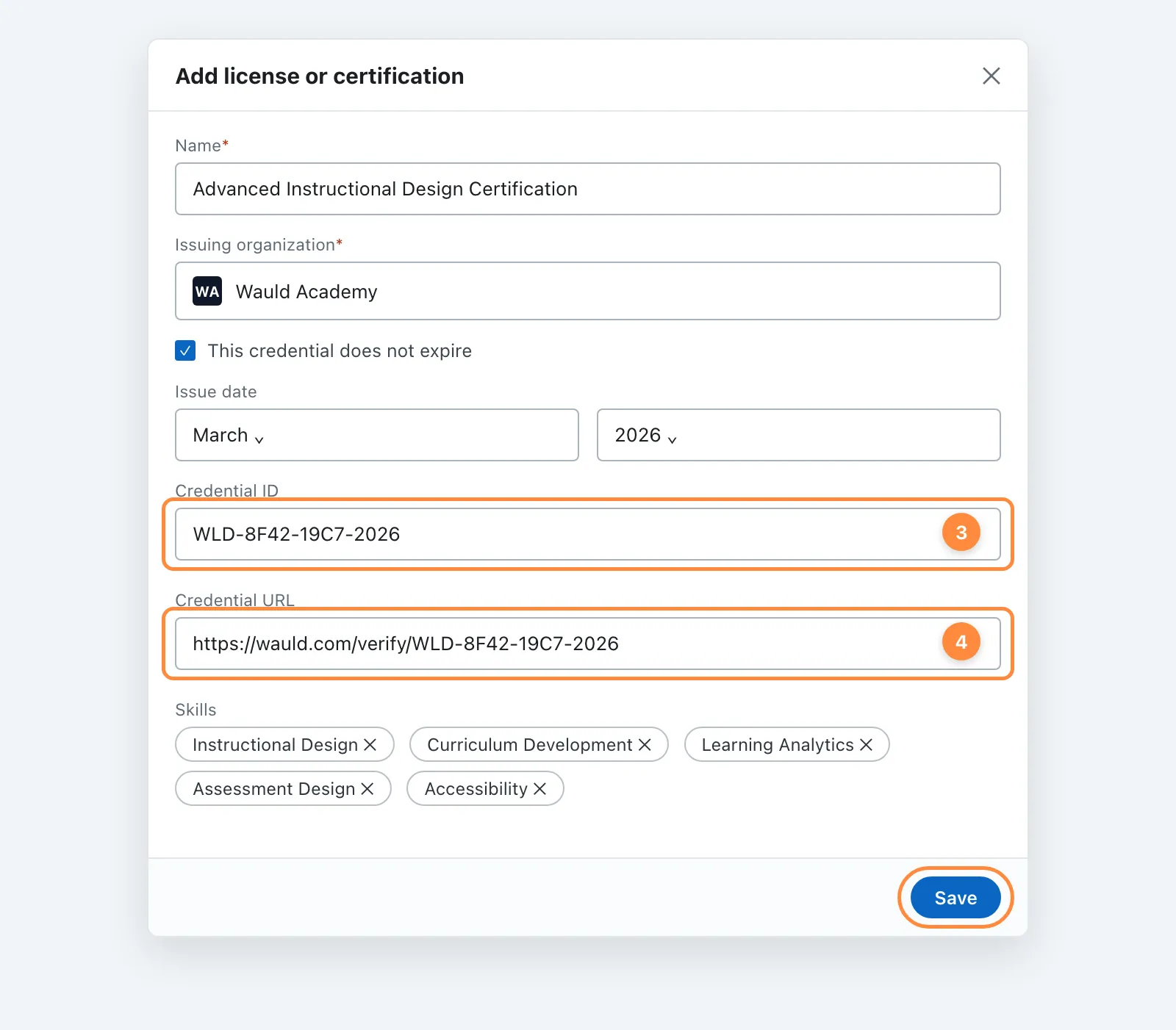
The Credential ID is the unique reference the issuer assigned to your certificate. It usually sits in the footer of the certificate or in the email that delivered it.
The Credential URL is a public link to a verification page that confirms the certificate is real, who it belongs to, when it was issued, and whether it is still valid. If your certificate carries a QR code for verification, scanning it takes you to exactly the page you want in this field.
The distinction is worth sitting with. Without a credential URL, your certification entry is a sentence you wrote about yourself. With one, it is a sentence the issuer stands behind. Those are not the same object, even though they occupy the same nine lines of your profile.
While you are here, add up to five Skills the credential actually proves. LinkedIn uses those skill tags to decide which searches you surface in, and a skill attached to a certification carries more weight than a skill you simply listed.
Step 5: Attach the Certificate Image Under Media
Click Add media and upload the certificate file.
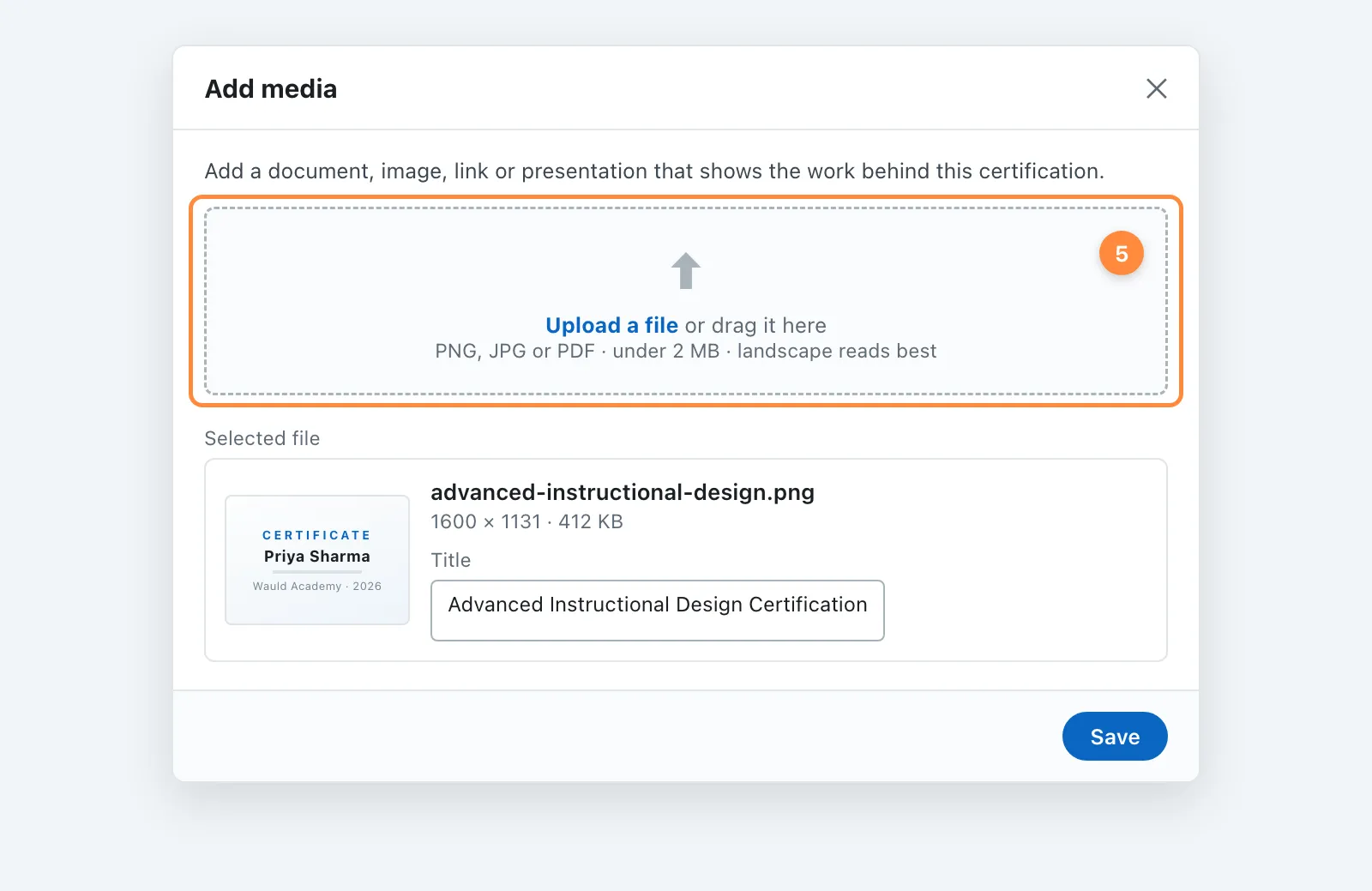
A landscape PNG or JPG under 2 MB reads best in the profile thumbnail. PDFs work, but they render as a flat gray document icon on mobile, which defeats the purpose. If the issuer gave you both formats, use the image.
Step 6: Save and Check the Result
Once you save, the entry appears under Licenses & certifications on your profile.
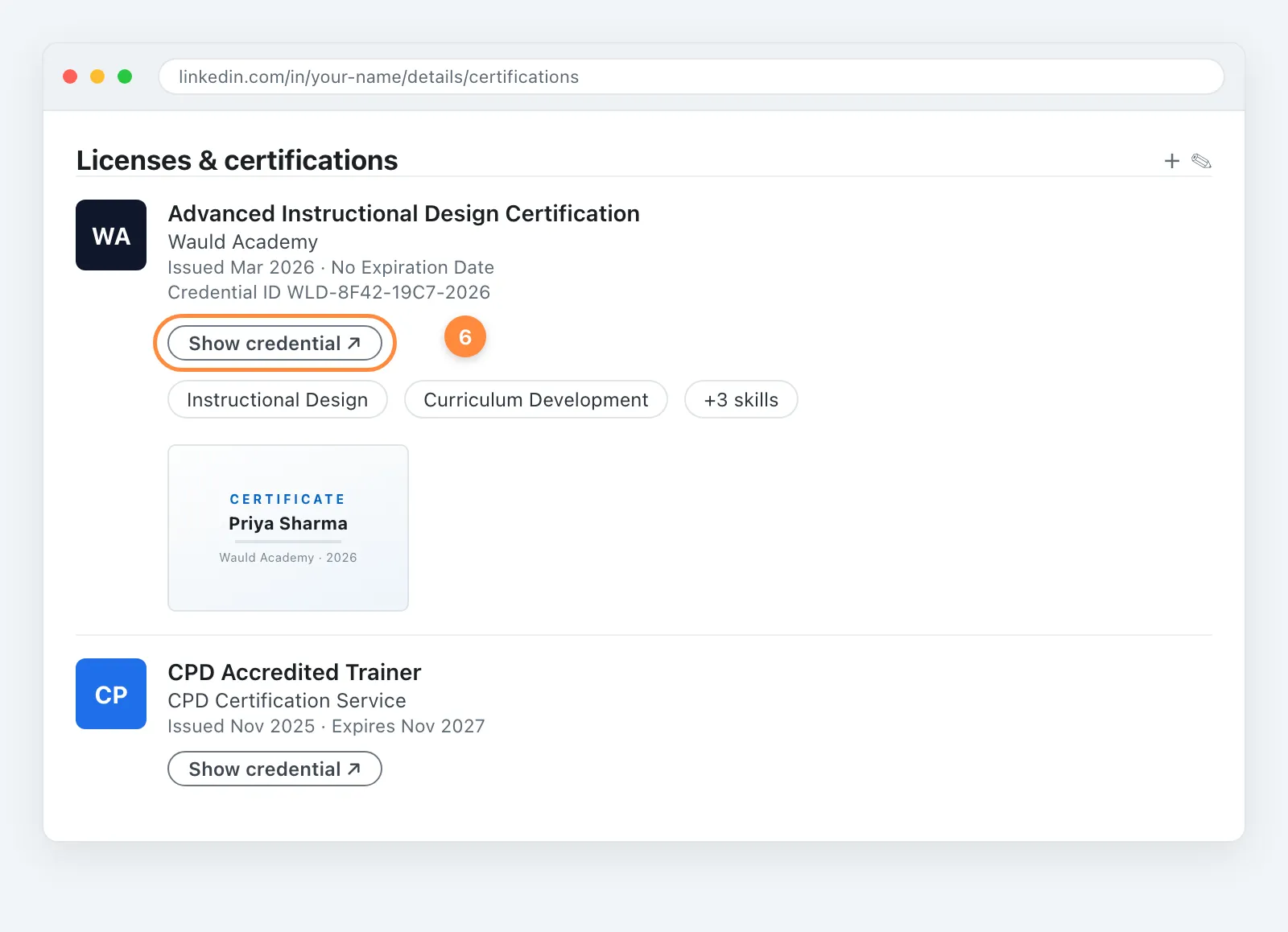
Look for the Show credential button. It only appears because you filled in the credential URL. If it is missing, go back and add the link. Then click it yourself, in a private window, and confirm the verification page loads for someone who is not signed in as you. A verification link that only works for you is worse than no link, because it invites a check that fails.
Step 7: Post It to the Feed as Well
The profile entry is permanent but passive. Nobody gets notified. If you want the achievement to actually travel, write a short post.
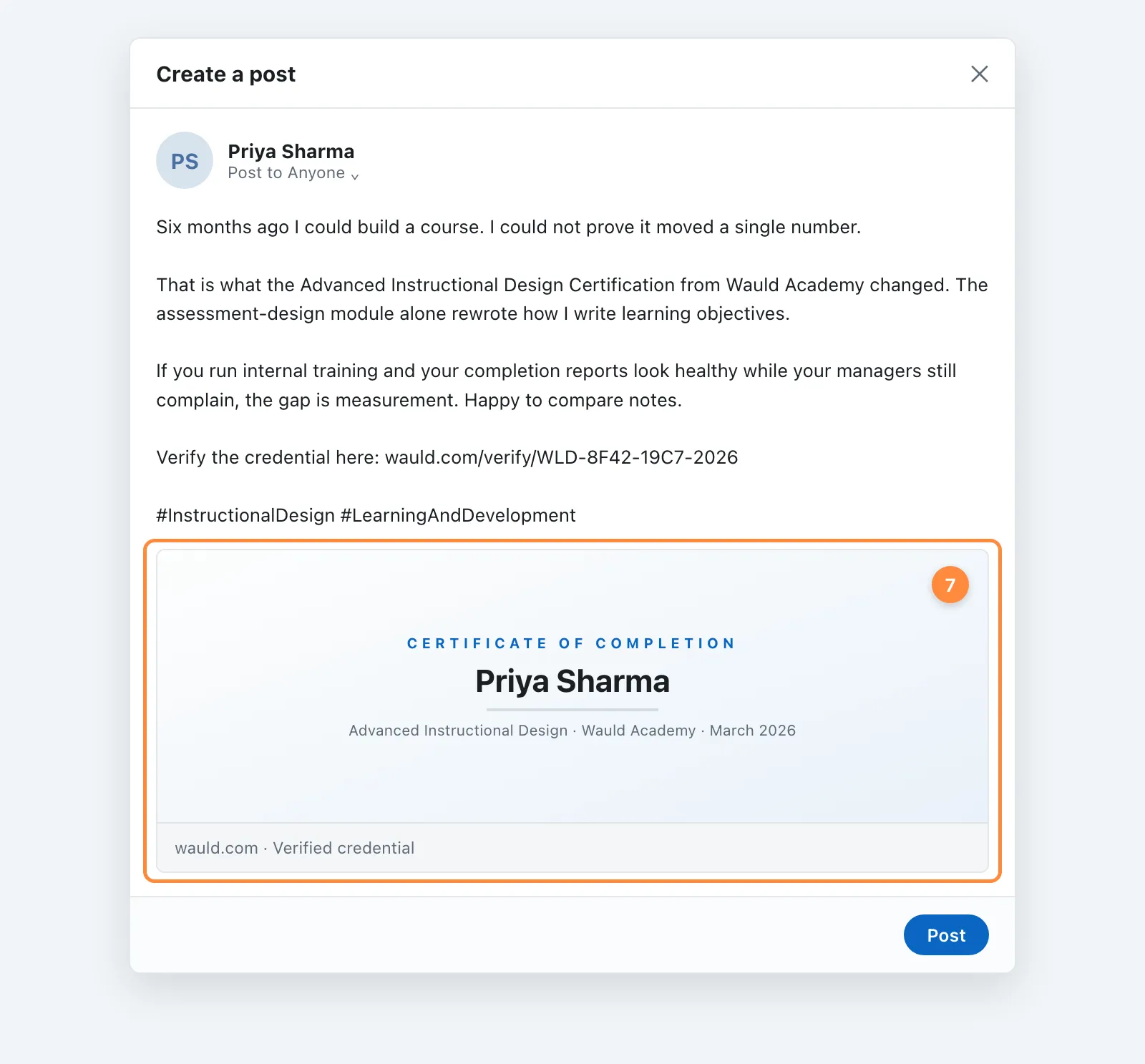
The posts that work are not the ones that announce. They are the ones that explain what changed. "I finished X" is a status update. "I could build a course but I could not prove it moved a number, and here is what fixed that" is a piece of thinking that happens to end in a credential. Tag the issuing organization so the post reaches their network too.
How to Add a Certificate on LinkedIn Using the Mobile App
The mobile flow is the same three moves with smaller buttons.
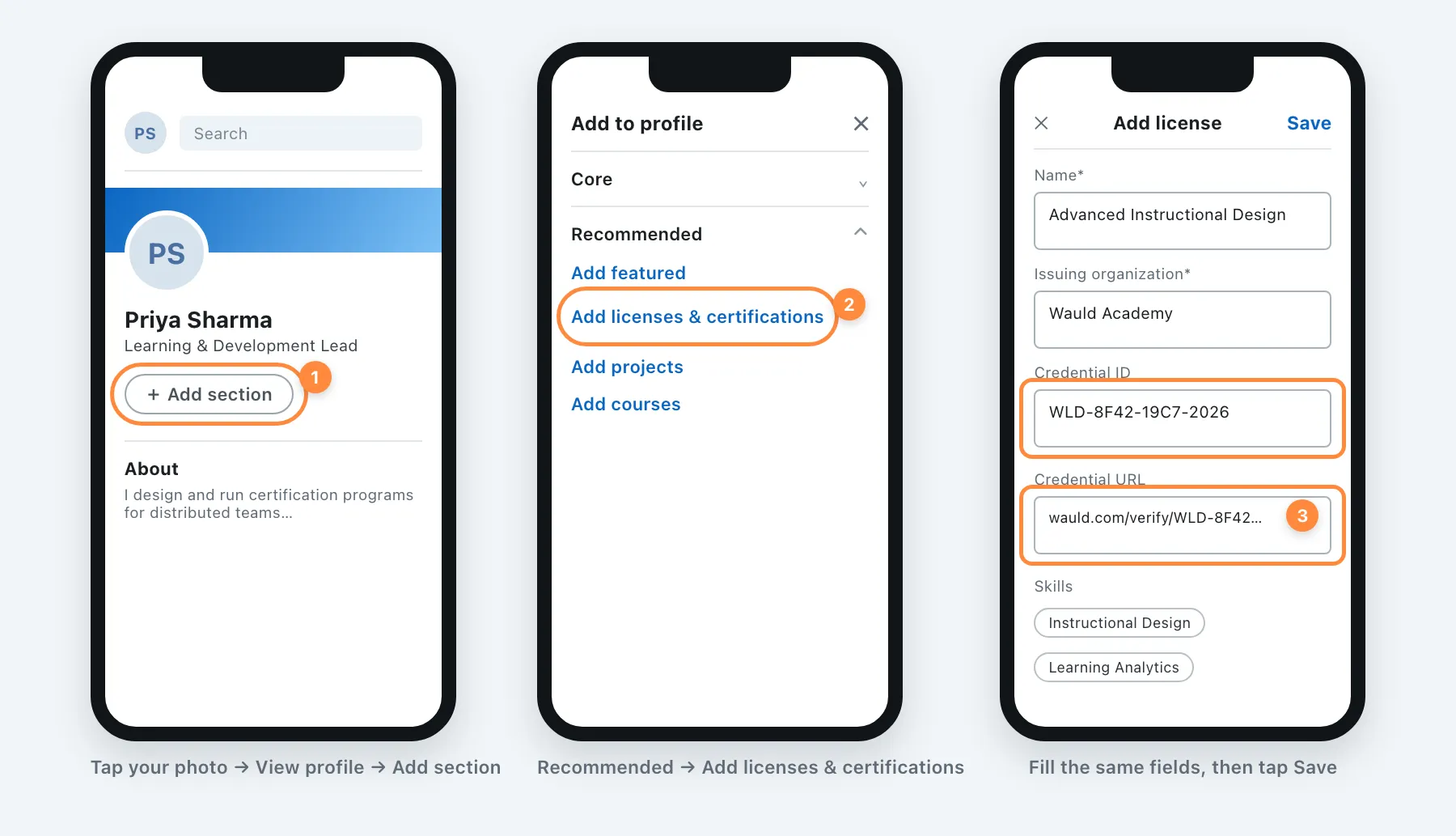
- Tap your profile photo, then View profile.
- Tap Add section, open Recommended, and choose Add licenses & certifications.
- Fill the same fields and tap Save.
One honest warning. Pasting a long credential URL on a phone is where good intentions go to die. If your certificate arrived by email, the fastest route is to open that email on your laptop, add the certificate to LinkedIn there, and let the mobile app sync. Or use a credential platform that fills the fields for you, which we will come to.
The Two Fields Most People Skip, and Why They Decide Everything
Ask why the certification section exists at all and you land somewhere uncomfortable. Hiring runs on claims. A degree, a job title, a certificate: each is a statement whose cost to verify has traditionally been high. So verification mostly does not happen, and everyone quietly prices that in.
What a credential URL does is drop the cost of checking to one click. That single change flips the logic. When verification is expensive, everyone is treated as unverified, and your real certification is worth roughly what an invented one is worth. When verification is cheap, the unverified entries become the odd ones out.
This is also why the shift toward skills-based hiring matters more than it sounds. The World Economic Forum's Future of Jobs Report estimates that a large share of workers' core skills will change by 2030. Job titles decay faster than they used to. A title tells an employer where you were. A verified certificate tells them what you can do now, which is the question they are actually asking.
So when you add a certificate to LinkedIn, the credential ID and credential URL are not admin. They are the whole point. Everything else is formatting.
Should You Add It to Your Profile, Post It, or Both?
Both, and they do genuinely different jobs.
| Profile entry | Feed post | |
|---|---|---|
| Lifespan | Permanent | Around 48 hours |
| Audience | Anyone who visits later, including recruiters | Your network, right now |
| Effect | Builds credibility and search visibility | Creates reach and conversation |
| Verification | Shows a Show credential button | Only if you paste the link in the caption |
The profile entry is the record. The post is the moment. A post without a profile entry means the achievement disappears in two days. A profile entry without a post means nobody finds out unless they go looking. Our deeper piece on how to strategically leverage a digital certificate or badge on LinkedIn covers the sequencing in more detail.
What to Do When the Issuing Organization Is Not on LinkedIn
This trips people up constantly. You start typing the issuer name and the dropdown shows nothing useful.
- Type the full legal name anyway. LinkedIn accepts free text. The entry saves without a logo, which looks plainer but is not wrong.
- Do not substitute a bigger, similar-sounding company. Attaching someone else's logo to your credential is the fastest way to make a genuine certificate look fake under scrutiny.
- Tell the issuer. Creating a LinkedIn Page takes them ten minutes and every graduate they have ever certified benefits. Most small training providers simply have not thought about it.
- Lean harder on the credential URL. When there is no logo to lend credibility, the verification link carries all of it.
How to Add Multiple Certificates Without Turning Your Profile Into a Filing Cabinet
Once you have five or six credentials, the section stops reading as evidence and starts reading as a list. LinkedIn shows the most recent entries and collapses the rest behind a "Show all" link, so the ones at the top are doing nearly all the work.
A few rules I apply:
- Keep the ones that support the story you are telling now. A relevant certificate from 2021 beats an unrelated one from last month.
- Delete expired credentials rather than letting them sit there red. An expired entry is an active negative signal.
- Move the single strongest one into Featured too. Featured sits near the top of your profile, above the fold, where the certification section is not.
- Prefer one verified credential over four unverified ones. Volume signals participation. Verification signals capability.
If you are choosing between formats, our comparison of digital badges and digital certificates explains which one suits which kind of achievement.
The Faster Route: One-Click Add From a Verifiable Credential
Everything above assumes you are typing the details in by hand. You do not have to.
When a certificate is issued as a verifiable digital certificate rather than a PDF attachment, the recipient gets a share window with LinkedIn built in. The name, issuing organization, issue date, credential ID, and verification URL are already filled.
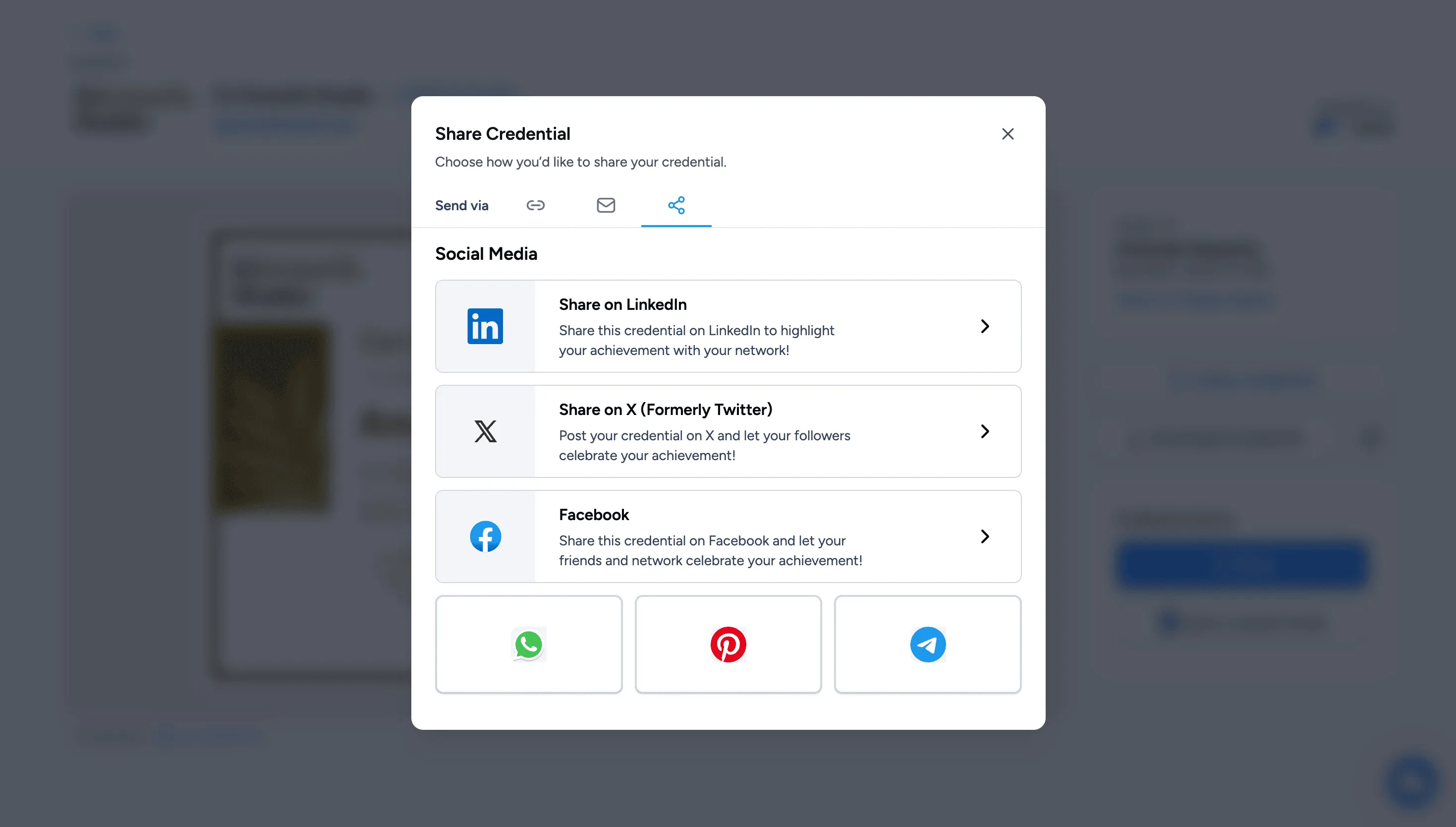
The reason this matters is not convenience. It is completion rate. Every manual step is a place where someone abandons the task, and the people most likely to abandon it are the ones who just finished a nine-week program and are tired. Removing the typing removes the drop-off.
It also removes the typos. When a learner hand-types your organization name, you get four spellings across four profiles. When the platform fills it, you get one, next to your logo, every time.
For Issuers: Make Your Certificates Easy to Add
If you run training, a course, or a membership program, your learners adding certificates to LinkedIn is the cheapest marketing you will ever get. Each entry carries your name into a network you do not have to buy access to.
To make that happen more often:
- Issue verifiable credentials, not PDFs
- Give every certificate a public verification page
- Claim your LinkedIn Page so your logo appears
- Include a ready-to-paste caption in the delivery email
- Send the certificate the day the program ends
- Tag skills on the credential itself
Wauld issues credentials that follow the Open Badges 3.0 standard, so each one carries its skills, issuer, and verification link as structured data rather than pixels. That is what makes the one-click add possible, and it is why the same credential stays checkable if the recipient moves it somewhere other than LinkedIn. Teams running training programs, coaching businesses, and higher education programs use the same underlying flow.
Issue certificates people can add to LinkedIn in one click
Verifiable, branded, and prefilled. Free for up to 300 credentials a year.
Common Mistakes When You Add a Certificate to LinkedIn
- Leaving the credential URL blank. No Show credential button, no proof, no reason for anyone to believe the entry.
- Linking to the certificate image instead of a verification page. An image of a certificate proves nothing. Anyone can make one in a design tool in ten minutes.
- Paraphrasing the certificate name. Recruiters search exact program names. Your paraphrase does not match.
- Guessing the issue date. LinkedIn shows it publicly next to the issuer name, and a date that contradicts the certificate is an unforced error.
- Ticking "does not expire" when it does. For regulated credentials this is not sloppiness, it is a misrepresentation.
- Adding the certificate but not the skills. You skip the mechanism that makes the entry findable.
- Never checking the link again. Issuers change platforms. A dead verification link is worse than none.
FAQs About Adding Certificates on LinkedIn
How do I add a certificate to my LinkedIn profile? Open your profile, click Add profile section, choose Recommended, then Add licenses & certifications. Enter the certificate name, issuing organization, issue date, credential ID, and credential URL, add the relevant skills, attach the certificate image under Media, and click Save.
Where is the Licenses and certifications section on LinkedIn? It is under Recommended in the Add profile section panel, not under Core. Once you have added one certificate, the section appears on your profile and you can add more using the + icon in its top-right corner.
What is a credential ID on LinkedIn? The credential ID is the unique reference number the issuing organization assigned to your certificate. It usually appears on the certificate itself or in the delivery email. It is optional in LinkedIn's form but it is what lets an employer match your entry to the issuer's records.
What should I put in the credential URL field on LinkedIn? A public link to a verification page hosted by the issuer that shows the recipient name, issue date, and current status. Do not link to an image of the certificate or to a file in your cloud drive. Both are trivially forgeable and neither proves anything.
Can I add a certificate to LinkedIn without a credential URL? Yes. Only the name and issuing organization are required. But the entry saves without a Show credential button, which means a reader has no way to check it and it carries roughly the weight of a self-reported claim.
How do I add a certificate on LinkedIn from my phone? Tap your profile photo, tap View profile, tap Add section, open Recommended, and choose Add licenses & certifications. The fields are identical to the desktop form. Pasting a long verification URL is easier on a laptop, so many people add the entry on desktop and let it sync.
Should I post my certificate on LinkedIn or just add it to my profile? Do both. The profile entry is permanent and is what recruiters see when they visit later. The post gives the achievement reach for a day or two. A post alone disappears; a profile entry alone is never announced.
How many certificates should I list on LinkedIn? There is no hard limit, but relevance beats volume. Keep the credentials that support the role you want, remove expired ones, and put your strongest credential in Featured as well so it sits above the fold.
Can I add a digital badge to LinkedIn the same way? Yes. A digital badge goes into the same Licenses and certifications section. Use the badge name, the issuer, the badge's verification URL, and attach the badge image as media. Badges built on the Open Badges standard already carry all of these details.
Why does my certificate show no logo on LinkedIn? The issuing organization either has no LinkedIn Page or you typed the name as free text instead of selecting it from the dropdown. Edit the entry, retype the name slowly, and pick the verified page if it appears. If it does not exist, ask the issuer to create one.
The Takeaway
Learning how to add a certificate on LinkedIn is easy. Making the entry count is a different task, and it comes down to one question: can a stranger confirm this in a single click?
If yes, you have added evidence. If no, you have added a sentence about yourself, sitting in a section full of other sentences people wrote about themselves. My colleague went back and filled in the two fields she had skipped. Same certificate, same nine weeks of work. The difference was that it could now be checked.
That is the whole game. Not more credentials. Checkable ones.
If you issue certificates and want your recipients to add them to LinkedIn without typing a thing, see how Wauld's digital certificates work or compare plans.
Give every recipient a credential worth adding
Issue branded, verifiable certificates that carry their own credential ID, verification link, and one-click LinkedIn share. Free for up to 300 credentials a year.