Creating Certificates in Canva: A Step-by-Step Guide

Certificates in Canva, From Blank Page to Download
Creating a certificate has become easier than ever thanks to design tools like Canva. Whether you're an educator, event organizer, trainer, HR professional, or business owner, digital certificates are now a standard way to recognize achievements, skills, and participation.
This guide walks you through how to create certificates in Canva step-by-step, highlights the platform's advantages, and introduces a more efficient alternative for teams that need to create and send certificates in bulk: Wauld.
Advantages of Canva for Certificate Design
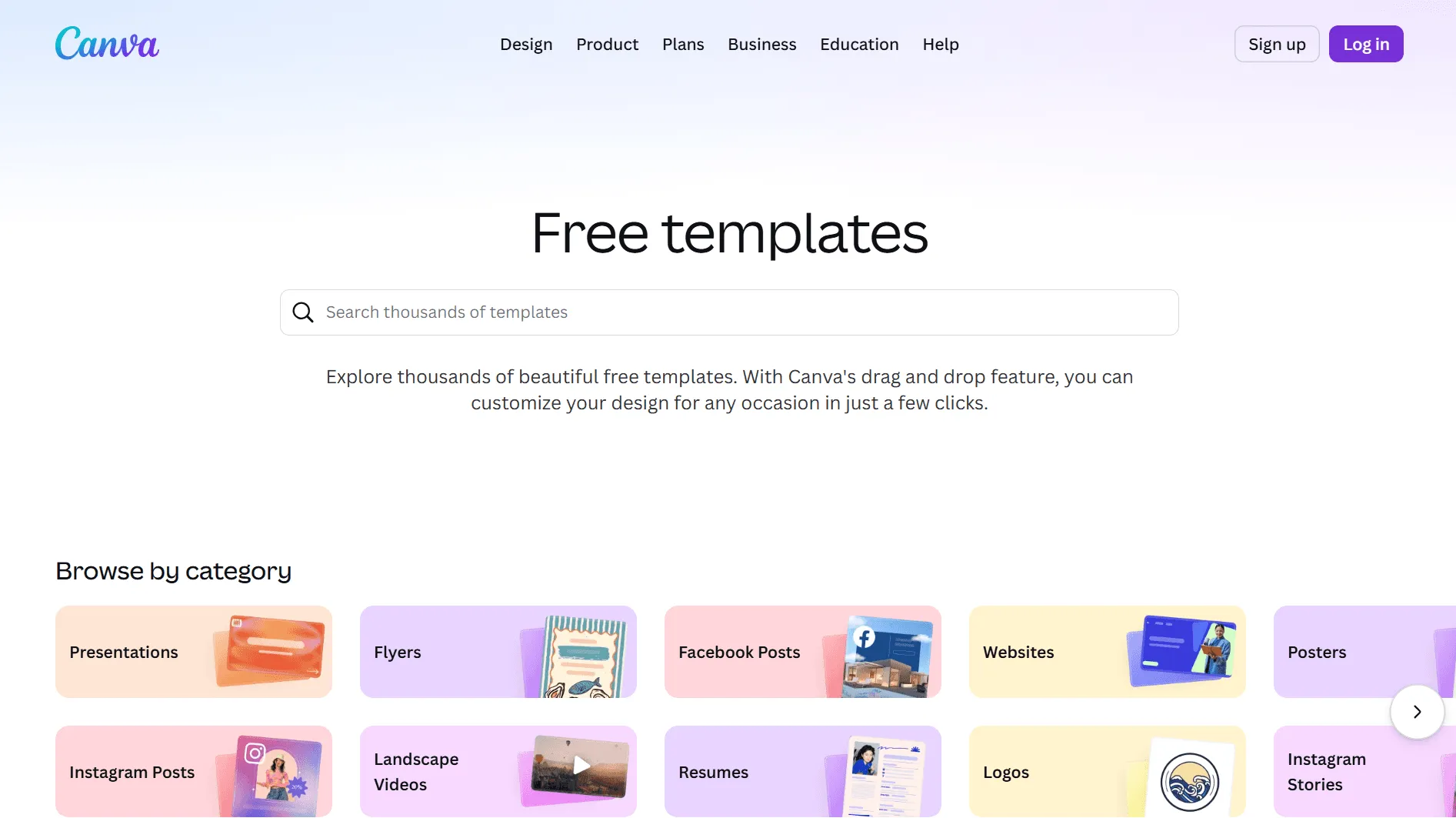
Canva is one of the most popular design tools, and for good reason. Here's why so many people choose it when they want to make a certificate:
- Beginner-friendly design tools. Canva's simple drag and drop editor doesn't require any prior design experience, so anyone can put together a professional-looking certificate design in minutes.
- A wide selection of templates. Canva offers thousands of pre-designed certificate templates for different purposes - academic, professional, volunteer, workshop, and more. Canva Pro unlocks additional design elements and premium certificate templates for more advanced customization.
- Deep customization options. You can change colors, fonts, layouts, logos, and backgrounds to match your brand identity, adjust placeholder text, and rearrange design elements freely.
- Free and paid plans. Canva has a free plan with plenty of useful features, making certificate creation accessible to individuals and small organizations, alongside Canva Pro for teams that want more.
- Flexible file type options. Once your design is ready, you can export as a PDF, PNG, or JPG file and save your design for later editing, printing, or digital sharing.
While Canva is excellent for design, it's primarily a design tool - not a certificate management or automation platform. That distinction matters once you're issuing certificates to multiple recipients rather than designing a single one-off certificate.
How to Create Certificates in Canva: Step-by-Step Guide
If you're designing certificates for a small group, here's a simple step-by-step guide to creating a certificate in Canva.
Step 1: Sign In to Canva
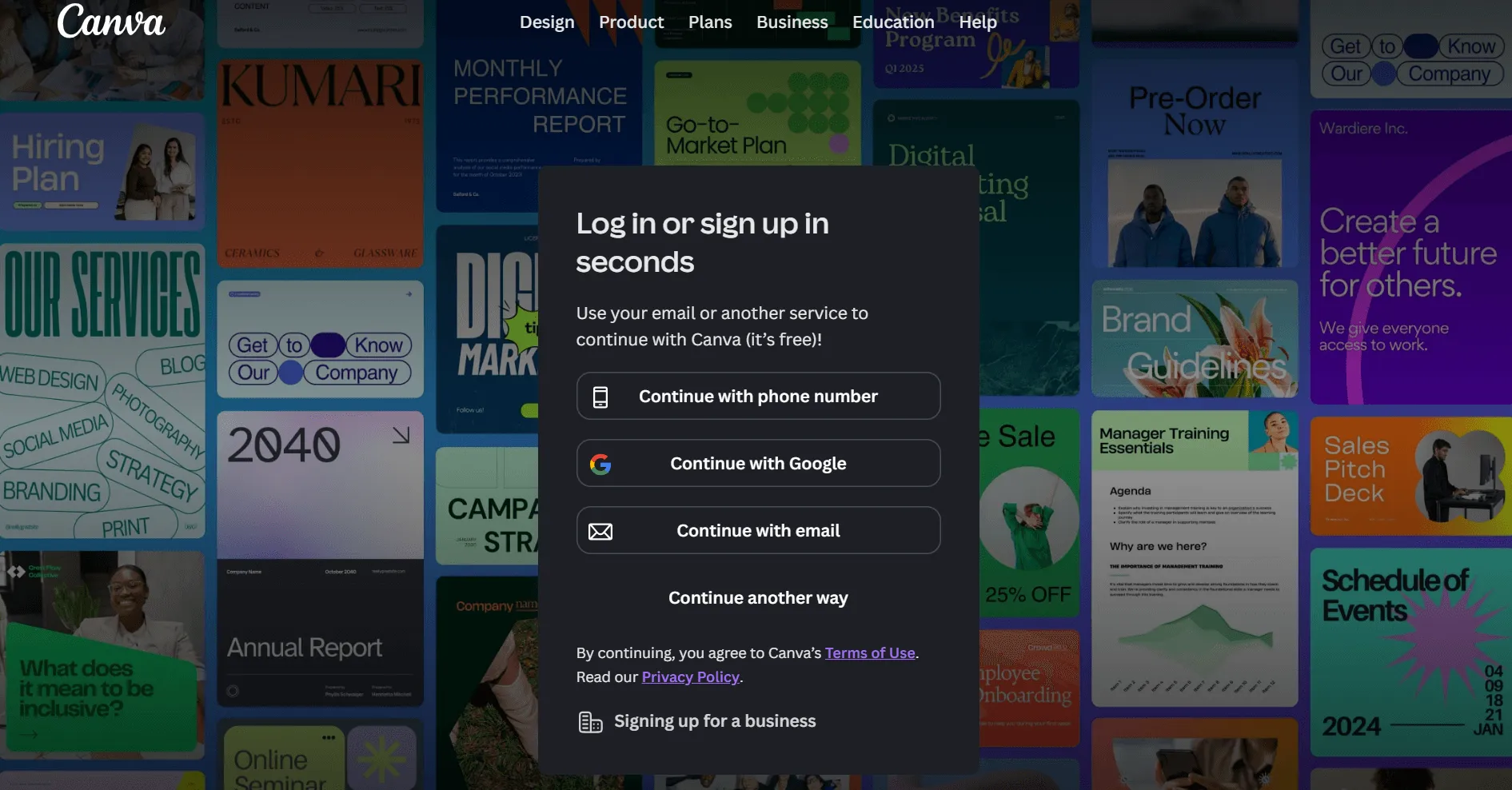
Go to canva.com and sign in using your Google account, email, or existing Canva login. If you don't have an account yet, creating one only takes a minute.
Step 2: Select a Certificate Template
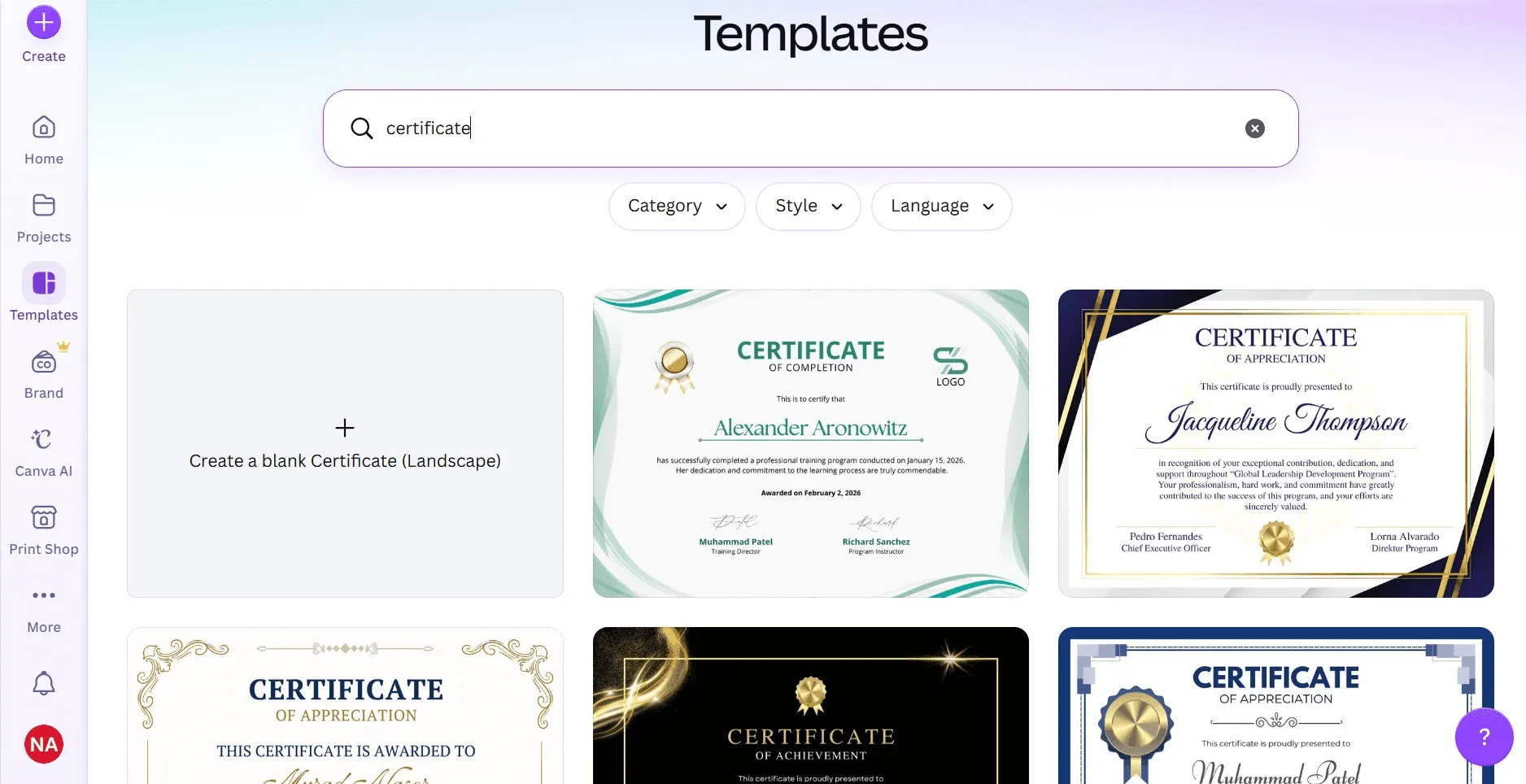
Type "certificate" into the search bar and browse Canva's certificate templates until you find one that fits - course completion, participation, achievement, and more. Click on a template to open it in the editor and start designing.
Step 3: Personalize Your Certificate Design
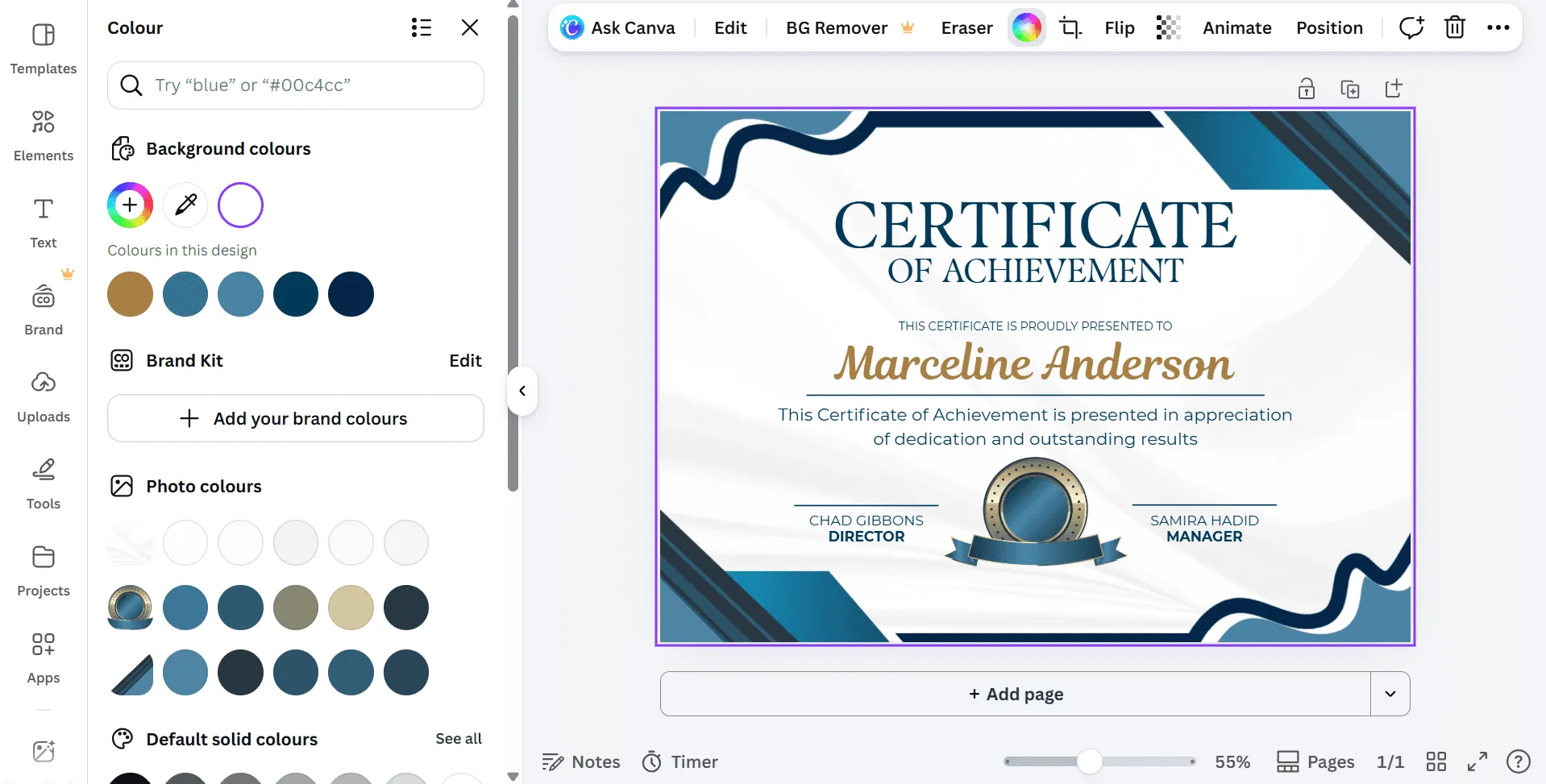
Now it's time to customize:
- Change the certificate title (e.g., "Certificate of Completion")
- Update colors and fonts to match your brand
- Upload your logo for a professional touch
- Add the course title, completion date, and any other relevant details
- Insert signatures or stamps if needed
This step is where your certificate design becomes genuinely unique rather than a generic, canva-designed template.
Step 4: Add Recipient Names
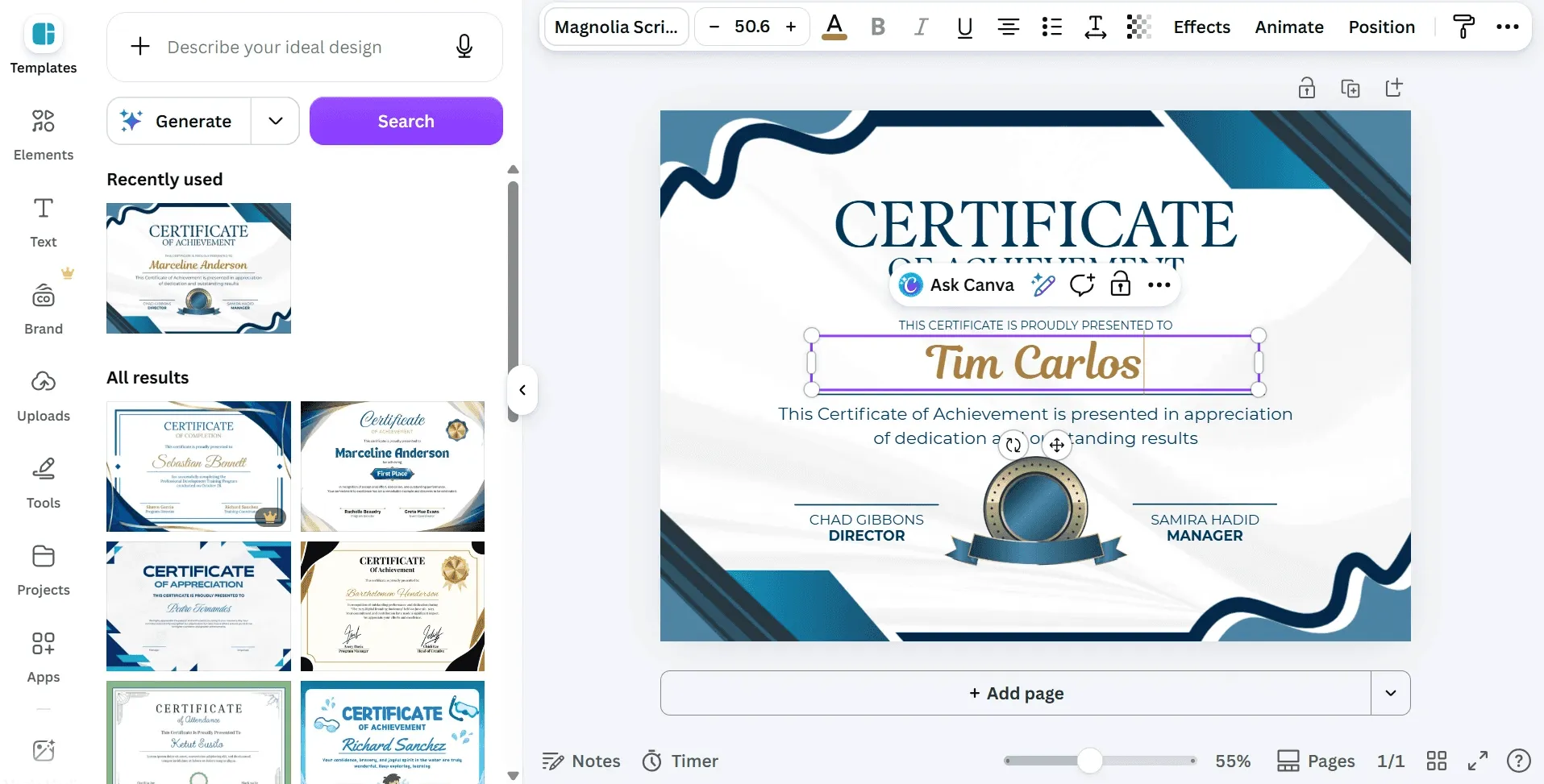
Manually type the recipient's name into the designated text field. This works fine if you're making one certificate or a handful, but typing in student names or participant names one at a time becomes very time-consuming once you're dealing with dozens or hundreds of people - which is exactly where a bulk create feature like Wauld's becomes useful.
Step 5: Save, Customize, and Print or Download
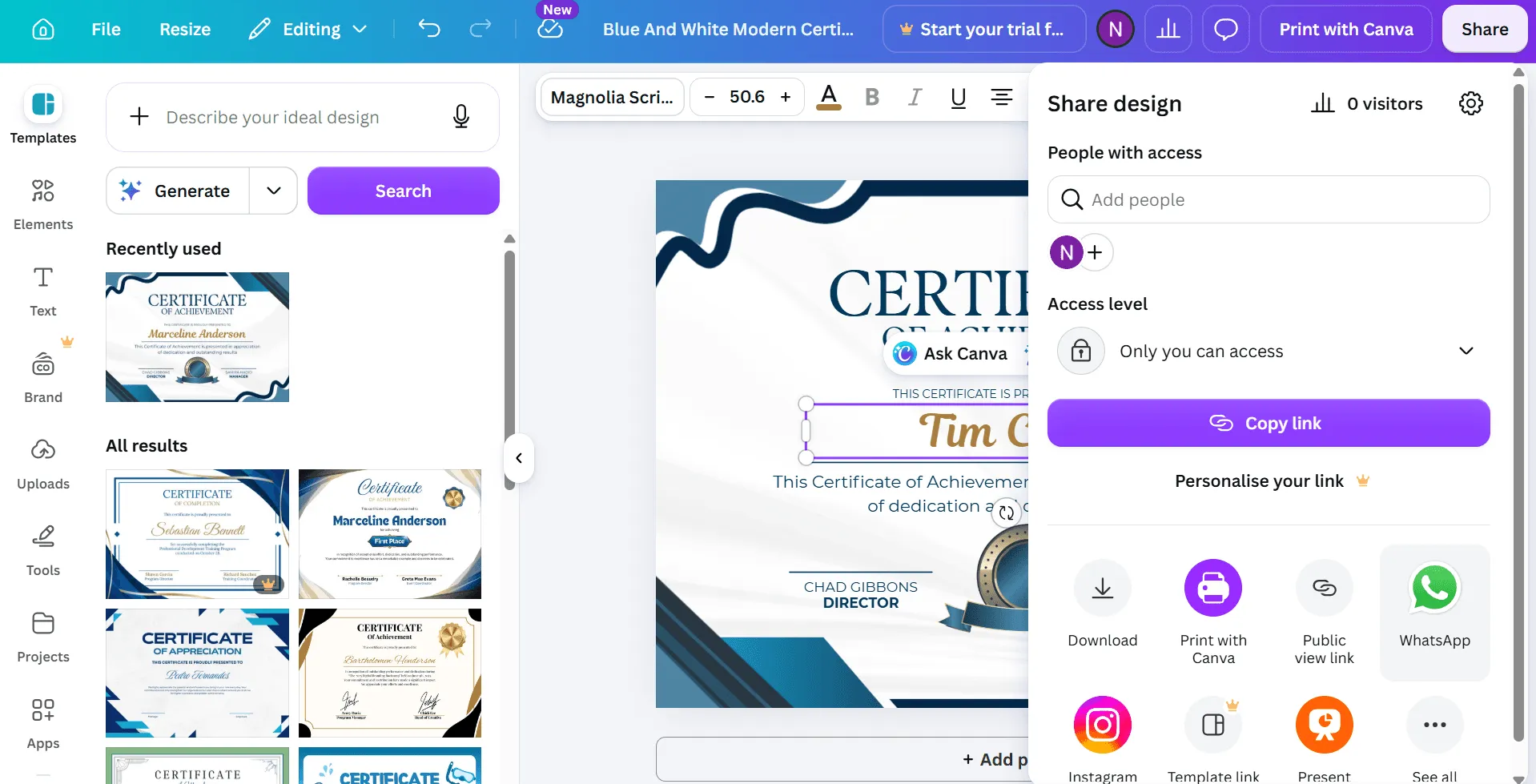
Once your certificate is ready, click Download and choose your preferred file type - PDF is recommended for high-resolution printing, though PNG and JPG both work well for digital sharing. You can customize and print physical copies through Canva Print, or simply email the digital file to your recipient.
Where Canva Certificates Hit a Wall
Canva is genuinely great for one-off certificate creation. But it wasn't built as certificate software, and a few gaps show up quickly once your needs grow:
- No bulk certificate generation. Certificates by Canva still need to be edited and exported one at a time - there's no way to upload a CSV file and generate certificates for multiple recipients automatically.
- No built-in delivery. Canva has no way to send certificates directly to recipients; every certificate has to be downloaded and emailed manually.
- No verification. There's no QR code or credential ID to confirm a certificate is authentic, which matters if you want recipients to be able to share their certificate with confidence.
- No record-keeping. Canva doesn't track who has received a certificate, so there's no built-in log of your certificate creation history.
A Smart Alternative to Canva: Meet Wauld
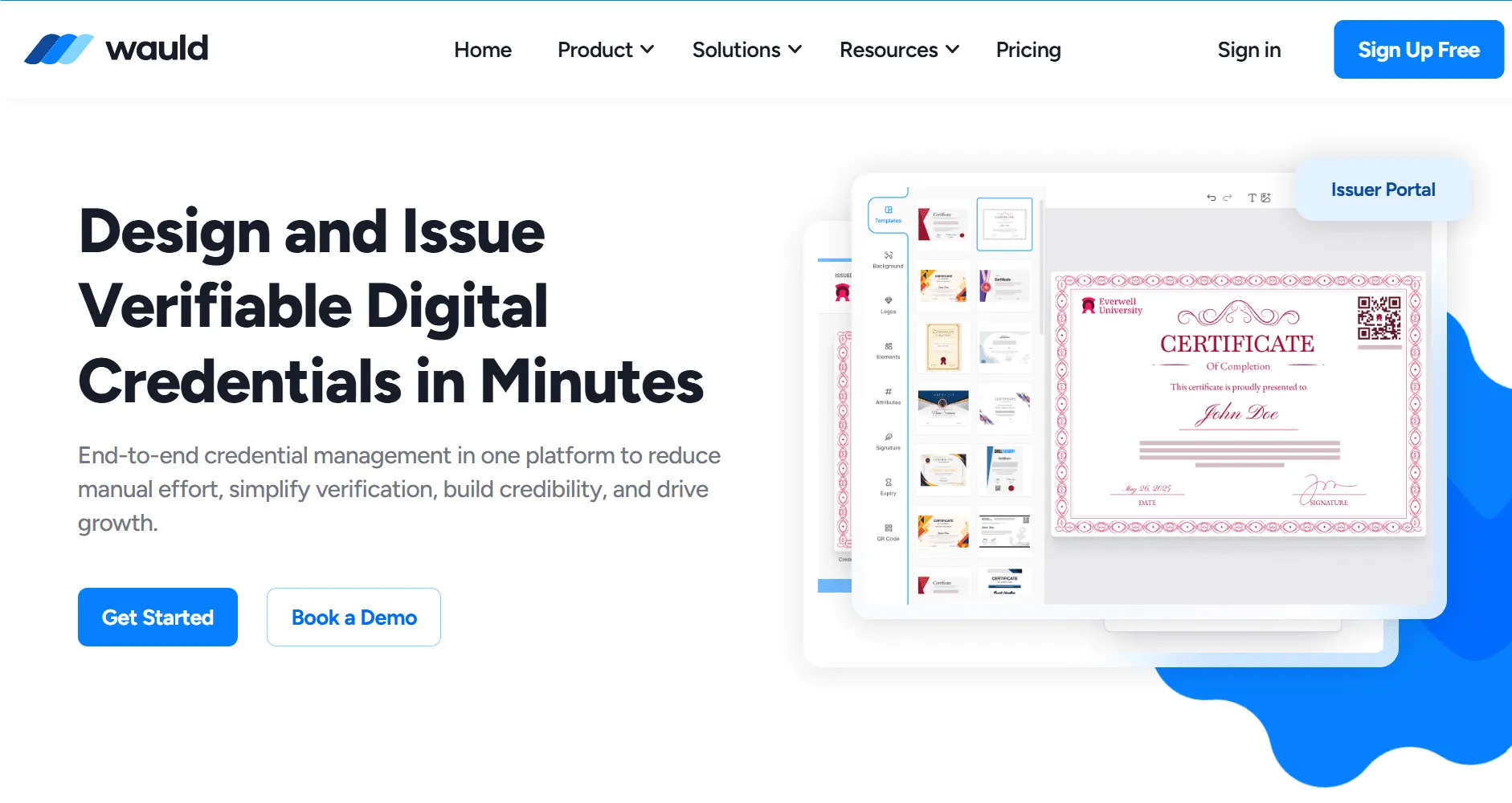
If you're issuing certificates regularly rather than designing a single certificate, Wauld is built specifically for certificate management and automation - not just design.
Here's how Wauld helps:
- Bulk certificate generation. Instead of editing names one by one, upload a CSV file with recipient names, emails, and course titles, and Wauld's bulk create feature generates certificates for all of them at once.
- Professional, ready-made templates. Wauld provides a wide selection of templates that look official and polished, alongside full customization options for your own branding.
- Easy digital delivery. Certificates can be sent directly by email or shared digitally with recipients right after generation.
- Verification and tracking. A QR code on every credential lets anyone confirm a certificate is genuine, reducing fraud and giving recipients a way to share their certificate with employers or on social media.
- Time-saving and error-free. Automation removes the manual, repetitive work of typing personalized information into each certificate by hand.
Canva vs. Wauld: Which Should You Use?
| Canva | Wauld | |
|---|---|---|
| Best for | A single certificate or a small batch | Certificates to multiple recipients |
| Bulk generation | Not available | Upload a CSV and generate hundreds at once |
| Delivery | Manual download and email | Automated email delivery |
| Verification | None | QR code on every credential |
| Templates | Thousands of general-purpose templates | Templates built specifically for certificates |
| Record-keeping | None | Full issuance history |
Final Takeaway
Canva is still a great choice if you're designing a handful of certificates and want full creative control over every element - and it's free-friendly, which matters for smaller projects. Dragging elements around, tweaking fonts, getting one design exactly right - that hands-on process is part of the appeal, especially for a one-off event or a single course cohort.
But once certificates need to go out in bulk, with verification and delivery handled without you touching each one, that's a different job entirely. Manually resizing text boxes for the fiftieth name starts to feel less like design and more like data entry. That's where Wauld takes over - built specifically for issuing certificates at scale, with QR verification and unique IDs baked into every document, not bolted on after.